
Jira Server Plugin Documentation (depr)
1. Getting Started: Using the Adapter
1.1 Operations Overview
This section is intended to guide end users on how to operate the Jira Server Digital Thread Plugin once it has been properly installed and configured. If you haven’t completed these steps yet, please refer to those sections before proceeding.
The Jira Server DT Plugin is used to:
Create links between Jira issues and items/objects present in external systems, which may include systems other than Jira.
These links are then published to the SBE platform using the Jira Adapter, enabling centralized traceability and visibility across tools.
1.2 Accessing the Adapter
The primary function of the plugin is to add a panel to Jira Issues that displays related models from the SBE instance and enables linking to these models.
It also enables linking to the Models in SBE.
After the installation, the plugin can be accessed from the Issue view page.
1.3 Attaching & Connecting
Adding the Digital Thread panel on an Issue to show related Models on the Digital Thread.
Enabling Linking to the Models in SBE.
Channel properties
Property | Mandatory | Description |
|---|---|---|
| Yes | The key of the project (e.g., for project name |
| No | Only issues associated with the given release will be published. |
| No | Only issues associated with the given component will be published. (Value is case-sensitive) |
The following valid combinations can be used:
|
|
|
|---|---|---|
✅ | ❌ | ❌ |
✅ | ✅ | ❌ |
✅ | ❌ | ✅ |
✅ | ✅ | ✅ |
Note: projectArea must always be provided. release and component can be optionally included in any combination.
1.4 Publishing Items
All items within the Channel scope, including their plugin links, are published.
Links to items outside the Channel scope are not published.
1.5 Refreshing Items (Including Subscribed Items)
Refreshing the channel with links: Digital Thread links, other relations and properties remain intact and unchanged.
1.6 Verify
NA
1.7 Advanced Operations
Add
Create new links from the SBE interface.
In order to create links, after setting up the plugin, you can create a channel and create links directly from the Digital Thread Panel present on the issue.
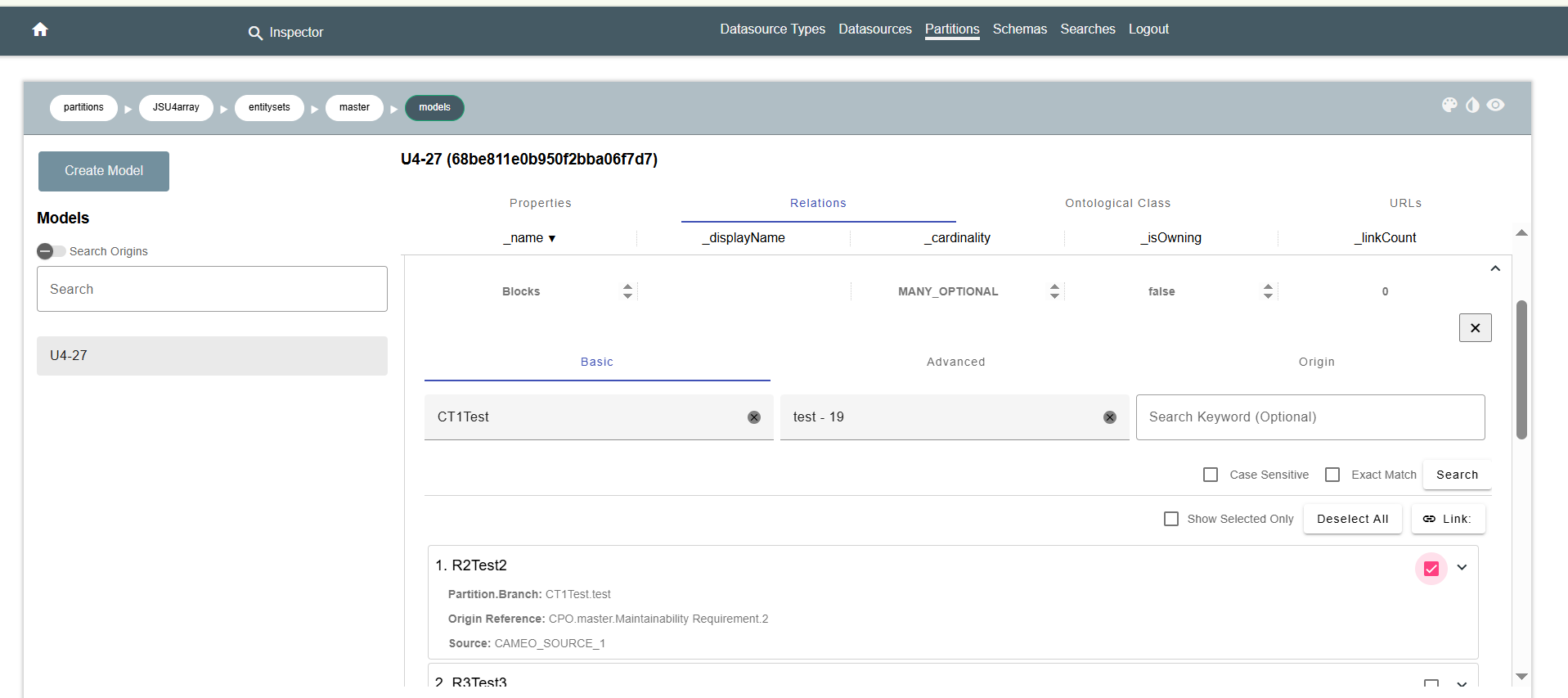
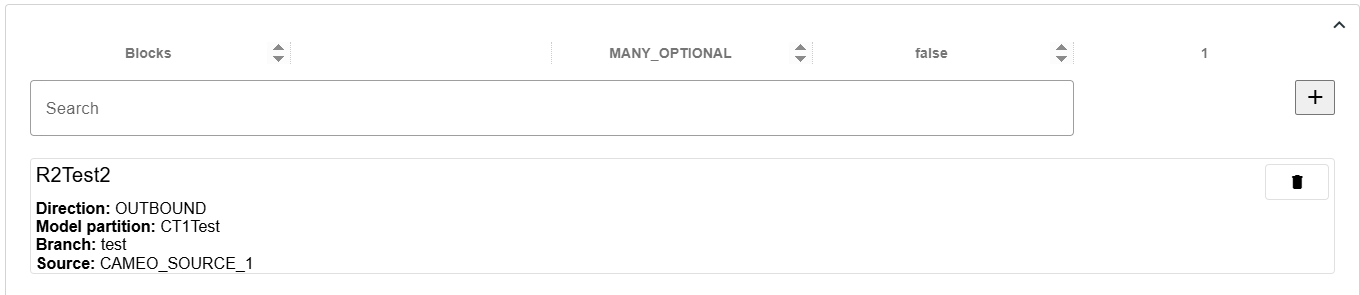
b.The links will appear in the Digital Thread table as shown below
Refresh: Update the link view by refreshing the panel in the web interface.
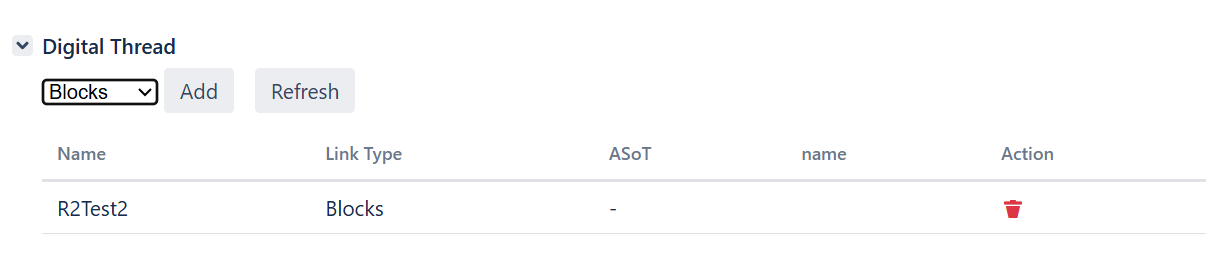
Delete: Remove links that were previously saved in the Jira Server.
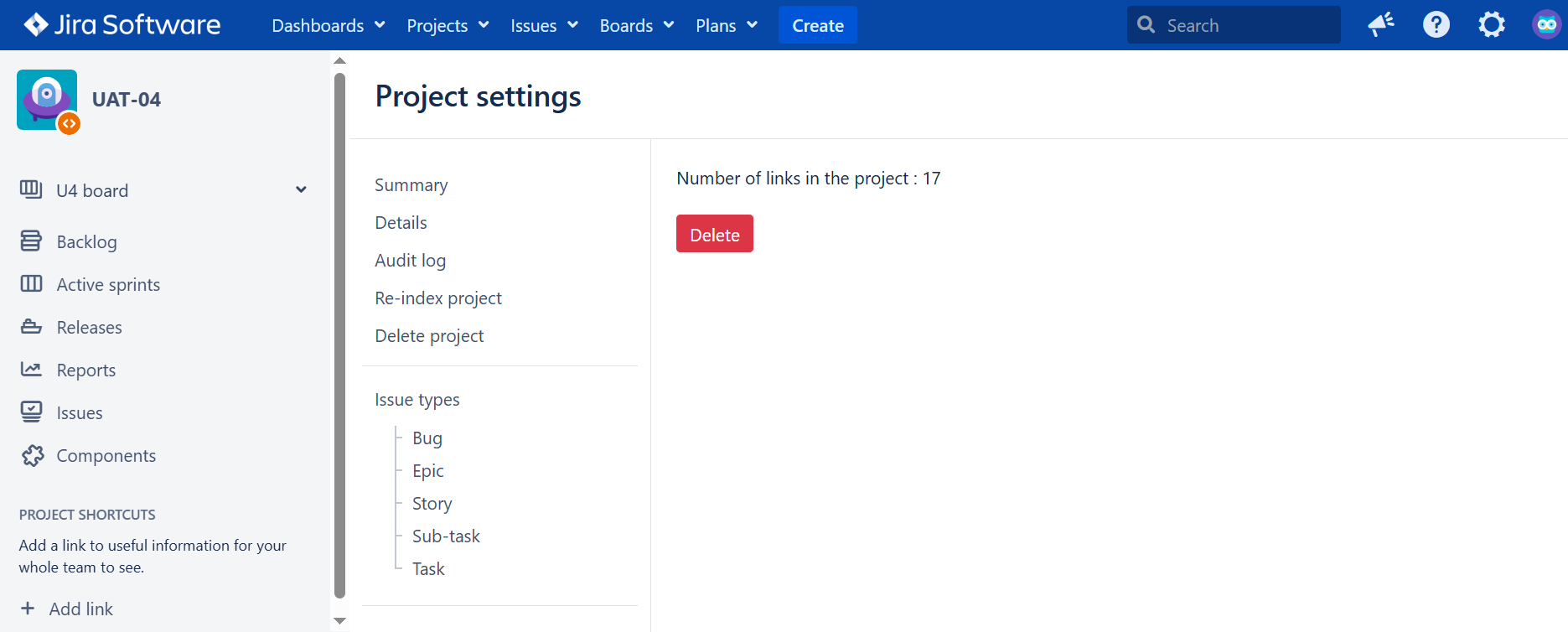
To Clear links, Go to Project Settings → Digital Thread → Administration
1.8 ASOT Link Creation
ASOT links are created when a relation points to an item that resides outside the current Jira channel or originates from a non-Jira authoritative system. Instead of generating a native Jira issue link, the adapter classifies such relations using the target item’s ownership metadata and records them as ASOT links to accurately represent cross-system dependencies. During processing, the adapter prevents duplicate ASOT links by validating against existing stored entries, which is essential because external systems often do not provide consistent correlation identifiers. Newly detected ASOT links are collected throughout the refresh cycle and persisted in a single batch to ensure consistency, reliability, and proper synchronization of external references across integrated systems.
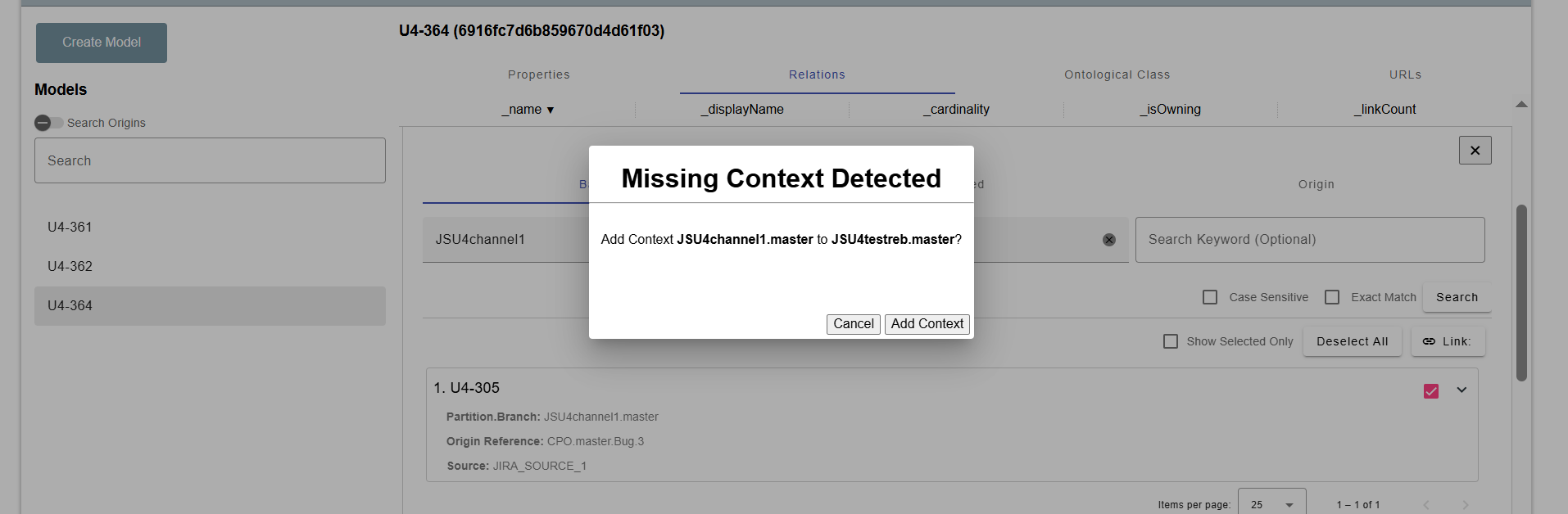
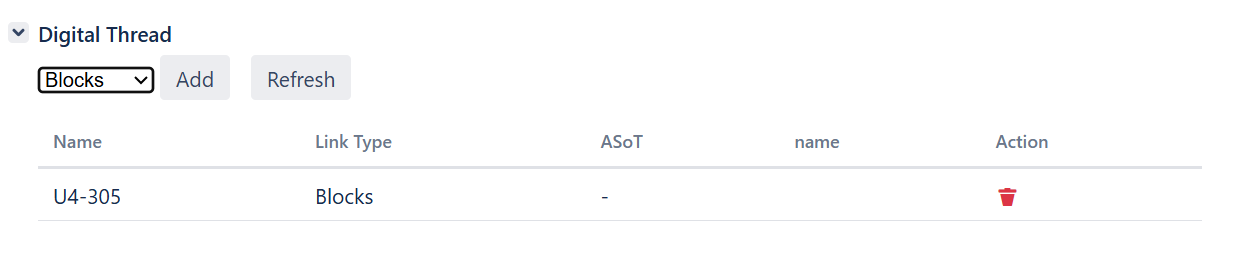
Jira to Jira ASOT Link creation
This plugin supports Jira to Jira ASOT linking .ASOT Link created through one channel of Jira to another channel .
ASOT link created through one channel of Jira to another channel.
For creating ASOT link make sure the contex is available for the target item.
Jira to non-jira(cameo,creo,windchill etc) ASOT Link creation
Our plugin supports Jira to non Jira(cameo,creo,windchill,aras,etc) ASOT linking .ASOT Link created through one channel of Jira(source channel) to another non Jira channel(cameo,creo,windchill,aras,etc) which is target channel .
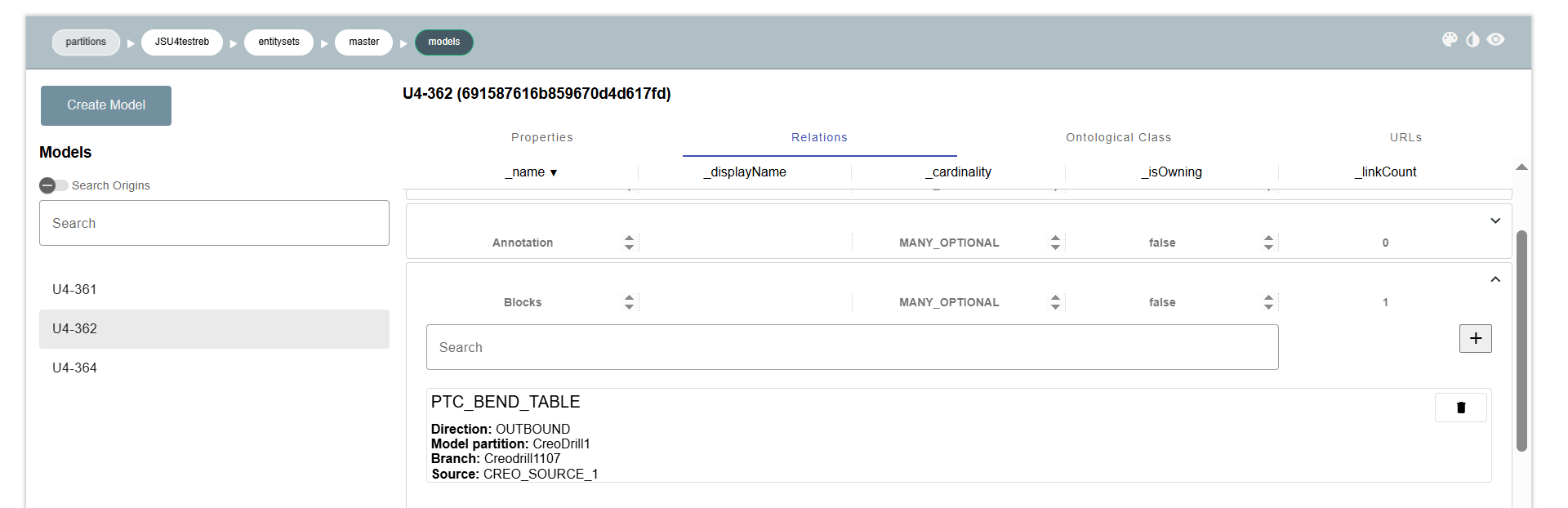
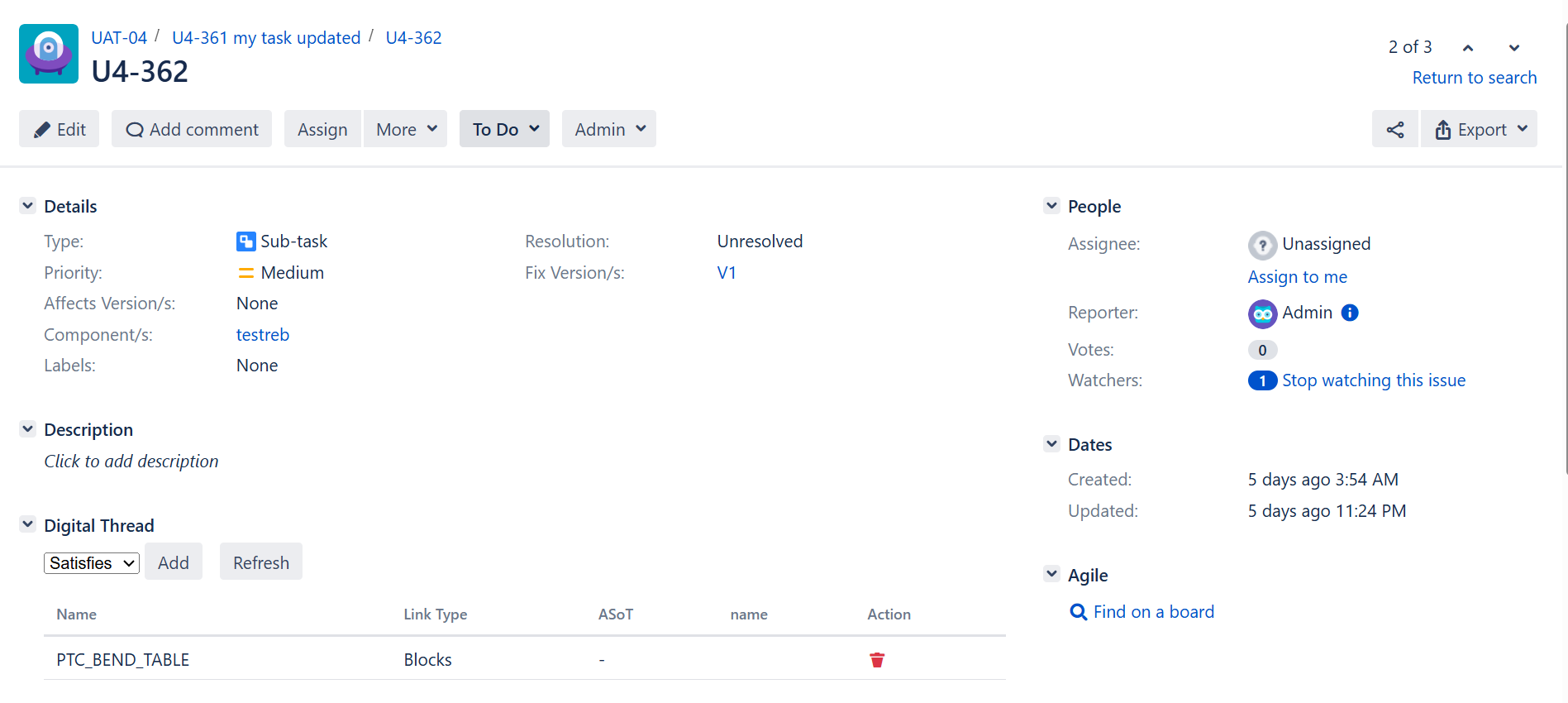
ASOT link created through one channel of Jira to another channel.
For creating the ASOT link make sure the context is available for the target item.If context is missing, then you are not able to see the link in the plugin if link is created through SBE, vice versa for the server.
This feature is available starting from version 8.x.
1.9 Troubleshooting for End Users
Links Not Visible in Kibana (on the Issue)
This may occur if the
apiUrlandapiTokenare not configured properly.Please ensure both are set as per the [Jira integration documentation].
Links Visible in Kibana, But Not in Authoring (Post-Process)
In such cases, the reflected links may not have been transformed correctly.
This typically indicates an issue during the link transformation phase.
Tracking Pipeline Does Not Finish
One common reason is the presence of stale links.
These stale links cause the platform to throw "subscription not found" exceptions.
What are stale links?
Stale links are those created on a different SBE instance or stack.
If the stack is reset or re-deployed, such links become invalid.
It's important to clear old links from the plugin when resetting stacks.
Solution:
You can remove stale links from the Project Settings page as shown in the instructions above.
2. Document Overview
2.1 Document Overview
This states that the documentation provided is for the Jira plugin only. For general operation and configuration of the adapter, you should refer to the Jira Adapter documentation
2.2 Document Orientation
This document is designed to inform users with various roles:
End Users should begin with Section 1 to understand how to access and operate the adapter, and Section 5 for issues pertaining to the setup, configuration, and use of the digital tool itself.
Digital Thread Specialists should focus on Section 1, and also consult Sections 3, 4, and 5 for deployment and semantic mapping. Section 11 contains details related to mapping items from this tool into a semantic ontology.
Administrators should refer to Section 6 and beyond for setup, security, support, and version management.
3. Adapter Use Cases
3.1 Adapter Overview
The purpose of this adapter is to allow the data contained within instances of Jira to connect with the SBE Digital Thread platform. The provided sources include an overview of the Jira plugin. It adds a Digital Thread panel on a Jira Issue and enables linking to SBE Models. This adapter was built using the SBE Java Pro-SDK product.
3.2 Typical Use Cases
Why this adapter exists
What problem does it solve in the system development lifecycle
reqs ↔ architecture with diff/merge in between
Example: “Sync requirements from Tool A to Tool B”
Step-by-step walkthroughs or diagrams
4. Supported Versions
4.1 Supported Adapter Products
This document covers all the versions of the adapter that support SBE 7.x (Woburn)
4.2 External Tool Versions Supported
Jira Server 9.x
4.3 Differences Across Tool Versions
NA
4.4 Supported Plug-Ins and Add-Ons
NA
5. Digital Tool Best Practices
Source: Existing Info & Knowledge
5.1 Tool Configuration Considerations
Installation and Configuration (Refer to Section 11.3 for detailed instructions)
Login as Admin to the Jira Server and navigate to the System -> Manage apps page.
Using the Upload app button, upload the jar file to install the SBE Digital Thread plugin.
To use the Jira Server Digital Thread plugin, we need to first configure it.
This can be done from the admin page.
Go to page System -> Apps
We should see Digital Thread option on the navigation section (left hand side).
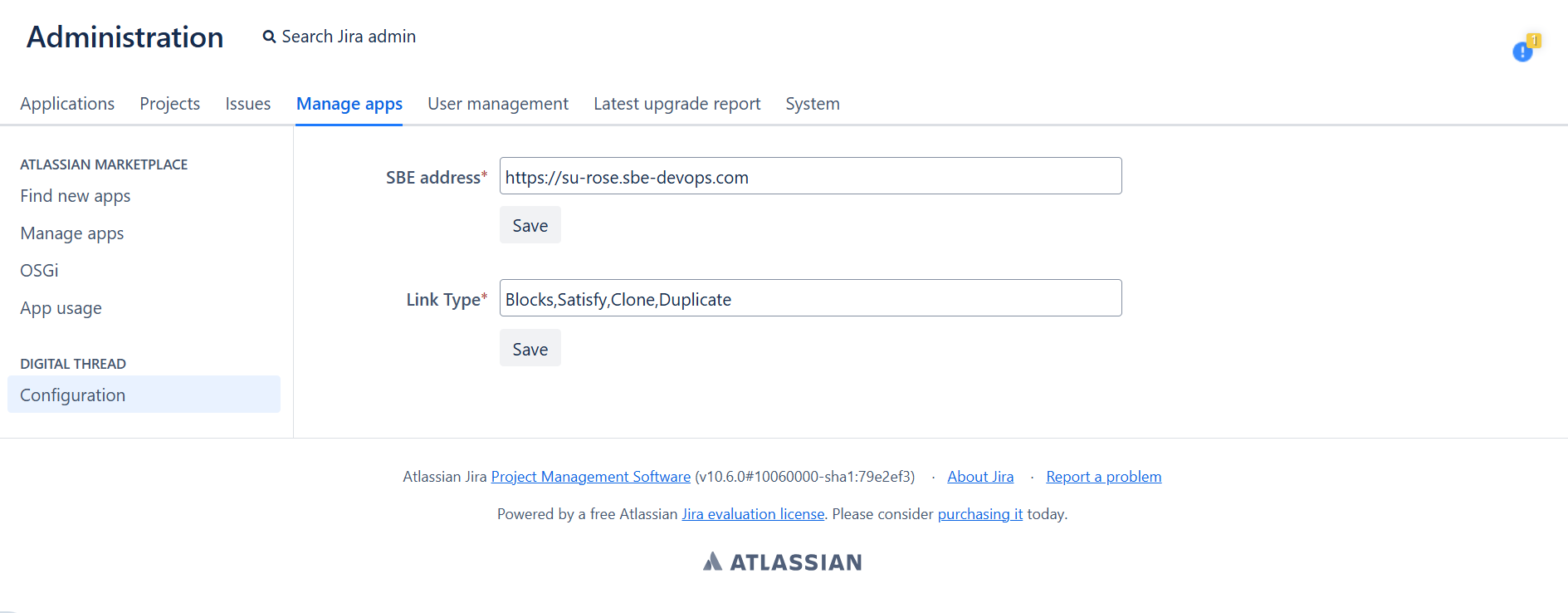
Enter the hostname for the SBE instance, e.g.: https://sbe.acme.com
The Link types can be configured here, the field takes a Comma separated values, the types configured will show up on issue as a dropdown.
5.2 Usage Tips & Gotchas
Configuring Link Types
Link types can be configured using a comma-separated list in the appropriate configuration field.
The configured types will appear as a dropdown menu on the Jira issue UI for selection.
How Links Are Created and Stored
User Action
The user creates a link using the SBE UI.
Automatic Subscription
SBE automatically creates a subscription for the selected channel.
Payload Transmission
The payload for the selected models is sent back to the Jira plugin.
Link Storage
The Jira plugin stores:
The issue key
The selected relation type
The model metadata
And any additional data returned from the SBE backend.
Publishing
When the user triggers Publish, the stored links are published as Reflected Links.
5.3 Tool Limitations and Workarounds
Known tool-side issues
SBE-recommended solutions
6. Installation
6.1 Installation Instructions
Installation and Configuration
Login as Admin to the Jira Server and navigate to the System -> Manage apps page.
Using the Upload app button, upload the jar file to install the SBE Digital Thread plugin.
To use the Jira Server Digital Thread plugin, we need to first configure it.
This can be done from the admin page.
Go to page System -> Apps
We should see the Digital Thread option on the navigation section (left hand side).
Enter the hostname for the SBE instance, e.g.: https://sbe.acme.com
The Link types can be configured here, the field takes a Comma separated values, the types configured will show up on the issue as a dropdown.
Similarly, the field in the DT table fields can be configured using Comma separated values. These fields will be visible on the DT plugin panel.
6.2 Configuration
Configuration for the Jira Server Digital Thread plugin is done from the admin page.
(System -> Apps -> Digital Thread option)
You need to enter the SBE instance hostname (e.g.,
https://sbe.acme.com)Link types can also be configured using comma separated values (e.g.: Attached to, Blocks)
6.3 Data Source Type Definition
Data source definition contains the following properties
Property | Description |
|---|---|
| Hostname of the Jira instance. |
| Port at which the Jira instance runs (e.g., |
| Protocol used – either |
| Authentication type. Valid values are |
| Hostname of the proxy server (if applicable). |
| Port number of the proxy server. |
| Plugin API token (required for Jira Cloud authentication). |
| Plugin API URL (applicable to Jira Cloud). |
| Used to customize the display name. Valid values: |
7. Channels and Mappings
7.1 Channel Definition
Property | Required | Description |
|---|
| Yes | The key of the project. Example: Project Name –
|
| No | Only issues linked to the specified release will be published. |
| No | Only issues linked to the specified component will be published. This value is case-sensitive. |
7.2 Approaches to Mapping
All shapes published from Jira are considered issues. The METACLASS used for these is always
Issue.The exact Jira issue type (like Story, Epic, Task, Bug) is captured using a
STEREOTYPEshape on top of the MetaClass.For example, to map an Epic:
Use
Issueas the METACLASS .Use
Epicas the STEREOTYPE in the inherited ontology class.
Map custom links to respective relations on the METACLASS.
The issue type is determined by this combination:
shapeId = Issue,type = METACLASSshapeId = Story/Epic/etc.,type = STEREOTYPE
Mapper Considerations
Mappers must ensure that the required properties (
summary,issueType,key, etc.) are correctly mapped for data to flow between systems.When customizing the mapping or modifying ontology classes, maintain the integrity of
MetaClassandStereotypestructures to avoid type mismatches.Incorrect or missing stereotype mappings can cause subscription and sync failures.
8. Security and Access
8.1 Authentication Methods
Jira Server Authentication
In Jira Server environments, authentication is straightforward and uses Basic Authentication.
Users authenticate using their username and password.
This method is suitable for on-premise or self-hosted Jira instances.
8.2 Authorization and Roles
REST API access is enabled by default for all users on Jira.
This means any authenticated user can perform standard API operations like GET and POST based on their Jira permissions.DELETE API calls are permission-restricted and depend on the user's role and project-level permissions.
For example, an admin user typically has the required permissions to perform delete operations, while regular users may not.
Always ensure the user has appropriate Jira permissions before invoking operations that modify or delete data.
8.3 Secure Communication
TLS configuration
Firewall or VPN guidelines
8.4 Identity Integration
LDAP, SSO, or identity federation
9. Troubleshooting
9.1 Known Issues
Compatibility limitations
Common operational issues
Maximum item-size limitations
Performance Issues
9.2 Logs and Diagnostics
Where logs are located
Enabling debug output
9.3 Common Misconfigurations
Setup pitfalls
Misuse scenarios
9.4 Escalation and Support
How and when to contact SBE support
Required logs or artifacts
10. Release Notes
10.1 Version History
7.1
Fix DB issues with Postgres
7.0
Ability to add more properties to
Digital ThreadPanel
1.1.3
Fix Link Query issue
1.1.1
Fix issue API permission
1.1.0
Support Jira 9.x
Use Auto ASOT linking
1.0.1
End of support for Jira 8
1.0.0
First version, Support linking from Jira
11. Technical Reference
11.1 Adapter API Endpoints
Internal APIs

Important:
All APIs listed below are internal and designed to be used only by the Jira Digital Thread Plugin.
They are not public APIs and must not be invoked directly. Doing so may result in unexpected behavior or data corruption.
Base Path: {jira-server-url}/rest/dt/1.0
All URIs listed below should be prefixed with the base path.
1. POST /links/save
Purpose:
Create one or more Digital Thread links from Jira issues to external systems (e.g., SBE).
Used In:
Issue View plugin – on "Add Link" action.
Payload Example:
[
  {
    "targetFqn": "string",
    "targetName": "string",
    "dtUri": "string",
    "asotUri": "string",
    "issueId": "number",
    "linkType": "string",
    "projectKey": "string",
    "issueKey": "string",
    "channel": "string",
    "dataSourceType": "string",
    "dataSource": "string",
    "externalLocator": "string",
    "properties": {}
  }
]
Returns:
200 OKon success500 Internal Server Errorwith an error message on failure
2. DELETE /links/delete?linkId={linkId}
Purpose:
Delete a specific Digital Thread link by its linkId.
Used In:
Issue View plugin – on "Delete" link button click.
Response:
200 OKon success500 Internal Server Erroron failure
3. GET /config/url
Purpose:
Fetch the base SBE URL used in the embedded iframe.
Used In:
Issue View plugin – to construct iframe URL.
4. GET /config/props
Purpose:
Retrieve metadata property names required for link creation.
Used In:
Issue View plugin – for metadata form generation before iframe display.
5. GET /links?projectKey={projectKey}
Purpose:
Fetch all links for a given Jira project.
Validate newly added issue links via DT Internal API.
Use this API to validate the addition of new links within the Digital Thread (DT) system.
Used In:
Project Admin plugin – to display the total number of existing links.
Required Header
dt-api-key: Authentication token.
→ This can be retrieved from the App Admin page.
Required Body
{ "projectId": "<project-key>" } Response:
An array of link objects:
[
   {
        "id": "494",
        "targetFqn": "6895ab8dc0f3f518ee104f88.6895aba4c0f3f518ee104f8a.6895ac2e4aa46e2582549850",
        "targetName": "U4-332",
        "linkType": "Satisfies",
        "issueId": "35959",
        "issueKey": "U4-352",
        "projectKey": "U4",
        "channel": "155",
        "externalLocator": "{\"__sbe_type\":\"item\",\"id\":\"30624\",\"__sbe_item_type\":\"Issue\"}",
        "properties": {},
        "dataSourceType": "JIRA",
        "dataSource": "JIRA_SOURCE_1"
    },
    {
        "id": "516",
        "targetFqn": "689dace9d5c1d22d4e8e59e0.689dacf3d5c1d22d4e8e59e2.689dad2488c040088cf8b5ac",
        "targetName": "U4-337",
        "linkType": "Blocks",
        "issueId": "31575",
        "issueKey": "U4-344",
        "projectKey": "U4",
        "channel": "183",
        "externalLocator": "{\"__sbe_type\":\"item\",\"id\":\"31171\",\"__sbe_item_type\":\"Issue\"}",
        "properties": {},
        "dataSourceType": "JIRA",
        "dataSource": "JIRA_SOURCE_1"
    }
]
6. DELETE /links/delete/project?projectKey={projectKey}
Purpose:
Delete all links associated with a specific project key.
Used In:
Project Admin plugin – triggered after the user confirms deletion via dialog.
Response:
200 OKon success500 Internal Server Erroron failure
Reminder
These APIs are invoked by the plugin's UI components via JavaScript and should never be called manually via external tools like Postman, CURL, or custom scripts.
Any manual interaction:
Can lead to incorrect or stale link creation.
Might break synchronization with the SBE platform.
11.2 Identity
Description of external locator or mechanism of identity
11.3 Configuration File Format Reference
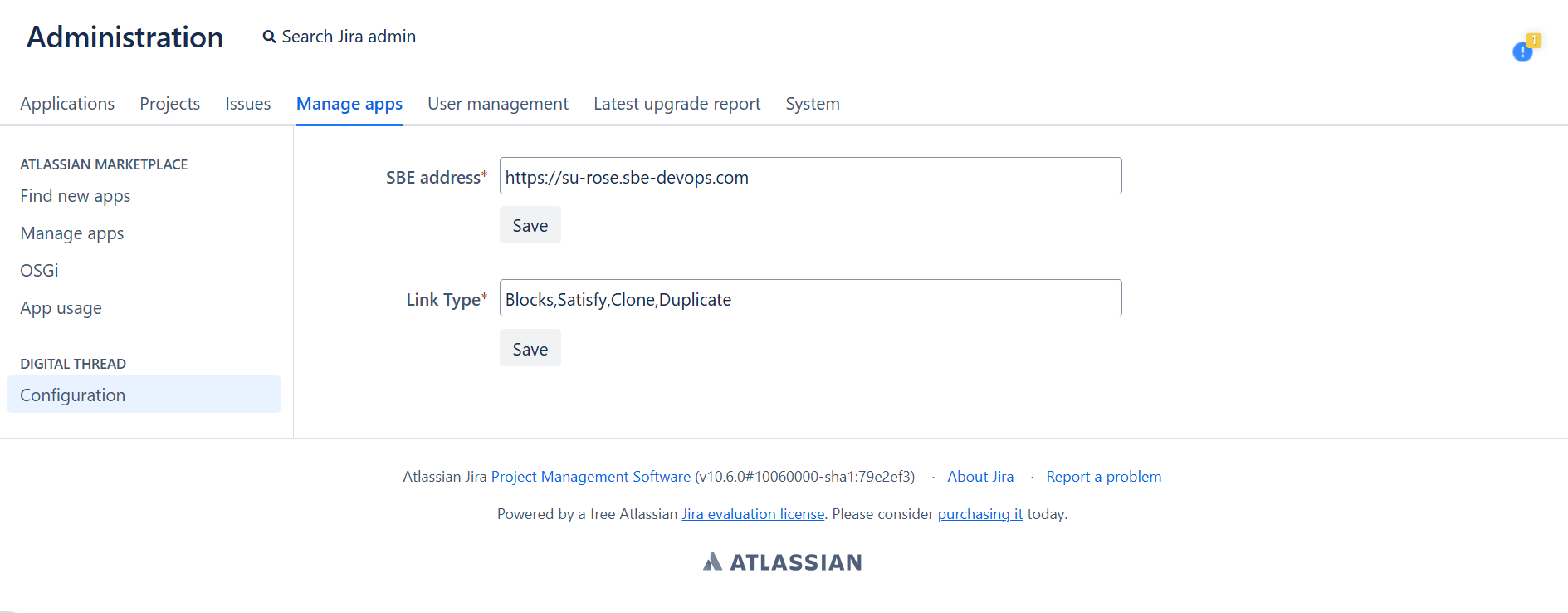
Please complete and save the necessary information to set up the plugin here.
Settings → Manage Apps → Digital Thread → Configuration.
11.4 Glossary of Terms
Common technical terms across tools/adapters
11.5 Compliance and Certification
ITAR, DoD, or cybersecurity compliance info (if applicable)
Adapter Maturity Model ratings
12. Upgrade
This section explains how to upgrade from SBE 6.x (Wakefield) to SBE 7.x (Woburn), including necessary configurations, mappings, and structural changes before and after the upgrade.
12.1 Prerequisites
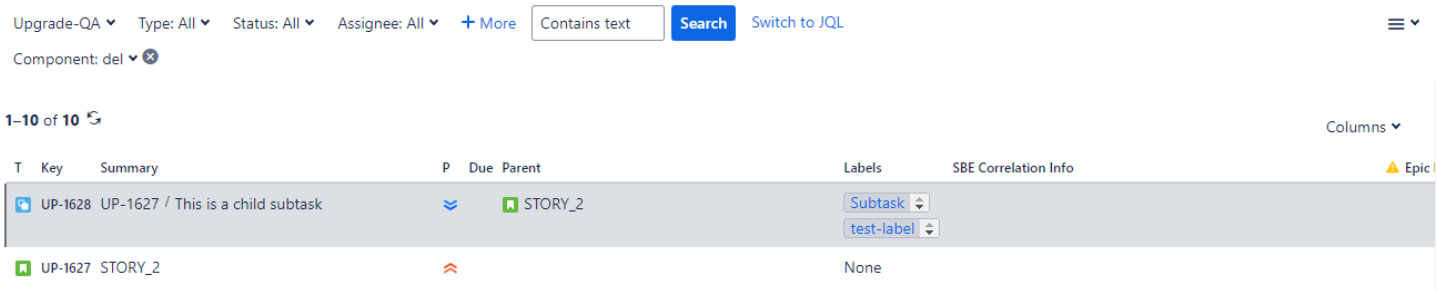
Required Property
Add a custom property named
SBE Correlation Infofor all issue types.
Important: Ensure
SBE Correlation Infois created before initiating the upgrade.
Required Mappings
Update the following mappings between Wakefield and Woburn:
Wakefield | Woburn |
|---|---|
Relation - |
|
Property - |
|
Shape Type - |
|
Shape Type - |
|
12.2 Pre-Upgrade Structure
Only run this step in SBE 6.x (Wakefield).
This prepares the necessary data for upgrading links.
Use Postman to send a request with the following:
Command Type: pre-upgrade
Used to collect data needed for the SBE 7.x upgrade.
Sample Payload:
{
  "_content": "RESOURCE",
  "_distribution": "direct",
  "_type": "JIRA-CMD",
  "_name": "Jira Publish",
  "_subject": "pre-upgrade",
  "_dataSourceType": "JIRA",
  "_dataSource": "JIRA_SOURCE_1",
  "_channel": "{{channelNumber}}",
  "_credentials": {
    "username": "{{JIRA_username}}",
    "password": "{{JIRA_password}}",
    "authType": "ldap"
  }
}
Pre-Upgrade
12.3 Post Upgrade Structure
Run the upgrade process.
Ensure the
SBE Correlation Infoproperty is filled for all subscribed issues after the upgrade.

This feature is available only for starting from version 7.x.
12.4 Migrate from SBE 7.x to SBE 8.x
This section will cover the guide to upgrade from your SBE 7.x to SBE 8.x