
PTC Windchill Adapter
Getting Started: Using the Adapter
Introduction
This adapter is a server-based SBE adapter that helps users to publish and refresh data in Windchill. This makes data easier to manage, improves interoperability, and supports efficient integration across platform.
Accessing the Adapter
This is an server-based adapter. Digital Thread operations are run from the SBE’s web application
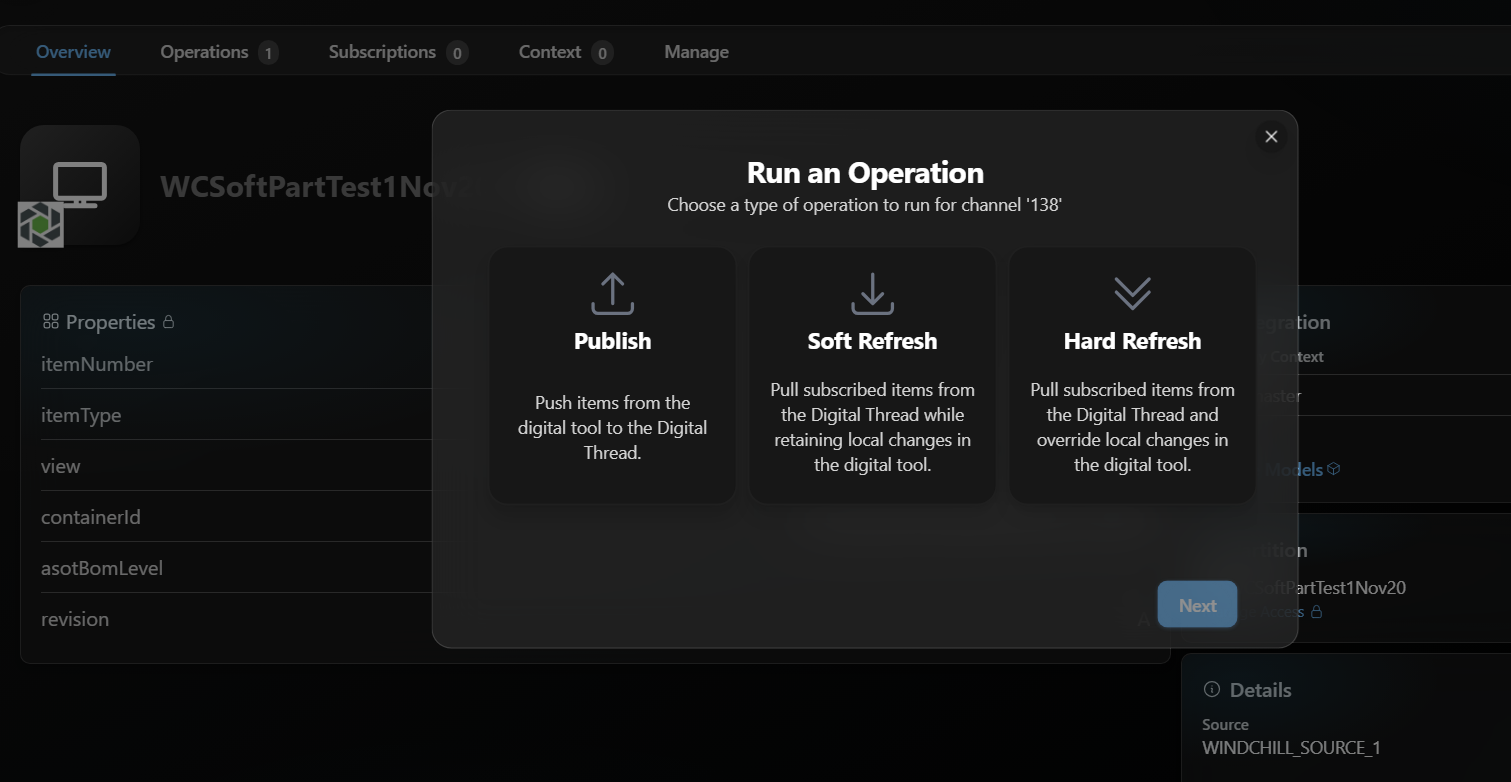
Attaching & Connecting
Name | Mandatory | Description |
|---|---|---|
| Y | Number of the Item |
| Y | Type of the Item |
| N | View of the Item (applicable for Part and sub types) |
| Y (conditional) | Revision of the Item (not applicable for Change types) |
| Y | Container ID (ID of the Product/Folder) where the subscribed Item's will be created |
| N | level of BOM structure we need to extract (applicable to Part and Cad Document) |
Refer to Section 6.1 for more detailed information
Publishing Items
Item with properties
Part Structure
CAD Structure
Change Notice
Change Task
Document
Problem Report (only Reference Objects and Affected Objects relations are supported)
Refreshing Items (Including Subscribed Items)
Subscriptions are supported for
Part type with - BOM, DescribedBy and References relations
Document type (no relations are supported)
Problem Report (only AffectedObjects relation is supported)
Change Notice (no relations are supported)
Recreating items is supported only for SSOT Items
Verify
The verify operation focuses on comparing the items in the external system with those received publised to the SBE platform. During this process, the adapters evaluate the metadata (such as correlation ID, subscription ID, etc.), properties, and relationships. They also check for any missing or extra items.
Verify of decimal and decimal_with_unit type properties is currently not supported
Advanced Operations
Force Publish
Force Publish triggers a full publish of data, regardless of whether only a subset of data has changed since the last operation. It bypasses the usual "delta" mechanism, which would otherwise only send changes since the last publish. This is useful when you want to ensure that all data is sent to the target system, even if some data hasn't changed or if previous publishes may have missed something.
This feature is available starting from version 8.x.
Force Refresh
Force Refresh triggers a full refresh of data from the source, again bypassing the delta mechanism. It ensures that the local or client system is completely updated with the latest data from the source, not just the changes since the last refresh. This is helpful for resolving sync issues or when you want to guarantee that the client has the most up-to-date and complete data
This feature is available starting from version 8.x.
Troubleshooting for End Users
Adapter logs or the tracking dashboard can share more information on a failed operation
1. Document Overview
1.1 Document Overview
This document provides essential information for using, configuring, and supporting the SBE Vision adapters for PTC Windchill. There is a different version of this document for each major release of the SBE Platform.
1.2 Document Orientation
This document is designed to inform users with various roles:
End Users should begin with Section 1 to understand how to access and operate the adapter, and Section 5 for issues pertaining to the setup, configuration, and use of the digital tool itself.
Digital Thread Specialists should focus on Section 1, and also consult Sections 3, 4, and 5 for deployment and semantic mapping. Section 11 contains details related to mapping items from this tool into a semantic ontology.
Administrators should refer to Section 6 and beyond for setup, security, support, and version management.
2. Adapter Use Cases
2.1 Adapter Overview
The purpose of this adapter is to allow the data contained within instances of PTC Windchill to connect with the SBE Digital Thread platform. This adapter was built using the SBE Java Pro-SDK product.
3. Supported Versions
3.1 Supported Adapter Products
This document covers all the version of adapter that support SBE 7.x (woburn) and 8.x (melrose)
3.2 External Tool Versions Supported
The adapter version 7.13 Supports only Windchill 13, adapters older than 7.13 support only Windchill 12
3.3 Differences Across Tool Versions
The Windchill Rest API has changed going to 13 from 12 in terms of how the properties are Named and how Calculated properties are handled, this upgrade of going from 13 will need changes to property names in Adapter config and changes in Mappings
3.4 Supported Plug-Ins and Add-Ons
In order to use the adapter we need to first install SBE Windchill Package which will install the necessary Data model changes and Rest API
4. Digital Tool Best Practices
4.1 Tool Configuration Considerations
Tool settings that affect adapter behavior
Required modules or optional configurations
4.2 Usage Tips & Gotchas
Common user mistakes
Recommended practices
4.3 Tool Limitations and Workarounds
Because of the API limitations only 10 levels of BOM can be published
5. Installation
This section describes installation of the Adapter and the SBE Windchill package on Windchill server which is needed for the Adapter to operate.
5.1 Installation Instructions
5.1.1 Adapter
OS: Windows Server
Java: JDK 11 for Windchill 12 and JDK 17/21 for Windchill 13
5.1.2 SBE Windchill Package
OS: Windows Server
Java: JDK 11 for Windchill 12 and JDK 17/21 for Windchill 13
5.1.2.1 Installing SBE Windchill Package
This section details the Data Model, custom config and lists the steps to deploy the SBE Windchill
package.
A package (sbe_windchill_deployment_package_x.x.zip) is provided with the files needed to
deploy the SBE package.
Custom Types
The following new types are added as part of the package
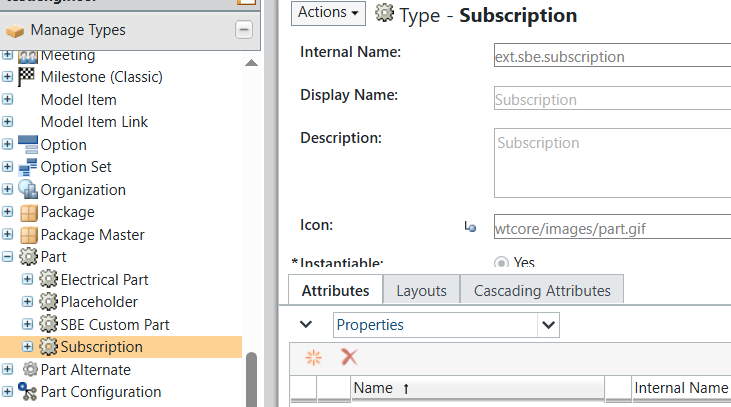
Subscription (Sub type of Part)
The custom relation added is
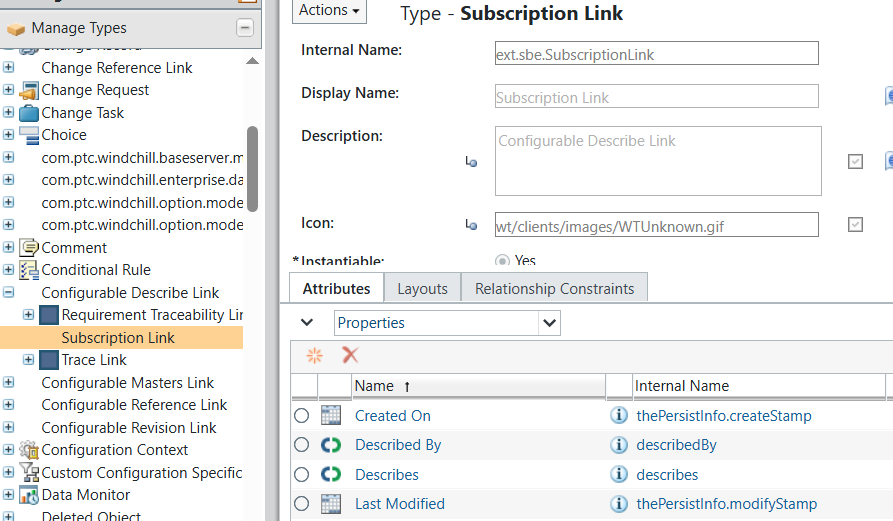
SubscriptionLink (Sub type of CustomDescribeLink)
Preferences
The following preferences are added.
SBE Hostname
Windchill Data Source Id
Installing the Package
Extract the deployment package and run the following commands
These command must be executed as a user with Site admin role
Copy the following folders mentioned in deployment package to $WINDCHILL_HOME as it is.
eg: WINDCHILL_HOME=c:\Windchill13\Windchill
Windchill_HOME\loadFilesWindchill_HOME\srcWindchill_HOME\codebase\ext
Custom Types
Run the following types to install custom types
windchill wt.load.LoadFileSet -file %WINDCHILL_HOME%\loadFiles\sbe\subscription_LoadSet.xml -UNATTENDED -NOSERVERSTOP -u %WT_USER% -p %WT_PASS%
windchill wt.load.LoadFileSet -file %WINDCHILL_HOME%\loadFiles\sbe\SubscriptionLink_LoadSet.xml -UNATTENDED -NOSERVERSTOP -u %WT_USER% -p %WT_PASS%
Show Custom Links
xconfmanager -s com.ptc.windchill.enterprise.part.showDescribeLinksTable=ALL -t codebase/wt.properties -p
xconfmanager -p
Compile the java files
javac -d %WINDCHILL_HOME%\codebase %WINDCHILL_HOME%\src\ext\sbe\builders\SubscriptionBuilder.java
javac -d %WINDCHILL_HOME%\codebase %WINDCHILL_HOME%\src\ext\sbe\resource\PreferenceRB.java
javac -d %WINDCHILL_HOME%\codebase %WINDCHILL_HOME%\src\ext\sbe\resource\SBEActionsRB.java
Verify whether class files were generated in the respective location in codebase.
Load Preferences
Run the following commands in a Windchill shell, to load the preferences

Delete preferences is only needed if we want to remove old and deprecated preferences
windchill wt.load.LoadFromFile -d %WINDCHILL_HOME%\loadFiles\sbe\preference\SBE_deletePreferences.xml -u %WT_USER% -p %WT_PASS%
windchill wt.load.LoadFromFile -d %WINDCHILL_HOME%\loadFiles\sbe\preference\SBE_Preferences.xml -u %WT_USER% -p %WT_PASS%
xconfmanager -p
Restart Windchill
Verify Installation
After restarting the server to confirm successful installation of the package
Custom classes and relations
Confirm that the class `Subscription` and the relation `Subscription Link` were imported
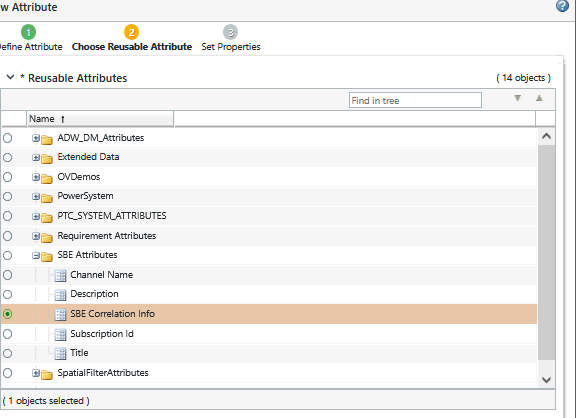
The Reusable Attributes were also imported
Preferences
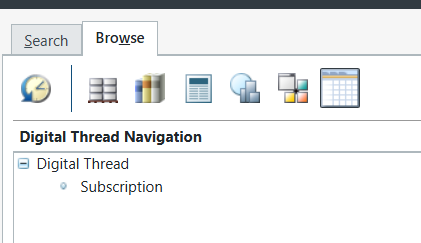
Digital Thread Navigation Menu
Installing Rest Services
SBE Custom Windchill Rest services build on the Windchill platform using domain based REST API. Here are steps to deploy on target Windchill server.
Extract the package sbe_windchill_rest_services_x.zip
We create the SBE domain and copy the API's
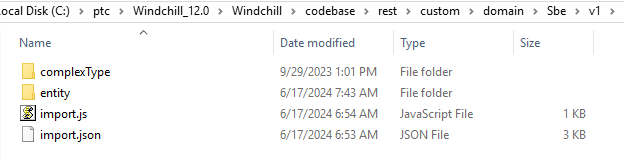
Domain_Identifier = Sbe, Domain_Version= v1, To create a new domain, perform the following steps
Copy
WINDCHILL_HOME\codebase\rest\customto<Windchill>\codebase\rest\Confirm the files under
WINDCHILL_HOME\codebase\rest\custom\domainwere copied correctly from the package
Compile the following files in Windchill shell
javac -d %WINDCHILL_HOME%\codebase %WINDCHILL_HOME%\src\ext\sbe\rest\common\dto\*.java
javac -d %WINDCHILL_HOME%\codebase %WINDCHILL_HOME%\src\ext\sbe\rest\common\WindchillAdapter.java
javac -d %WINDCHILL_HOME%\codebase %WINDCHILL_HOME%\src\ext\sbe\rest\common\transformer\*.java
javac -d %WINDCHILL_HOME%\codebase %WINDCHILL_HOME%\src\ext\sbe\rest\common\*.java
javac -d %WINDCHILL_HOME%\codebase %WINDCHILL_HOME%\src\ext\sbe\rest\util\*.java
javac -d %WINDCHILL_HOME%\codebase %WINDCHILL_HOME%\src\ext\sbe\rest\container\*.java
javac -d %WINDCHILL_HOME%\codebase %WINDCHILL_HOME%\src\ext\sbe\rest\property\*.java
The SBE Rest API must be available at https://$WINDCHILL_HOST/Windchill/servlet/odata/v1/Sbe/
Restart Windchill
To verify the installation of rest services open the following url from the browser
https://$WINDCHILL_HOST/Windchill/servlet/odata/Sbe/GetVersion()
Post Installation
Has Items tab
We need to add a custom relation tab on item type Subscription
Open a
Subscriptionitem. Add a new tab by clicking on the + button.
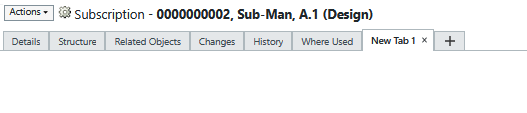
Rename the tab name New Tab 1 to
Has Items. Just right-click on that tab to change the name.
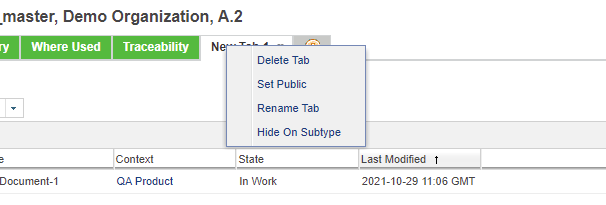
Click on the customize dropdown list and select
Has ItemsunderDigital Threadas shown below.

Preferences
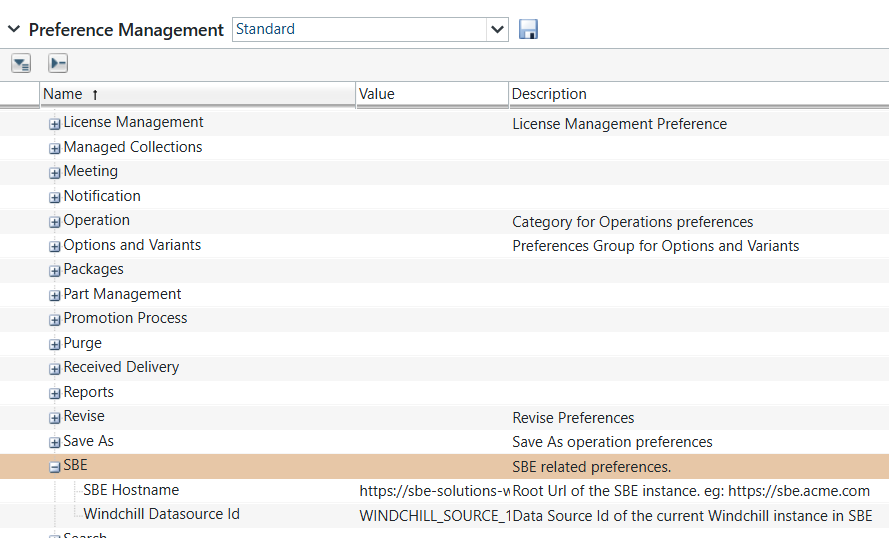
We need to update the preferences for SBE variables as shown below
Go to site->utilities--> Preference Management
Search for SBE and Change the value of
SBE Hostname&Windchill Datasource ID

Replace the sample with the url of SBE instance,
sample url’s:
SBE Hostname: https://sbe-demo.com
Windchill Datasource Id: WINDCHILL_QA_MA
Auto numbering for Custom Type
Windchill admin should enable Autonumbering for Subscription type. This is required before we can create Subscriptions on Windchill.
Properties to support Subscription
We need to add the property SBE Correlation Info to all the type that will be subscribed into
Windchill
Add to Item Type
Add SBE Correlation Info reusable attribute to an item type
Please note that this applies to also Part Usage if we want to subscribe to Usage items.
Go to
site->utilities-->Type and Attribute ManagementExpand
Manage Type
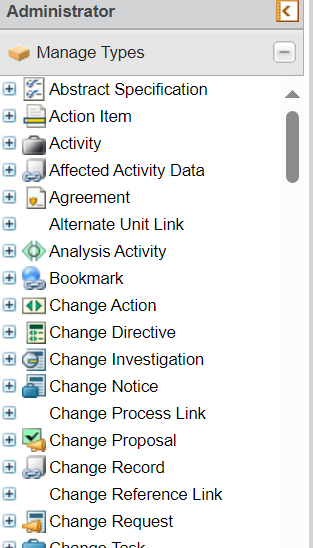
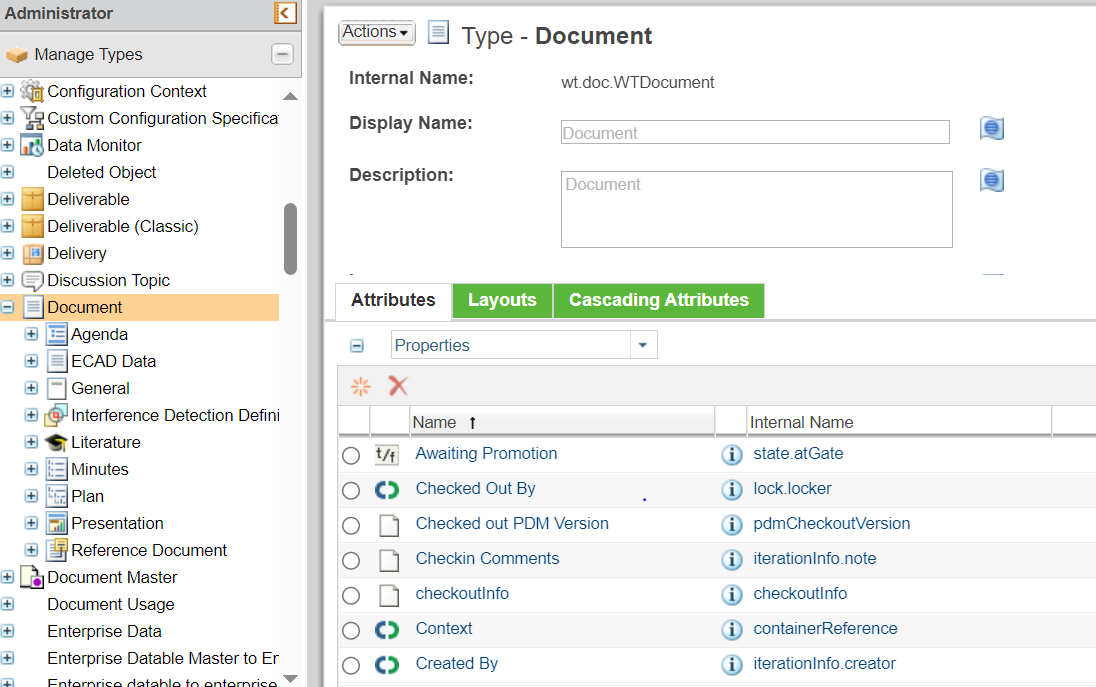
Open the Item Type for which we want to support Subscriptions. eg: Document
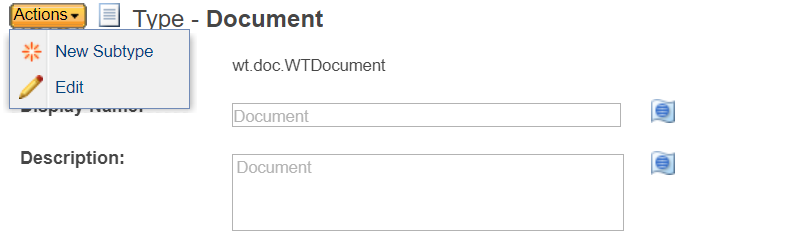
Go to Actions and click on Edit
Go to Attributes and click on Create a new attribute
Give the internal name as
ext.sbe.sbeCorrelationInfoSelect Type as Global and click on Next
Search for
SBE Correlation Infoin Reusable Attributes, select it and click on Next
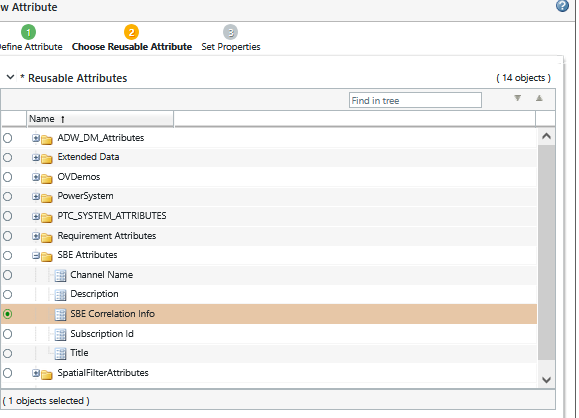
Give Display Name as
SBE Correlation Infoand click on Apply
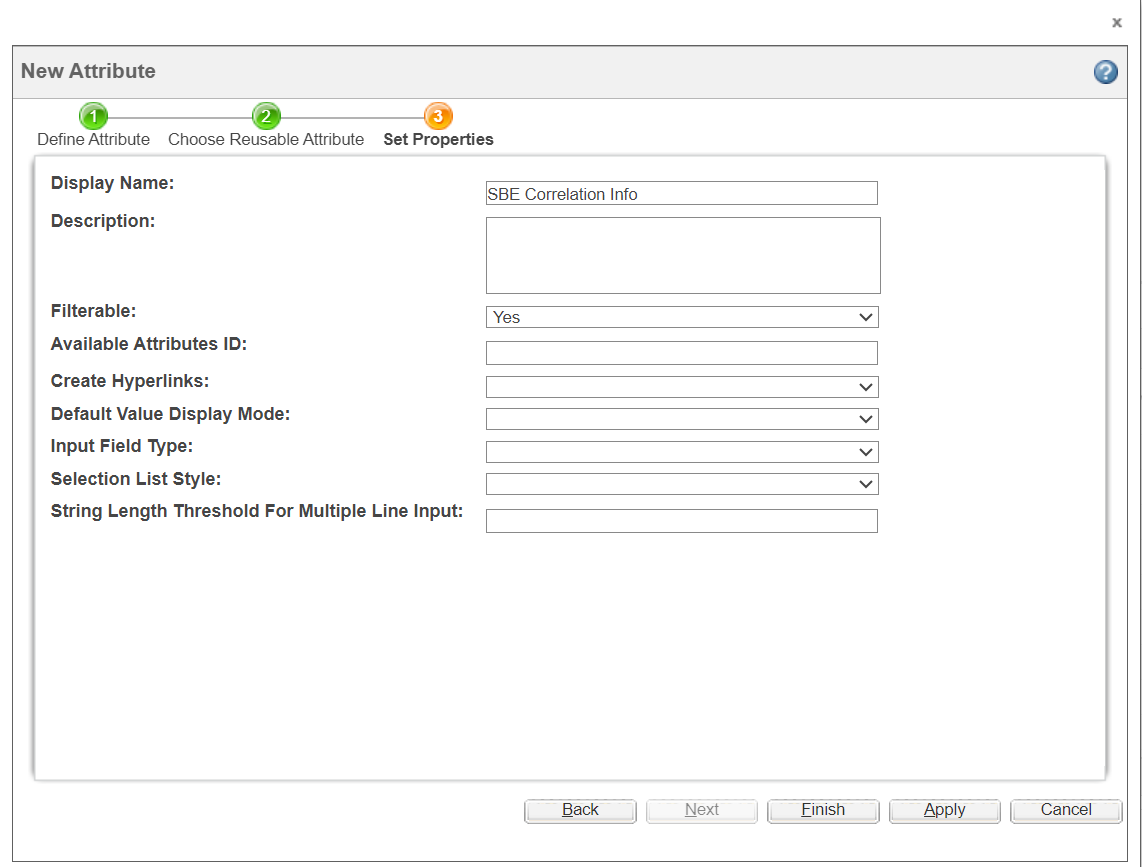
Click on Done to complete the process
5.2 Configuration
The Adapter depends on a jsonconfig file to run various operations against a Windchill Server.
This jsonconfig file contains a list of all the Item Types along with properties and relations that the Adapter need to support.
The file is named `types-definition.json` and is currently part of a config-map attached to the adapter.
This section explains how to create this file based on the Types used on the Windchill server.
Introduction
Following the way Windchill treats Item types, the adapter also supports the following top level PDM Item Types
Part, Document, Change Notice, Change Task, Problem Report
The Adapter supports all the properties that can be retrieved from the Windchill Rest API.
As mentioned earlier The types-definition.jsoncontains all the Item types that need to be supported by the adapter.
In this section we will explore the format of the json and how to add a new Type called Hardware Part (internal name: com.sbevision.demo.HardwarePart)
We will add the
Properties - State, Priority, Cost, Material (Alias)
Relations - BOM, described By
The jsonfile we are going to create will contains definitions for one ore more types.
We will start looking at different parts of the config in the following sections.
Item Definition
This part of the config is where we will add information about the Item Type name and internal name
Property Name | Description |
|---|---|
_internalItemType | Type of the item in Windchill. This is derived from the |
_rootItemType | Each Item type in Windchill can only be created as sub type of Root Types, eg: Part, Document, EPMDocument. This property represents the Root Item type of the current Item Type. In our example its |
_itemNumAutoGen | While creating an item in Windchill, number is auto-generated for most of the types. This property tells the adapter if item number for the current type is auto generated. Default value is true, for the cases where this property need to be set manually during creation and from a value on If set to false, a valid value for the number property must be mapped and provided during creation |
Internal Type
The following rules are used to determine the _internalItemType
Is the class a
Root Typeclass like Part, Document, EPMDocument, etc. Then theInternal Typeis the name of the class. So Part, Document, etcIs the class a sub type, then it is derived from the
Internal Namein Windchill. The last word
in theInternal Name, separated by., is used removing any special character if present.
In our example the Internal Name of Hardware Part in Windchill is com.sbevision.demo.HardwarePart, then the _internalItemType will be HardwarePart as that is the last word after the last .
Taking another example, where the Internal Name of ext.test.Custom_Document, the _internalItemType will be CustomDocument as that is the last word after the last . and the special character _ should be removed.
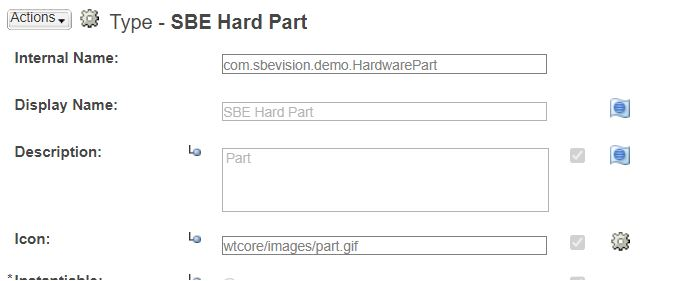
So we know that the Hardware Partis sub type of Part and the internal type is HardwarePart
Using this information, we can create the first part of our config as shown below
{
   "_internalItemType": "HardwarePart",
   "_rootItemType": "Part"
}
Another example is Electrical Part, the _internalItemType is ElectricalPart
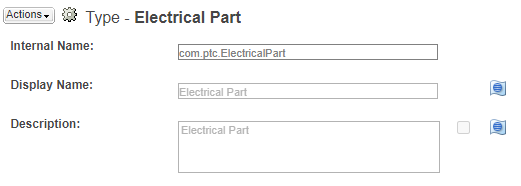
Properties
This section explains how to add the list of properties that the adapter need to support for a given Type.
The field _properties contains the definition for the list of properties.
Each definition in turn contains the following fields
Name | Description |
|---|---|
_propName | Property Name in Windchill. In our example, Priority |
_propType | The data type of the property. The following types are supported STRING, INT, FLOAT, DECIMAL, BOOLEAN, DISPLAY_VALUESET In our example, Priority is String and Cost is FLOAT |
_defaultValue | Default value for a property is used during creation of an Item. This value is only used if this property is not mapped or not value is specified by the In our example, Priority can have default value of Low. |
_isMandatory | Some properties are required for creation of Items, such fields need to be marked Mandatory, In case a default value need to be specified use the |
_isAlias | If the property is an |
In case of properties which are linked to list of values (have a display name and internal value), use type as DISPLAY_VALUESET
For example: State
"State": {
  "Value": "INWORK",
  "Display": "In Work"
}
Because of the way Windchill Rest API treats the Alias and Calculated properties, when adding them to the list, we need to enable the _isAlias flag on the property definition
Let's add properties Priority (String), Target (Float), Material (Float and Alias) where Priority will
be a Mandatory property.
So for our current example Hardware Part, the definition looks like this
{
   "_internalItemType": "HardwarePart",
   "_rootItemType": "Part"
   "_properties": [
      {
        "_propName": "Priority",
        "_propType": "STRING",
        "_isMandatory": true,
        "_defaultValue": "Low"
      },
      {
        "_propName": "Cost",
        "_propType": "FLOAT",
        "_isMandatory": false
      },
      {
        "_propName": "Material",
        "_propType": "FLOAT",
        "_isMandatory": false,
        "_isAlias": true
      }
  ]
}
The property names used in this definition need to match the names used in Windchill Rest API. We can use the Metadata Rest API Endpoint of Windchill to easily find the names
Get Metadata url::
{{windchill-host}}/Windchill/servlet/odata/ProdMgmt/$metadata
Snippet of Metadata Response ::
----------
<EntityType Name="Part" BaseType="PTC.WindchillEntity">
    <Property Name="AlternateNumber" Type="PTC.EnumType">
        <Annotation Term="PTC.ReadOnly"/>
    </Property>
    <Property Name="Area" Type="PTC.QuantityOfMeasureType">
        <Annotation Term="PTC.Unit">
            <String>m**2</String>
        </Annotation>
    </Property>
    <Property Name="AreaNum" Type="PTC.QuantityOfMeasureType">
        <Annotation Term="PTC.Unit">
            <String>m/s**2</String>
        </Annotation>
    </Property>
    <Property Name="AssemblyMode" Type="PTC.EnumType" Nullable="false"/>
    <Property Name="BOMType" Type="PTC.EnumType">
        <Annotation Term="PTC.ReadOnly"/>
    </Property>
---------
Relations
Custom relations are not currently supported
The following relations are currently supported
Type | Relation | Internal Name |
|---|---|---|
Part | Described By | DescribedBy |
EPM Document | EPM Doc to Part | PartDocAssociations |
BOM Relation
To support BOM relations (on Part or Cad Assembly), we need to add the following definition under relations section.
The internal type MUST be PartBOM or CadBOM
The example below show the definition for both Part and CAD BOM
{
  "_toRootType": "Part",
  "_linkName": "PartBOM",
  "_internalName": "PartBOM"
}


{
  "_toRootType": "EPMDocument",
  "_linkName": "CadBOM",
  "_internalName": "CadBOM"
}
Since BOM relations have properties they have their own definitions just like a Part or Document
Look at the section BOM definition for more info
Change Relations
Type | Relation | Internal Name | To Root type |
|---|---|---|---|
ChangeNotice | Implementation Plan | ImplementationPlan | ChangeTask |
ProblemReport | Affected Objects Associated Reference Objects | AffectedObjects ReferenceObjects | Changeable(Part/Change Items; Part is only supported now) ChangeNotice |
Change Notice Item’s Relation definition:
  {
      "_toRootType": "ChangeTask",
      "_linkName": "ImplementationPlan",
      "_internalName": "ImplementationPlan"
   }
Problem Report Item’s Relation definition:
"_relations": [
  {
    "_toRootType": "Changeable",
    "_linkName": "AffectedObjects",
    "_internalName": "AffectedObjects"
  },
  {
    "_toRootType": "ChangeNotice",
    "_linkName": "ReferenceObjects",
    "_internalName": "ReferenceObjects"
  }
Note:
AffectedObjects relation is having root type as Changeable that means it contains both Part/Change Items,but now we are supporting only Part Type
Conclusion
Now that we are done with type definition, properties and relation our final definition for Hardware Part looks like this
{
    "_internalItemType": "HardwarePart",
    "_rootItemType": "Part",
    "_relations": [
      {
        "_toRootType": "Part",
        "_linkName": "PartBOM",
        "_internalName": "PartBOM"
      },
      {
        "_toRootType": "Document",
        "_linkName": "DescribedBy",
        "_internalName": "DescribedBy"
      }
    ],
    "_properties": [
      {
        "_propName": "Name",
        "_propType": "STRING",
        "_isMandatory": true
      },
      {
        "_propName": "Number",
        "_propType": "STRING",
        "_isMandatory": false
      },
      {
        "_propName": "Revision",
        "_propType": "STRING",
        "_isMandatory": false
      },
      {
        "_propName": "OrganizationName",
        "_propType": "DISPLAY_VALUESET",
        "_isMandatory": false
      },
      {
        "_propName": "DefaultUnit",
        "_propType": "DISPLAY_VALUESET",
        "_isMandatory": true,
        "_defaultValue": "kg"
      },
      {
        "_propName": "EndItem",
        "_propType": "BOOLEAN",
        "_isMandatory": true,
        "_defaultValue": false
      },
      {
        "_propName": "State",
        "_propType": "DISPLAY_VALUESET",
        "_isMandatory": false
      },
      {
        "_propName": "Priority",
        "_propType": "STRING",
        "_isMandatory": true,
        "_defaultValue": "Low"
      },
      {
        "_propName": "Cost",
        "_propType": "FLOAT",
        "_isMandatory": false
      },
      {
        "_propName": "Material",
        "_propType": "FLOAT",
        "_isMandatory": false,
        "_isAlias": true
      }
    ]
  }
BOM Definition
Just like a Part or a Document, BOM relation is a treated as a Item with properties
This section explains the way to define the BOM item in types-definition
The _internalTypeis always PartBOMand the _rootTypeis BOM
Under the properties section we add all the properties we want to extract from the BOM item
The example shown below has 4 properties, ID, Quantity, FindNumber, LineNumber
{
    "_internalItemType": "PartBOM",
    "_rootItemType": "BOM",
    "_properties": [
      {
        "_propName": "ID",
        "_propType": "STRING",
        "_isMandatory": false
      },
      {
        "_propName": "Quantity",
        "_propType": "INT",
        "_isMandatory": false
      },{
        "_propName": "FindNumber",
        "_propType": "INT",
        "_isMandatory": false
      },
      {
        "_propName": "LineNumber",
        "_propType": "INT",
        "_isMandatory": false
      }
    ]
}
Similarly we can add a definition for CAD Bom
5.3 DataSource Type Definition
Name | Description |
|---|---|
host | Host name, eg: qa-windchill.acme.com |
port | port number at which the server is running. eg: 80/443 |
uriScheme | two possible values: http/https |
srcContext | default value, StartItem |
proxyHost | Host name of proxy server |
proxyPort | port number of proxy server. |
6. Channels and Mappings
6.1 Channel Definition
The following are the Channel properties
Name | Mandatory | Description |
|---|---|---|
| Y | Number of the Item |
| Y | Type of the Item |
| N | View of the Item (applicable for Part and sub types) |
| Y (conditional) | Revision of the Item (not applicable for Change types) |
| Y | Container ID (ID of the Product/Folder) where the subscribed Item's will be created |
| N | level of BOM structure we need to extract (applicable to Part and Cad Document) |
Note: The asotBomLevel property value must be between the minimum of 1 and the maximum allowed value of 10.
If the input level is 0, Only the parent part is published.
containerIdcan be either Product id or a Folder id, eg: OR:wt.pdmlink.PDMLinkProduct:15921 or OR:wt.folder.SubFolder:53313
Supported from 7.13
6.1.1 Channel properties in Windchill
To get the channel properties of any item in Windchill
Open an Item(Part/Document…)
We should be able to see
ContainerOidin the URL bar as below
Windchill/app/#ptc1/tcomp/infoPage?ContainerOid=OR%3Awt.pdmlink.PDMLinkProduct%3A83127&oid=VR%3Awt.part.WTPart%3A85111&u8=1
Copy the
ContainerOid, decode the value, i.e, replace %3A with:
So in the above example, Container Id = OR:wt.pdmlink.PDMLinkProduct:83127
Note:
ContainerOidalways starts withOR
For the remaining properties: Upon opening an Item, similar information will be displayed at the
top of the screen.Part - GC000001, GOLF_CART, Demo Organization, A.17 (Design)
If we want to store the Subscription data into a Folder instead of directly under a Product then
Folder id can be used for channel property containerId
To get a Folder ID, open a folder and extract the id from the url as shown below
Windchill/app/#ptc1/tcomp/infoPage?ContainerOid=OR%3Awt.pdmlink.PDMLinkProduct%3A1592&oid=OR%3Awt.folder.SubFolder%3A175706&u8=1
Folder Id here is OR:wt.folder.SubFolder:175706 which is oid of selected Folder.
Based on the info share the Channel properties will be
itemNumber=GC000001itemType=Partview=Designrevision=AasotBomLevel=2containerId=OR:wt.pdmlink.PDMLinkProduct:83127(Product) orOR:wt.folder.SubFolder:175706(Folder)
6.2 Approaches to Mapping
The types defined in the Configuration section will be used by the Adapter and the same Type and properties, relations are published out.
The Shape Id’s will be the _internalType and the property and relations names will also remain the same.
7. Security and Access
7.1 Authentication Methods
The Adapter supports Basic authentication which is the only authentication method supported by Windchill Rest API
7.2 Authorization and Roles
Rest API access is by default enabled for all Users on Windchill
The Adapter assumes the User running
DigitalThreadoperations has necessary Read/Write Permissions on Windchill.
7.3 Secure Communication
The uriSchemaDataSource property defines the protocol http or https used by the adapter.
It is highly recommended the server communication is secured using https
The adapter assumes if customer certificates are used on the server they are wired into SBE deployment
8. Troubleshooting
8.1 Known Issues
Compatibility limitations
Common operational issues
Maximum item-size limitations
Performance Issues
8.2 Logs and Diagnostics
Where logs are located
Enabling debug output
8.3 Common Misconfigurations
Setup pitfalls
Misuse scenarios
8.4 Escalation and Support
How and when to contact SBE support
Required logs or artifacts
9. Release Notes
9.1 Version History
8.8
SDK 8.18
8.7
SDK 8.16
End of Support for Windchill 12
Item V7
8.6
SDK 8.15
8.5
Merge features from release
7.14SDK 8.14
8.4
SDK 8.11
Merge features from release
7.13
8.3
SDK 8.9
Merge features from release
7.12
Windchill Updates
Rest Services 7.3 must be installed
8.2
SDK 8.8
Merge features from release
7.9Use
Connection
8.1
SDK 8.3
Merge features from release
7.7
8.0
Support SBE 8.x
7.14
Support
Problem ReportSupport Float, Int Alias Properties
SDK 7.49
7.13
Support Folders as Containers during Refresh,
containerIdchannel property can be Product or a FolderSupport
AliaspropertiesSupport Windchill 13
Windchill Updates
Rest Services 7.4 must be installed
7.12
Fix issue with ASOT BOM delete
7.11
Update Security Labels for Part/Document
Fix BOM Deletion
Windchill Updates
Rest Services 7.3 must be installed
9.2 Breaking Changes
Starting version 7.13 only Windchill 13 is supported
10. Technical Reference
10.1 Adapter API Endpoints
The following are the Rest endpoint added as part of the SBE Rest Services
/Sbe/GetSubscribedItems- Get all Subscribed items for a given channel/Sbe/ResetChannel- Reset data for a given channel/Sbe/Container- Get Folder info for a given Id/Sbe/Property- Get existing Security labels/Sbe/CreateLinkObjects- Add Item to Subscription/Sbe/GetVersion- Get the version of SBE Rest Services
10.2 Identity
Item Locator properties
Name | Description |
|---|---|
| Item Number |
| Item Revision |
| Item Type |
| View of the Item |
BOM Locator
Name | Description |
|---|---|
| Item number of the Child |
| Item number of the Parent |
| Revision of the Parent |
| View of the Parent |
| BOM Occurrence property - Line Number |
| BOM Occurrence property - Find Number |
| Type of BOM - Part or CAD |
10.3 Configuration File Format Reference
All accepted parameters
Required vs optional
Examples and defaults
10.4 Schema Support
The Adapter uses the types-definition.json config file to operate. This config contains all the Item types with properties and relations that the adapter needs to handle in Windchill, this section explains the format of the json file in detail.
The properties and relations defined in the types-definition.json config file are published by the adapter.
The Relation details are following::
Part Relations
Name | Types | Multiplicity | Description | SupportedAction |
|---|---|---|---|---|
DescribedBy | Document | 0..* | Document Describing Part | Publish & Refresh |
References | Document | 0..* | Reference document(s) | Publish & Refresh |
PartDocAssociations | EPMDocument | 0..1 | CAD Document | Publish |
Document Relations
Name | Types | Multiplicity | Description | Supported Action |
|---|---|---|---|---|
describedBy | Document | 0..* | References Documents | Publish |
describes | Part | 0..* | Describes Parts | Publish |
Change Relations
Change Notice
Name | Types | Multiplicity | Description | Supported Action |
|---|---|---|---|---|
ImplementationPlan | ChangeTask | 0..* | ChangeTask | Publish & Refresh |
Problem Report
Name | Type | Mult | Description | Supported Action |
|---|---|---|---|---|
AffectedObjects | Changeable | 0..* | All the Part type items under Problem Report | Publish & Refresh |
ReferenceObjects | ChangeNotice | 0..* | All the Change Notice type items under Problem Report | Publish |
BOM Relation
The shape id for Part BOM occurrence/usage is StructureOccurrence
The shape id for Cad BOM is CadOccurrence
The standard properties on a BOM are
Property Name | Data Type | Req’d | R/O | Description |
|---|---|---|---|---|
Name | String | no | yes | Occurrence Name |
Quantity | Integer | yes | yes | quantity of the item, eg: 1 |
TraceCode | Display ValueSet | yes | yes |
|
Unit | Display ValueSet | yes | yes | unit of the item, eg: each |
FindNumber | String | no | yes |
|
LineNumber | Integer | no | yes |
|
If the BOM item definition is added to the types-definition.jsonthe properties defined will be used by the adapter.
Name | Types | Multiplicity | Description | Supported Acton |
|---|---|---|---|---|
target | Part | 0..1 | Target part of the BOM Occurrence | Publish & Refresh |
target | EPMDocument | 0..1 | Target part of the BOM Occurrence | Publish |
10.5 Glossary of Terms
Common technical terms across tools/adapters
10.6 Compliance and Certification
ITAR, DoD, or cybersecurity compliance info (if applicable)
Adapter Maturity Model ratings