
MATLAB / Simulink Adapter Documentation
1. Getting Started: Using the Adapter
1.1 Introduction
Attach a Project.
Publish a Project.
Refresh a Project.
1.2 Accessing the Adapter
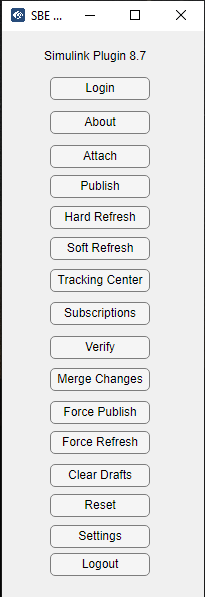
Once the plugin application is installed, the SBE Digital Thread application is visible under Apps
menu.
1.3 Attaching & Connecting
Datasource type i.e. SIMULINK
Name | Mandatory | Description |
|---|---|---|
| Y | The name of the project |
1.4 Publishing Items
The following Meta Classes are currently supported
Model Blocks
Requirement
Variable
The following Metaclasses of System Composer are support
Please note System Composer is currently support for Publish only
Component
SMPort
Interface
Connector
ValueProperty
ValueType
The following Relations are currently supported
Relations between Requirements
Relations between Model Blocks
Relations between Model Block and Requirement
1.5 Refreshing Items (Including Subscribed Items)
The following Meta Classes are currently supported
Model Blocks
Requirement
Variable
1.6 Verify
Performs a validation check to ensure that the items published from SBE exist in the target system (e.g., MATLAB) and are consistent.
What does Verify check?
The
Verifyoperation compares each item present in both SBE and the target/source system.It ensures that:
All properties (e.g., Summary, Status, Priority)
All relations (e.g., Linked issues, Child Of)
All metadata (e.g., Subscription Info)
are accurately synchronized and consistent between the systems.
This helps ensure that no item is missing, degraded, or out-of-sync after publishing.

Verify is supported from version 7.05 for Woburn and 8.01 for Melrose and above.
1.7 Advanced Operations
Force Publish
Force Publish triggers a full publish of data, regardless of whether only a subset of data has changed since the last operation. It bypasses the usual "delta" mechanism, which would otherwise only send changes since the last publish. This is useful when you want to ensure that all data is sent to the target system, even if some data hasn't changed or if previous publishes may have missed something.
Force publish is available starting from version 8.x.
Force Refresh
Force Refresh triggers a full refresh of data from the source, again bypassing the delta mechanism. It ensures that the local or client system is completely updated with the latest data from the source, not just the changes since the last refresh. This is helpful for resolving sync issues or when you want to guarantee that the client has the most up-to-date and complete data
Forces refresh is available starting from version 8.x.
1.8 Troubleshooting for End Users
Failed to Publish
This may occur due to the following reasons:
Incorrect Mappings
Ensure all required mappings are correctly configured. Refer to the Mappings Configuration section for guidance.Invalid Authentication
The authentication may be outdated or incorrect. Please reconfigure it as explained in the Authentication Setup section.Publishing with Stale Data
To resolve this, reset the channel, this operation will clear up the stale.
2. Document Overview
2.1 Document Overview
This document provides essential information for using, configuring, and supporting the SBE Vision adapters for MATLAB. It covers multiple adapter products, each supporting different versions of the external tool.
2.2 Document Orientation
This document is designed to inform users with various roles:
End Users should begin with Section 1 to understand how to access and operate the adapter, and Section 5 for issues pertaining to the setup, configuration, and use of the digital tool itself.
Digital Thread Specialists should focus on Section 1, and also consult Sections 3, 4, and 5 for deployment and semantic mapping. Section 11 contains details related to mapping items from this tool into a semantic ontology.
Administrators should refer to Section 6 and beyond for setup, security, support, and version management.
3. Adapter Use Cases
3.1 Adapter Overview
The purpose of this adapter is to allow the data contained within instances of MATLAB to connect with the SBE Digital Thread platform. Given that MATLAB is a rich-client tool, the usage of this adapter is governed by end users operating that tool on the desktop of their workstation. This adapter was built using the SBE Java Pro-SDK product.
4. Supported Versions
4.1 Supported Adapter Products
This document covers all the version of adapter that support SBE 7.x (woburn) and 8.x (Melrose), Look at the releases section for more details
4.2 External Tool Versions Supported
2024a
2024b
2025a
4.3 Differences Across Tool Versions
Block Refresh with Masking is available onwards 2024b version
4.4 Supported Plug-Ins and Add-Ons
Requirement management toolbox
System Composer
5. Digital Tool Best Practices
5.1 Tool Configuration Considerations
The Adapter currently support creation of limited number of Block types, see section block types for more details
The System Composer module is currently supported only for Publish
5.2 Usage Tips & Gotchas
Once you have completed the installation, follow the below steps to perform DigitalThread operations:
Launch MATLAB and navigate to the path of project as shown below.

We need to Load a project to start using the Adapter.
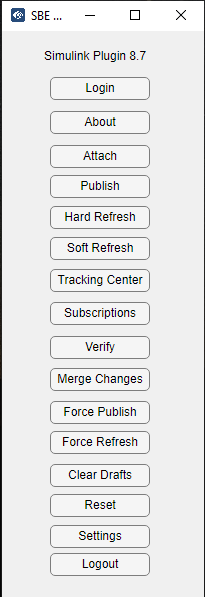
Launch the SBEDigitalThread application.
All the DigitalThread Operations will be shown in an application window.
5.2.1 How to Create a New Project in MATLAB:
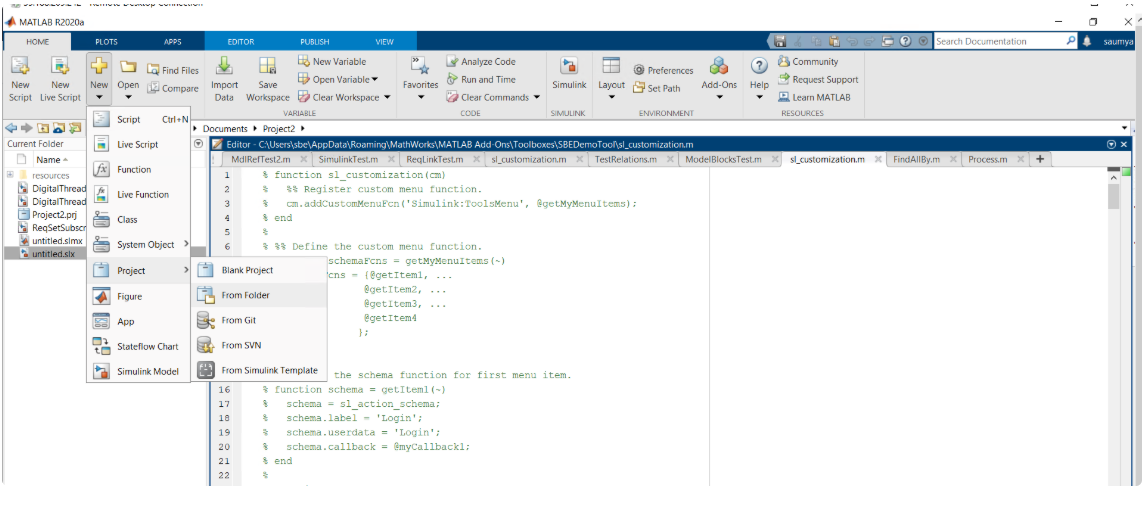
There are two options to create a Project in MATLAB In Home menu, click on the new button, you’ll find an option Project in the Dropdown
From Folder → If certain files which are already present or created and if you want to use it in the Project, then create a folder and add all the required files in it. Select that folder after clicking on “From Folder” option. All the files present in the folder will be present in the Project.
Blank Project → This option will create a Blank Project and after creation we have to add files manually in it.
For more details see Matlab documentation
5.2.1.1 How to Add Files in the Existing Project?
Paste the Required Files in the Directory where the Project exists.
Open MATLAB and Load the Project by double-clicking on it.
Once the Project is loaded, all the files which are present in the same folder will be visible in the loaded project as shown below.
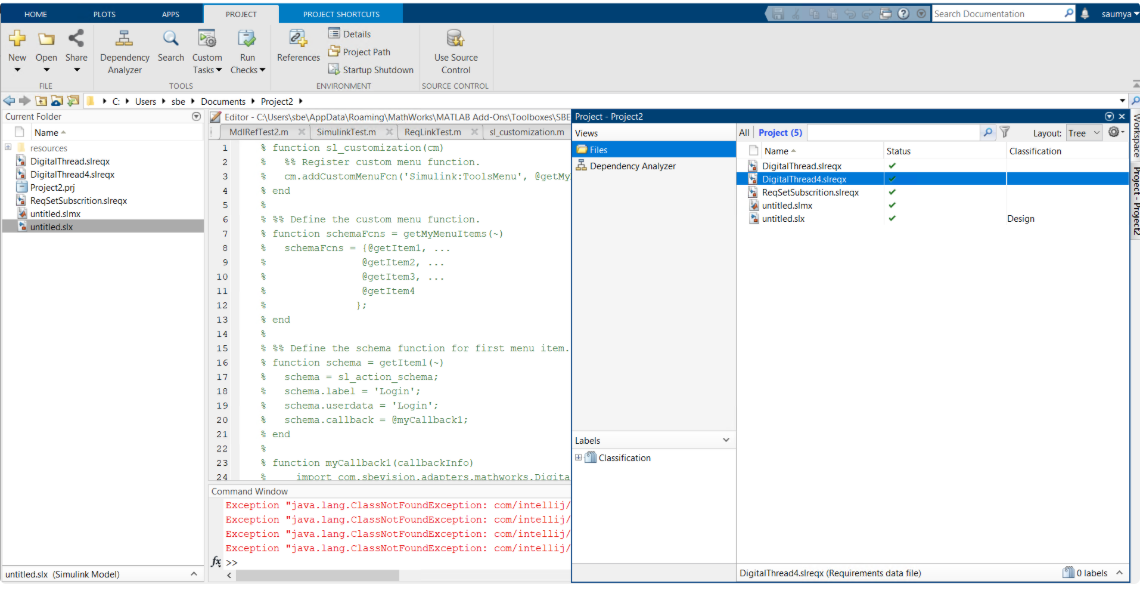
Loaded Project can be seen on the extreme right side of Application.
Files which are Added in the Project can be seen with the Green tick mark.
Files which are not added in the Project will not have a Green tick mark, these files can be added by right-clicking on it.(An option will be shown to add in the Project).
5.2.1.2 How to support different types of blocks during Refresh?
Shape Id’s of the Blocks will be the types that are currently supported, the
STEREOTYPEshape will be the block type.The
METACLASSshape will always beBlockTypes Supported: Subsystem, Constant, Merge, Inport, Outport, Step, Product, Divide, Gain)
5.2.1.3 Supported Link Types between Block and Requirement
Simulink supports only the following types of links between Block and Requirement, [
Relate,Implement,Verify,Derive,Refine,Confirm].A default link type
Implementwill be used for any unknown link types.This type can be changed manually after the sync operation in
Simulink Requirement Editor.For Link’s to get correctly published, ensure that the source and target artifacts are visible in the Requirement Editor for a created link.
5.2.1.4 Important Note
A Matlab project is needed for the plugin to work.
Any data, Requirements, Blocks, Variables or Links which need to be sent to
Digital Threadmust be added to the project.slx,.slreqx,.slmxif these files are present in the project then make sure they are added to the project.
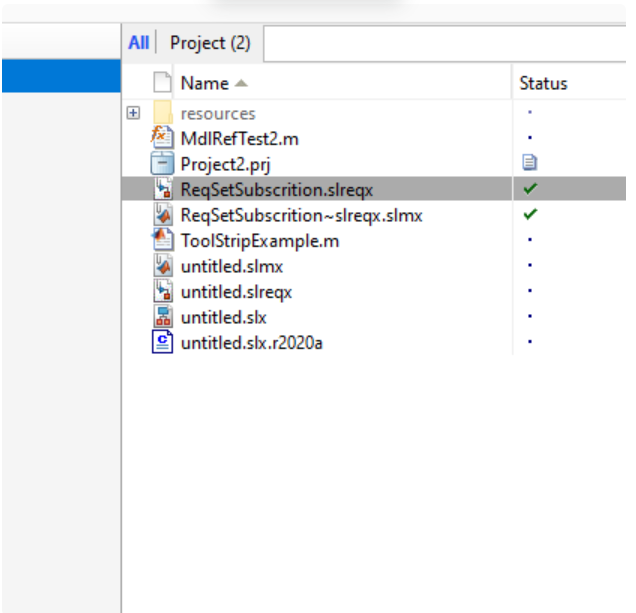
For the files to be published make sure if the status of the file is having green tick as shown in the above screenshot.
5.2.1.5 Link Storage Instruction
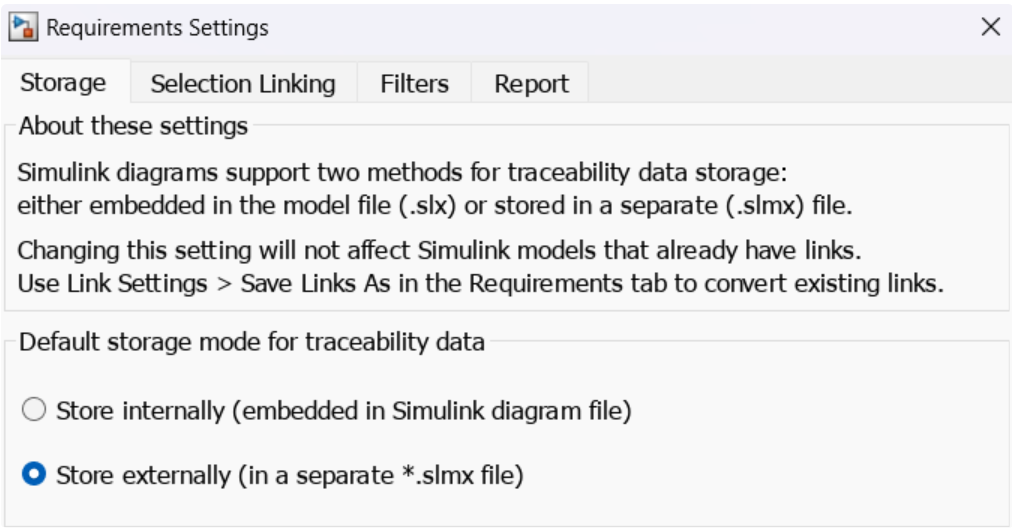
Make sure that the external storage option is chosen for link creation. As the plugin reads the
.slmxfile to publish the links.
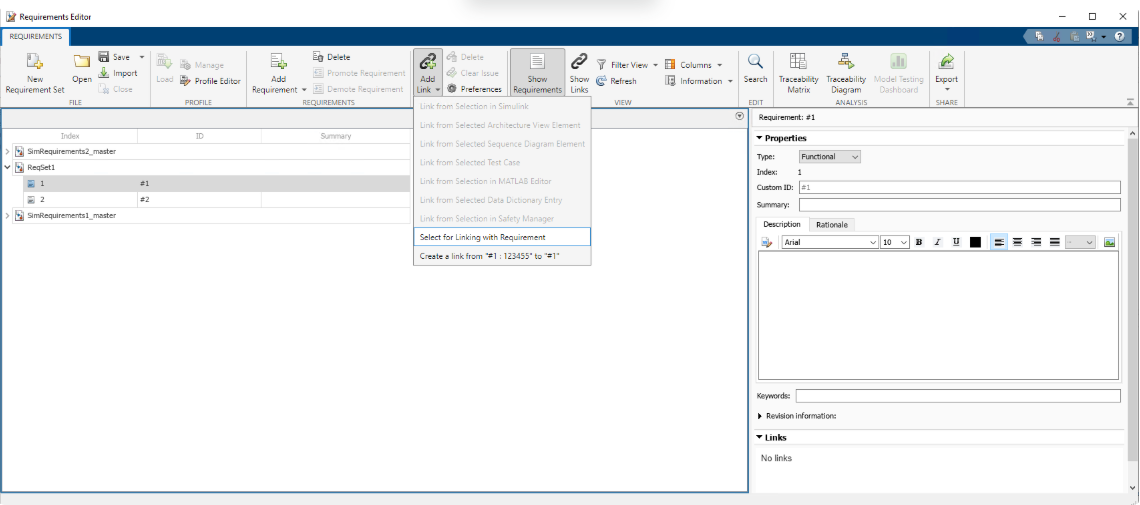
5.2.2 How to Create and Save Link’s between Requirements
Select any of the requirement you want to create link on, click on Add Link -> Select Linking with Requirement
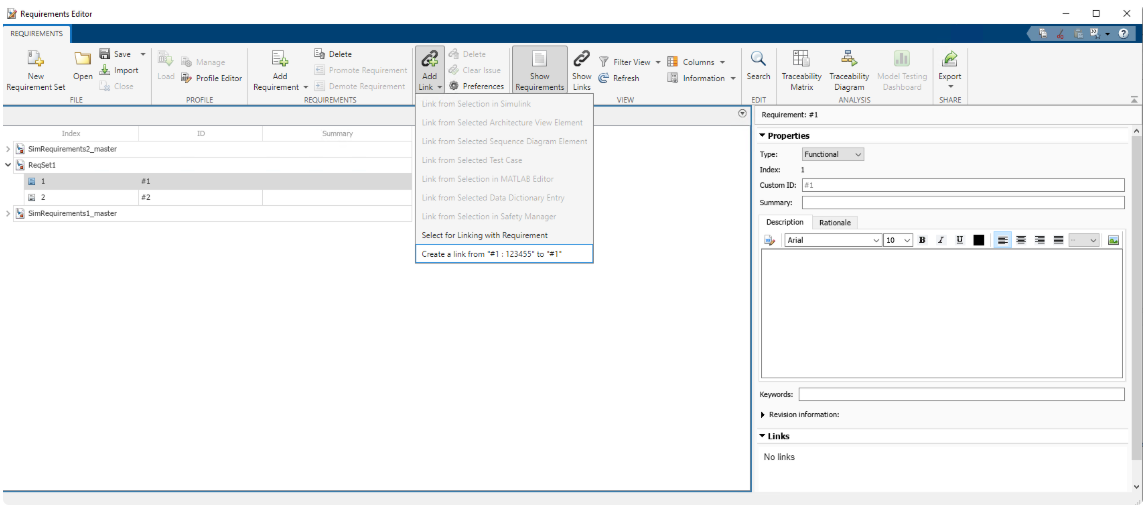
Now select the other Requirement you want to create a link with, there will be
Create link From "1st selected Requirement's ID and Summary" to "2nd selected Requirement's ID"option.
5.2.3 Variable Support
For a
csvfile to be published, make sure it always contains a prefixDT-in the name. For example -DT-demo-variables.csv.When Variables are subscribed, the plugin creates a file with naming format
DT-$SubscriptionName. eg:DT-CreoVariables-master.csv.The following is the order of columns that are created during Subscriptions and the same expected for hand made files
Name,Value,Type,Description,SubscriptionId,CorrelationId
Name | Req’d | Description |
|---|---|---|
Name | yes | Name of the variable |
Value | yes | Variable value |
Type | yes | Type of Value, supported values are |
Description | no | Description for the Variable if any |
SubscriptionId | no | Used for subscribed Variables, Internal Property |
CorrelationId | no | Used for subscribed Variables, Internal Property |
5.2.4 Derives Link
To keep the Derives links in Matlab in line with SysML Derives, adapter publish the link
from both directions, source -> target and target -> source.
The relation from target -> source will be published with a prefix of INV:. eg: INV:Derives
Based on the requirement, either Derives or INV:Derives should be used.
5.3 Tool Limitations and Workarounds
Deletes
Deleting Parent level Requirement which has two children Requirements in a hierarchy causes issue as Matlab deletes all children if we delete the parent Requirement. The Refresh can have side effects as the children might get auto created in some cases
If we delete just the target of a link (in Digital Thread) and do a Refresh there is possibility of dangling links in Simulink
6. Installation
6.1 Installation Instructions
OS - Windows
Java - OpenJDK 11
This adapter works with only JDK 11 or higher
To check the java version used by matlab, run the following command in the Matlab console
version -javaTo change the java version of matlab run the following command
jenv($PATH_JAVA_DIRECTORY)Look at Matlab docs for more details
6.1.1 Installing the SBE Digital Thread Plugin
Starting version 7.21 and 8.7 the adapter is packaged as a standard Matlab toolbox
Download the installation package typically in format simulink-plugin-xx.zip
Extracting the zip file will give 2 files, the Matlab toolbox SBE DigitalThread-8.mltbx and the
logging config file log4j2.xml
Double-click on the toolbox (mltbx), which will start the installation as show in the following screen
Please note if you have more than one version of Matlab installed, right click on the file and open
with the version where you want to install it
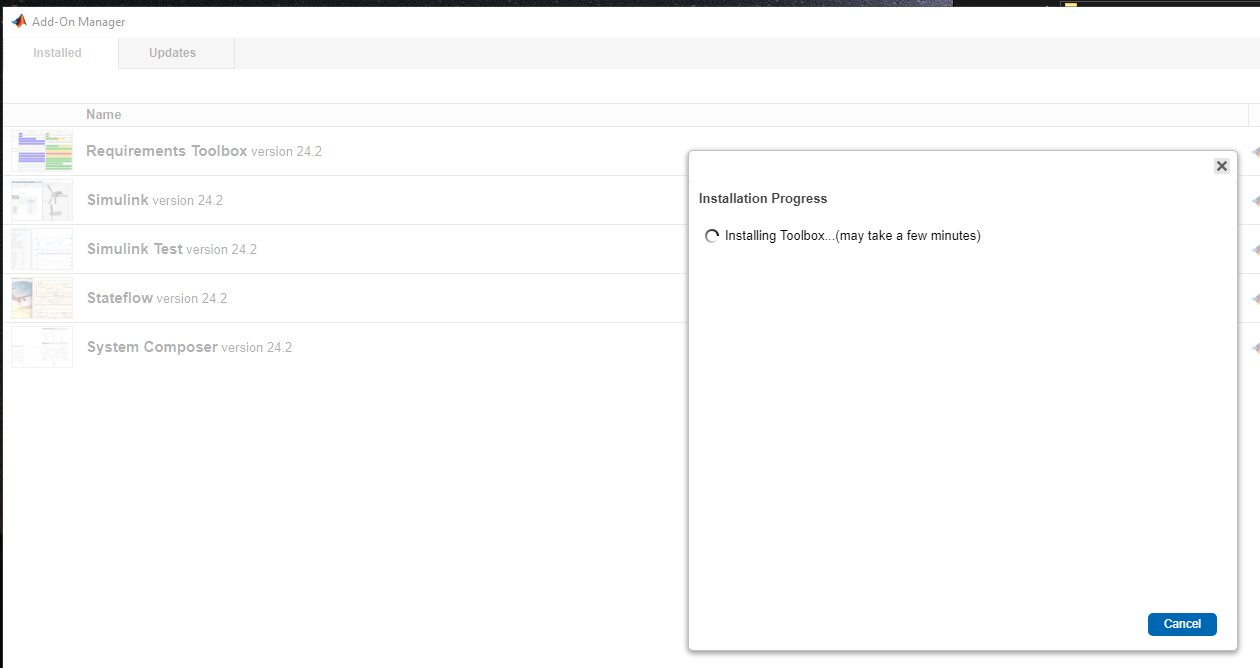
Installing the Toolbox
After installation is successful we can see the toolbox in Addons Manager
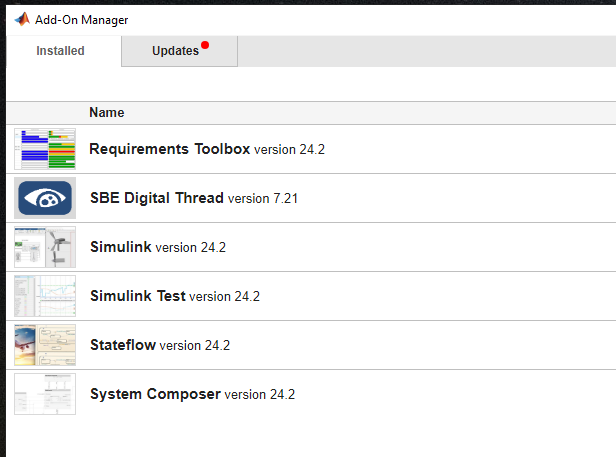
Addons manager
The App should be visible in the Apps tab
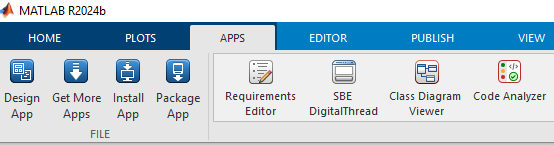
SBE App
6.1.2 Uninstall
Uninstall the plugin from Addons Manager
6.1.3 Updating to new Version of Plugin
Double click on the toolbox (mltbx)
6.1.4 Legacy installation method
Create a directory
$USER_HOME/SBE/matlab.Copy the
config.jsonandlog4j2.xmlfiles from matlab folder to$USER_HOME/SBE/matlab.Copy the Jar file under binaries to any directory, eg:
c:\sbe\matlab\Locate
prefdirdirectory by running the command in MATLAB Command Window as shown below. Locate thejavaclasspath.txt.If file does not exist, create one and add full path to jar(which was copied in previous step). A sample classpath file is provided in install directory.
If it exists, edit and add the path to jar file
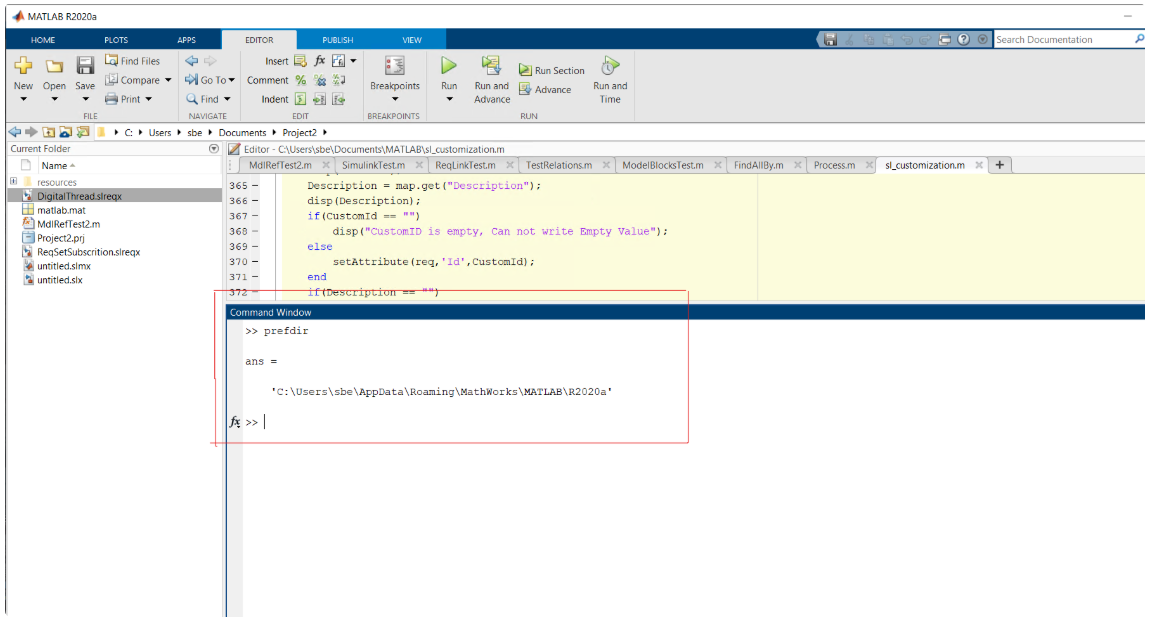
Launch Matlab, navigate to
Appsmenu, install the installation file by clicking onInstall Appoption.When clicked on
Install App, a browse popup will be open, here select the installation file (SBE DigitalThread.mlappinstall) underinstalldirectory. It will show a prompt to install the selected file, confirm it and the SBEDigitalThread application will be visible underAppsmenu.

Updating the SBE Digital Thread Plugin
Reinstall the SBE Digital Thread application.
If required, update the path in
javaclasspath.txtfile.Restart matlab if path is updated in
javaclasspath.txt.
6.1.4.1 Uninstall
Uninstall the SBEDigitalThread App by right-clicking on it in
Appsmenu.Remove the entry from
javaclasspath.txt
6.1.4.2 Updating to new Version of Plugin
Please remove the installed App on Matlab and install the new app from the install package
Copy the new Jar file and replace the entry in
javaclasspath.txtRestart Matlab
6.2 Configuration
Before we can start using the plugin, we need to configure the plugin.
Launch the Matlab app and click on the Settings button to set the SBE Hostname and certificate
path(optional)
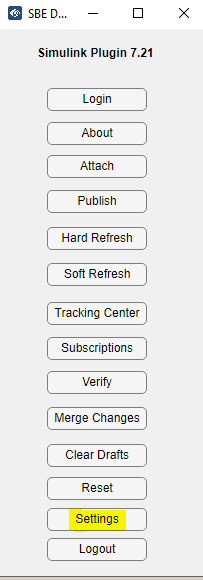
Setting button
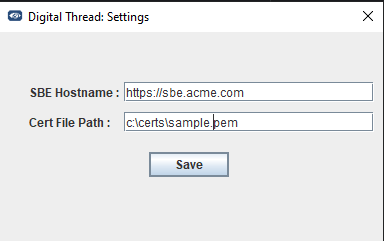
Settings form
6.2.1 Legacy App configuration
Create a directory
$USER_HOME/SBE/matlab.Copy the
config.jsonandlog4j2.xmlfiles from Matlab folder to$USER_HOME/SBE/matlabUpdate the
config.jsonand set the SBE hostname and Certificate path
6.2.2 Logging configuration
To change the log level for the plugin, use the log4j2.xml file provided as part of the installation package.
The file must be copied to $USER_HOME/SBE/matlab directory. eg: C:\Users\TestEngg\SBE\matlab
6.3 DataSource Type Definition
Property | Description |
|---|---|
blocksConfig | Blocks type to path in the Blocks definition in Matlab. eg: |
More information about blocksConfig can be found in the How to support different types of blocks during Refresh section in Usage tips
7. Channels and Mappings
7.1 Channel Definition
Datasource type i.e.
SIMULINK
Name | Mandatory | Description |
|---|---|---|
| Y | The name of the project |
7.2 Approaches to Mapping
There are 2 different types of shapes on the Items published from Matlab, METACLASSand STEREOTYPE
The list of Metaclasses supported by the adapter is listed in Schema section
The STEREOTYPEshape is used to denote the type of the Block/Requirement in Simulink
For the System Composer module the STEREOTYPEshape is used to represent the applied Stereotypes on that Element
8. Security and Access
8.1 Secure Communication
The adapter communicated with SBE server using https and grpc, the necessary ports must be opened on the firewall for the adapter.
The port 443 is needed for https communication
Protocols in Use
gRPC: For fast, bidirectional, binary communication between systems.
HTTPS: For browser-based access and RESTful services.
9. Release Notes
9.1 Version History
8.7
Support Reset
8.6
Fix bug on relation creation between Block and Requirement
Fix embedded Browser Login issue
SDK 8.18
8.5
SDK 8.16
Added new buttons
Clear Drafts,Force PublishandForce Refresh
8.4
Merge features from release
7.20Support Lines Publish
SDK 8.15
Adapter supports JDK 11+ and Matlab 2023a+
8.3
SDK 8.9
Merge features from release 7.16
Fix issues with Refresh
8.2
SDK 8.8
Merge features from release 7.15
8.1
SDK 8.3
Merge features from release 7.5
8.0
SDK 8.0
Support SBE 8.x
7.21
SDK 7.51
Support System Composer (Publish Only)
Move from App to Toolbox based installation
7.20
Fix Hard Refresh issue with Link between Blocks
Support Line Publish
Support
Clear Drafts
7.19
Fix issue with Requirement Refresh
Improvements on Refresh
7.18
Blocks types are determined from Datasource Property
Fix issue with Soft Refresh
Fix issue with changing direction of Derives link
SDK 7.49
7.17
Support Block Refresh
Support Block-Requirement and Block-Block Relation’s
Support Item and Relation Delete
Bug fixes on Refresh
SDK 7.48
7.16
Support Soft Refresh(Requirements, Variables)
Bug Fixes and Improvements
SDK 7.47
7.15
Fix issue with Refresh
7.14
Fix issue with Variable file headers
7.13
Fixed issue with Multiple Refresh of Requirements
7.12
Move Block config to Datasource
RequirementSet file names are as per Subscription/Partition name
7.11
Fixes issue with Description/Rationale (During Refresh)
7.10
Added support for types in Variables
Fixes issue with link (Relation between Block and Requirement)
SDK 7.44
7.9
Fix issue with publishing Blocks
Move to JX 7.41.3
7.8
Fixes issue with updates of Variables
Added better Attach Info UI
Added Description field and column(in csv) for Variables
7.7
Added Diff/Merge button on Plugin
Minor Fixes and improvements on Refresh
7.6
Support Variables (Publish and Refresh)
SDK 7.39
7.5
Implement Verify
SDK 7.36
Show SBE Url in title bar of the dialogs
Multiple subscription migrate support fix
Support Relation deletion for Authoritative and Subscribed items(Containment between Requirement)
7.4
Support addition of CorrelationId Tag on Existing items during Migrate(Only Requirements)
Token timeout extended with refresh token
SDK 7.27
7.3
Improved browser config
Publish Lines with relations
Fixes and Improvements in Publish of a Model
7.2
SDK 7.15
7.1
Support NativeItemsUpdaterV2
Support CorrelationId storage on external Items(Requirements)
Fixes and Improvements in Refresh Process
Support rebase
7.0
Support SBE 7.x
Support Migration (6.x to 7.x)
Improvements in UI for Publish and Refresh
10. Technical Reference
10.1 Adapter API Endpoints
Adapter API endpoints are not applicable for this tool.
10.2 Identity
The following are the Locator properties for respective types
10.2.1 Metaclass: Block
Name | Description |
|---|---|
id | unique identifier of block |
parent | parent of block |
10.2.2 Metaclass: Requirement
Name | Description |
|---|---|
id | unique identifier of requirement |
parent | parent of requirement |
10.2.3 Metaclass: Variable
Name | Description |
|---|---|
Name | name of the Variable |
10.2.4 Metaclass: Component
Name | Description |
|---|---|
uuid | uuid of the Component |
parent | Parent Element |
model | Model Diagram where the Component is located |
10.2.5 Metaclass: SMPort
Name | Description |
|---|---|
uuid | uuid of the Component |
parent | Parent Element |
model | Model Diagram where the Component is located |
10.2.6 Metaclass: Connector
Name | Description |
|---|---|
uuid | uuid of the Component |
10.2.7 Metaclass: Interface
Name | Description |
|---|---|
uuid | uuid of the Component |
parent | Parent Element |
10.2.8 Metaclass: ValueProperty
Name | Description |
|---|---|
uuid | uuid of the Component |
10.2.9 Metaclass: ValueType
Name | Description |
|---|---|
uuid | uuid of the Component |
10.3 Configuration File Format Reference
The Variable type is represented by a csv file, the following is the guideline on how a csv should be created
For a
csvfile to be published, make sure it always contains a prefixDT-in the name. For
example -DT-demo-variables.csv.When Variables are subscribed, the plugin creates a file with naming
formatDT-$SubscriptionName. eg:DT-CreoVariables-master.csv.The following is the order of columns that are created during Subscriptions and the same expected for hand made files
Name,Value,Type,Description,SubscriptionId,CorrelationId
Name | Req’d | Description |
|---|---|---|
Name | yes | Name of the variable |
Value | yes | Variable value |
Type | yes | Type of Value, supported values are |
Description | no | Description for the Variable if any |
SubscriptionId | no | Used for subscribed Variables, Internal Property |
CorrelationId | no | Used for subscribed Variables, Internal Property |
10.4 Schema Support
The following are the metaclasses that are supported.
An Element can have two types of shapes, METACLASS and STEREOTYPE. Block and a Requirement are the METACLASS shapes. The types of Block and Requirement are published as STEREOTYPE shape.
10.4.1 Metaclass: Block
Is Abstract: No
Description: Simulink meta class Block
Name | Datatype | Enum | Req’d | R/O | Description |
|---|---|---|---|---|---|
BlockName | String | no | yes | no | Name |
ModelName | String | no | yes | no | Parent Name(name of model) |
BlockType | String | no | yes | no | Type of block |
STEREOTYPE shape will have the Type of Block. CustomAttribute are Published with its PropertyName.
Links:
Name | Types | Mult | Description |
|---|---|---|---|
link | * | 0..1 | Stereotype if any, will be used as Link Names |
OwnedBy | * | 0..1 | Holds Parent Element |
Types Supported: Subsystem, Constant, Merge, Inport, Outport, Step, Product, Divide, Gain
10.4.2 Metaclass: Requirement
Is Abstract: No
Description: Simulink meta class Requirement
Name | Datatype | Enum | Req’d | R/O | Description |
|---|---|---|---|---|---|
CustomID | String | no | no | no | customId |
Description | String | no | no | no | Description |
Summary | String | no | yes | no | Display Name or Label |
ReqSetName | String | no | no | no | Parent Name |
Rationale | String | no | no | no | Rationale |
Type | String | no | no | no | Type of Requirement |
STEREOTYPE shape will have the Type of Requirement.
CustomAttribute are Published with its PropertyName.
Links:
Name | Types | Mult | Description |
|---|---|---|---|
link | * | 0..1 | Stereotype if any, will be used as Link Names |
OwnedBy | * | 0..1 | Holds Parent Element |
10.4.3 Metaclass: Line
Is Abstract: No
Description: Simulink meta class Line
Name | Datatype | Enum | Req’d | R/O | Description |
|---|---|---|---|---|---|
Source Block | String | no | no | no | Source Block |
Destination Block | String | no | no | no | Destination Block |
Source Port | String | no | yes | no | Source port number |
Destination Port | String | no | yes | no | Destination port number |
10.4.4 Metaclass: Variable
Is Abstract: No
Description: Variables from Digital Thread
Variables of the following types are currently supported, look at Usage Guide for more details
STRING, INTEGER, FLOAT, BOOLEAN
Name | Datatype | Req’d | R/O | Description |
|---|---|---|---|---|
Name | String | yes | no | Name |
Value | String | yes | no | Variable Value |
Description | String | no | no | Description about Variable |
10.4.5 Metaclass: Component
Is Abstract: No
Description: Component from the System Composer Toolbox
Name | Datatype | Enum | Req’d | R/O | Description |
|---|---|---|---|---|---|
Name | String | no | yes | no | Name |
ReferenceName | String | no | no | yes | ReferenceName of the Component |
IsAdapter | Boolean | no | no | yes | Is the Component an Adapter? |
ExternalUid | String | no | no | no | External Uid |
All the Stereotypes on the Components are published as STEREOTYPE shapes on the Element and all the properties defined on the Stereotype are published on the respective shapes
Links:
Name | Types | Mult | Description |
|---|---|---|---|
Ports | SMPort | 0..* | Ports on the Component |
OwnedBy | * | 0..1 | Parent Element |
10.4.6 Metaclass: SMPort
Is Abstract: No
Description: Port from the System Composer Toolbox
Name | Types | Enum | Req’d | R/O | Description |
|---|---|---|---|---|---|
Name | String | no | yes | no | Name |
Direction | String | no | yes | yes | Direction of Port, input/output |
Type | String | no | no | yes | Port type |
ExternalUid | String | no | no | no | External Uid |
InterfaceName | String | no | no | no | Interface Name |
IsConnected | Boolean | no | no | yes | Is Port connected to another element? |
All the Stereotypes on the Components are published as STEREOTYPE shapes on the Element and all the properties defined on the Stereotype are published on the respective shapes
Links:
Name | Types | Mult | Description |
|---|---|---|---|
Connectors | Connector | 0..* | Connectors on the Ports |
OwnedBy | * | 0..1 | Parent Element |
10.4.7 Metaclass: Connector
Is Abstract: No
Description: Connector from the System Composer Toolbox
Link between 2 Ports
Name | Types | Enum | Req’d | R/O | Description |
|---|---|---|---|---|---|
Name | String | no | yes | no | Name |
Type | String | no | no | yes | Connector type |
ExternalUid | String | no | no | no | External Uid |
All the Stereotypes on the Components are published as STEREOTYPE shapes on the Element and all the properties defined on the Stereotype are published on the respective shapes
Links:
Name | Types | Mult | Description |
|---|---|---|---|
Source | SMPort | 0..1 | Source of the Connector |
Target | SMPort | 0..1 | Target of the Connector |
OwnedBy | * | 0..1 | Parent Element |
10.4.8 Metaclass: Interface
Is Abstract: No
Description: Interface from the System Composer Toolbox
Name | Types | Enum | Req’d | R/O | Description |
|---|---|---|---|---|---|
Name | String | no | yes | no | Name |
Description | String | no | yes | yes | Description |
Type | String | no | no | yes | Port type |
ExternalUid | String | no | no | no | External Uid |
All the Stereotypes on the Components are published as STEREOTYPE shapes on the Element and all the properties defined on the Stereotype are published on the respective shapes
Links:
Name | Types | Mult | Description |
|---|---|---|---|
ValueProperties | ValueProperty | 0..* | Value Properties on the Interface |
ValueType | ValueType | 0..* | Value types on the interface |
OwnedBy | * | 0..1 | Parent Element |
10.4.9 Metaclass: ValueProperty
Is Abstract: No
Description: Value Property from the System Composer Toolbox
Name | Types | Enum | Req’d | R/O | Description |
|---|---|---|---|---|---|
Name | String | no | yes | no | Name |
ExternalUid | String | no | no | no | External Uid |
All the Stereotypes on the Components are published as STEREOTYPE shapes on the Element and all the properties defined on the Stereotype are published on the respective shapes
Links:
Name | Types | Mult | Description |
|---|---|---|---|
Type | ValueType | 0..1 | Value Type of the Property |
10.4.10 Metaclass: ValueType
Is Abstract: No
Description: Value Type from the System Composer Toolbox
Name | Types | Enum | Req’d | R/O | Description |
|---|---|---|---|---|---|
Name | String | no | yes | no | Name |
Description | String | no | no | no | Description |
DataType | String | no | no | yes | DataType of the Value |
Complexity | String | no | no | no | DataType of the Value |
Units | String | no | no | no | Units of the Value |
Min | String | no | no | no | Min value needed |
Max | String | no | no | no | Max value allowed |
Dimensions | String | no | no | no | Dimension of the Value |
ExternalUid | String | no | no | no | External Uid |
All the Stereotypes on the Components are published as STEREOTYPE shapes on the Element and all the properties defined on the Stereotype are published on the respective shapes
Links:
Name | Types | Mult | Description |
|---|---|---|---|
Type | ValueType | 0..1 | Value Type of the Property |