
IBM DOORS Classic Adapter
SBE Doors Plugin Documentation
1. Getting Started: Using the Adapter
1.1 Operations Overview
Attach
Publish
Refresh - Soft/Hard
Verify
Reset
1.2 Accessing the Adapter
1.2.1 Digital Thread Menu
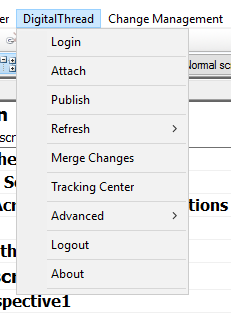
The Digital Threadmenu can be seen on the Project Level or a Formal Module level
1.3 Attaching & Connecting
Name | Mandatory | Description |
|---|---|---|
projectId | Y | The name of the project |
projectName | Y | Internal ID of the project |
version | N | Indicates the baseline version of the Project or Module, based on the channel type. |
moduleIds | N | Comma separated of the ModuleId's |
folderNames | N | Comma separated of the Folder names |
description | N | Basic description about the channel |
To attach a project, the user must click the Attach button from the Digital Thread menu. This opens a window (as shown below), where the user needs to provide the necessary information.
Module Baseline: Allows you to attach a baseline version for a single module. First, you will be prompted to select the module. After selecting the module, the next window displays all baseline versions available for that module. Choose the baseline version you want to attach.
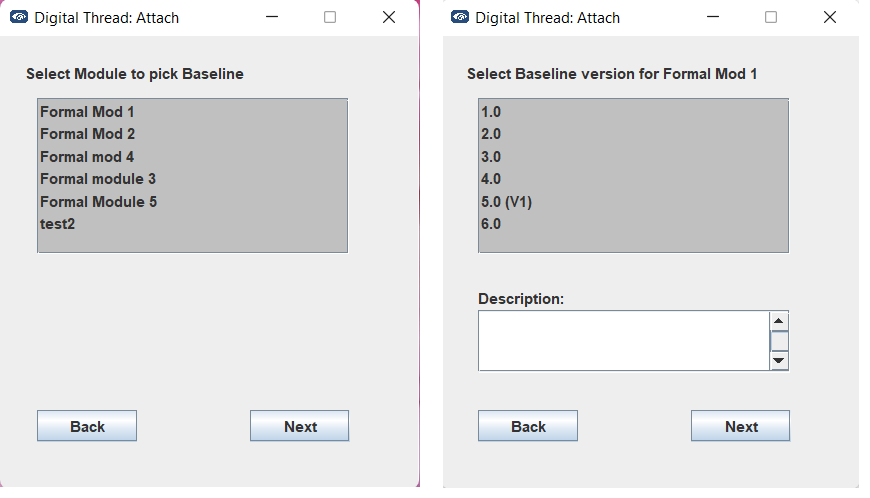
Module Baseline
Project Baseline: Lets you attach the Project baseline, you will be prompted with the available baseline versions on the project. Select the baseline version of the project you want to attach.
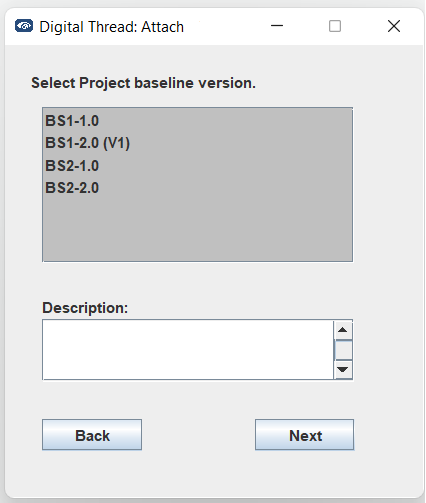
Project Baseline
Working version: Lets you attach the current working version, Lets you select folders you want to attach or select the modules you want to attach.
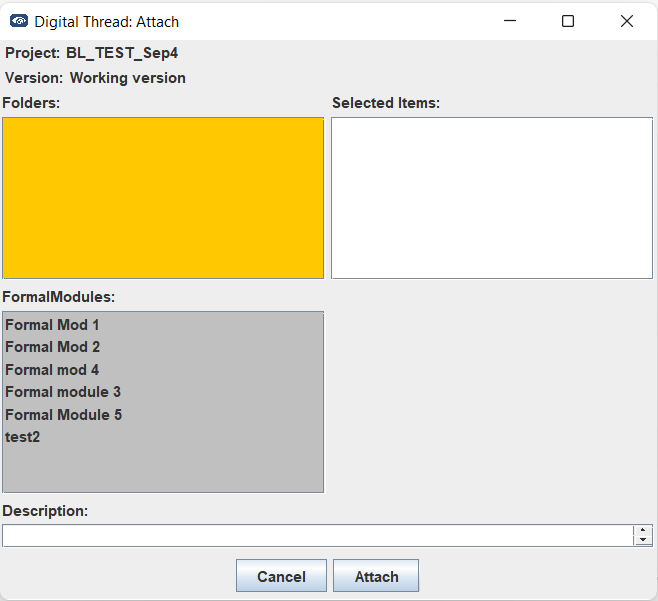
Working version
1.4 Publishing Items
Projects are supported for publish.
The following components are published
Formal Modules
Folders
Objects, Attributes from Object will be published
If Baseline Version is selected then only the selected Baseline version is published
1.5 Refreshing Items
Only Authoritative Refresh is supported.
Subscriptions are not supported.
1.5.1 Hard Refresh
In a hard refresh, the plugin retrieves the entire published and subscribed data from the SBE. A complete refresh is performed on all items received, ensuring that the local model is fully synchronized with the server.
1.5.2 Soft Refresh
In a soft refresh, the entire dataset is not retrieved. Priority is given to locally modified data that has not yet been published. This allows users to continue making changes locally without the risk of those changes being overwritten. Only data that has not been modified locally and has been updated in SBE is received and refreshed during this operation.
1.6 Advanced Operations
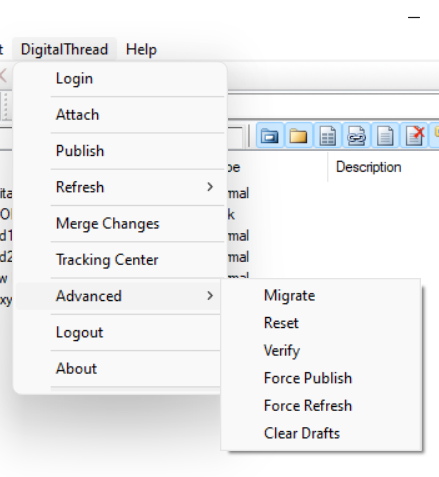
1.6.1 Migrate
Run Upgrade from one version of SBE to another by clicking the Migrate menu item under Advanced.
1.6.2 Reset
The Rest operation clears the local metadata for the current channel.
1.6.3 Verify
The verify operation refrains from making any modifications to the external system. Instead, it focuses on comparing the items in the external system with those received from the SBE platform. During this process, the adapters evaluate the metadata (such as correlation ID, subscription ID, etc.), properties, and relationships. They also check for any missing or extra items.
1.6.4 Force Publish
Force Publish triggers a full publish of data, regardless of whether only a subset of data has changed since the last operation. It bypasses the usual "delta" mechanism, which would otherwise only send changes since the last publish. This is useful when you want to ensure that all data is sent to the target system, even if some data hasn't changed or if previous publishes may have missed something.
This feature is available starting from version 8.x.
1.6.5 Force Refresh
Force Refresh triggers a full refresh of data from the source, again bypassing the delta mechanism. It ensures that the local or client system is completely updated with the latest data from the source, not just the changes since the last refresh. This is helpful for resolving sync issues or when you want to guarantee that the client has the most up-to-date and complete data
This feature is available starting from version 8.x.
1.6.6 Clear Drafts
The Clear Drafts action in the SBE platform is an advanced operation available in the Digital Thread adapter menu. This action is designed to remove or clear any "draft" data or unpublished changes that are stored locally for a given channel or project. Drafts typically accumulate when you make changes but haven't yet published them to the SBE server.
1.8 Troubleshooting for End Users
The recommended Java version’s are 64bit version of JDK 1.8 and JDK 11
The logs are generated in the
%TEMP%directoryIf the Browser startup times are really slow (more than 5 mins) and this started after February 1st
2025, it is possible it this was caused by a Windows Defender update. Moving to the latest version of plugin (>= 8.3) should fix the issue.
to fix the slowdown
2. Document Overview
2.1 Document Overview
This document provides essential information for using, configuring, and supporting the SBE Vision adapters for Doors Classic. It covers multiple adapter products, each supporting different versions of the external tool.
2.2 Document Orientation
This document is designed to inform users with various roles:
End Users should begin with Section 1 to understand how to access and operate the adapter, and Section 5 for issues pertaining to the setup, configuration, and use of the digital tool itself.
Digital Thread Specialists should focus on Section 1, and also consult Sections 3, 4, and 5 for deployment and semantic mapping. Section 11 contains details related to mapping items from this tool into a semantic ontology.
Administrators should refer to Section 6 and beyond for setup, security, support, and version management.
3. Adapter Use Cases
3.1 Adapter Overview
The purpose of this adapter is to allow the data contained within instances of Doors Classic to connect with the SBE Digital Thread platform. Given that Doors Classic is a rich-client tool, the usage of this adapter is governed by end users operating that tool on the desktop of their workstation. This adapter was built using the SBE Java Pro-SDK product.
4. Supported Versions
4.1 Supported Adapter Products
This document covers all the version of adapter that support SBE 7.x (woburn) and 8.x (melrose)
4.2 External Tool Versions Supported
The Adapter was tested on
Doors 9.6.x
Doors 9.7.x
5. Digital Tool Best Practices
5.1 Tool Configuration Considerations
Tool configurations are needed only for manual installations. When installing manually, ensure that all required tool settings are applied in the
config.jsonfile as described in section 6.2
5.2 Usage Tips & Gotchas
Common user mistakes
Refreshing without mappings for required properties
Solution: Ensure all mandatory properties are mapped before performing a Refresh operation.
6. Installation
6.1 Installation Instructions
6.1.1 Supported Configurations
OS - Windows 10,11, servers 2019, 2016
Java - Same as Doors, 1.8 or 11
6.1.2 Installation package
There are 2 ways to install the plugin
Manual Installation – Requires configuring paths and files manually.
Automatic Installation (Recommended) – A guided installer that handles setup for you with minimal effort.
For Manual installation download the doors-plugin-X.X.X.zip and extract the zip file, it should contain 2 directories, install and binaries.
Install directory will contain the UI/menu and config and Doors dxl files. The binaries directory will contain the necessary dependencies.
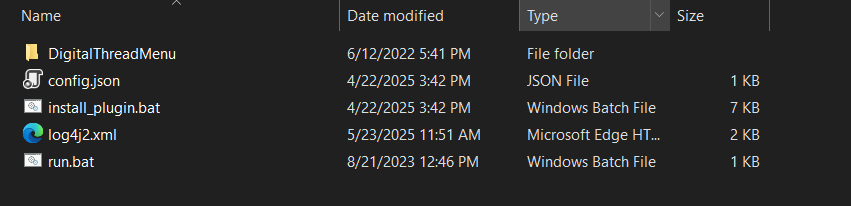

DigitalThreadMenudirectory contains all dxl needed to add the menudoors-plugin-X.X.X-dependencies.zipcontains all the jar files used by the pluginbatch file :
run.batLogging configuration:
log4j2.xmlconfig.json: A JSON file with plugin specific config
For Automatic installation you need only doors-plugin-X.X.X.exe file, which is all dependencies, digital thread menu, and config file packaged together.
6.1.2.1 Manual Installation
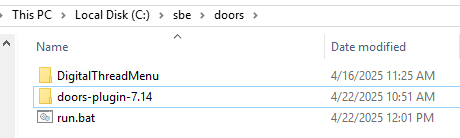
Copy the
DigitalThreadMenudirectory to a known location, eg: c:\sbe\doorsExtract the zip under
binariesand copy the jar files into the directory created in step 1, i.e, all the jars must be directly under eg: C:\sbe\doors\libs\Copy the
config.json,log4j2.xmlto $USER_HOME\SBE\doors\Update the
run.batfile to point to the directory where jars were extracted in step 2 (in our
exampleC:\\sbe\\doors\\libs\\*), also copy to directory in step 1.Update the
dtconstant.incinside theDigitalThreadMenu\\DigitalThreadto point to the location of the bat file. eg:c:\\sbe\\doors\\run.batCopy the
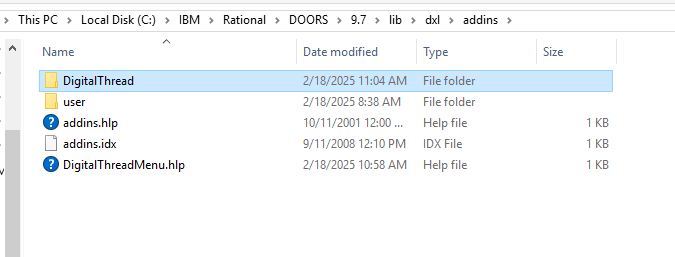
DigitalThreaddirectory (underDigitalThreadMenu) toDOORS_HOME\\lib\\dxl\\addins.
eg: "C:\IBM\Rational\DOORS\9.6\lib\dxl\addins"

6.1.2.2 Automatic Installation (Using Installer)
Follow the steps below to install the Digital Thread DOORS Plugin using the installer:
Launch the Installer
Locate and open the installer file (with.exeextension).Handle Windows Defender Warning
If Windows Defender displays a warning, click More Info.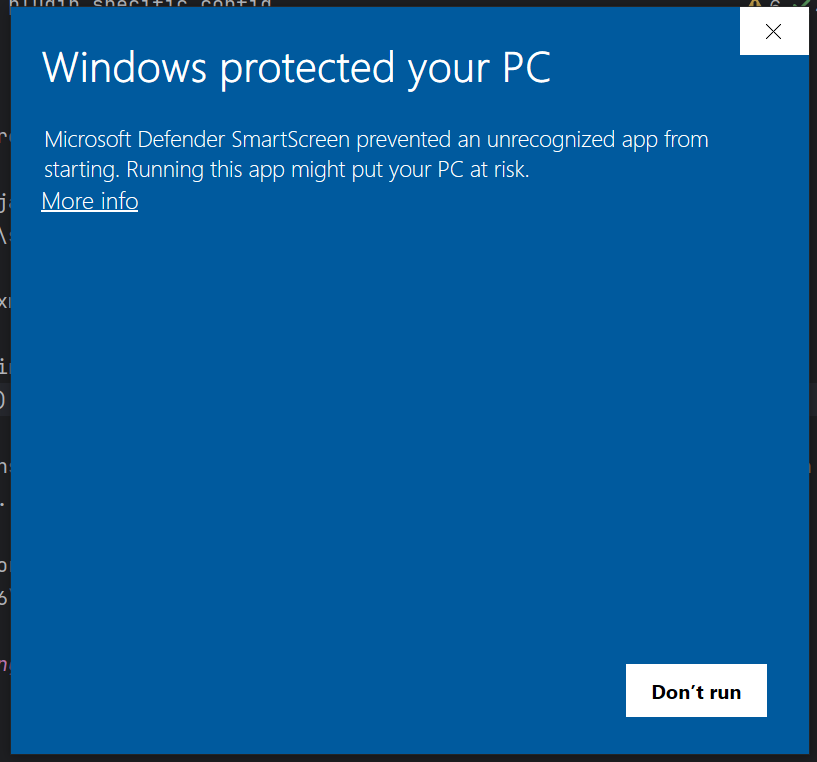
Run Anyway
Click Run Anyway. If a User Account Control (UAC) dialog appears, click Yes.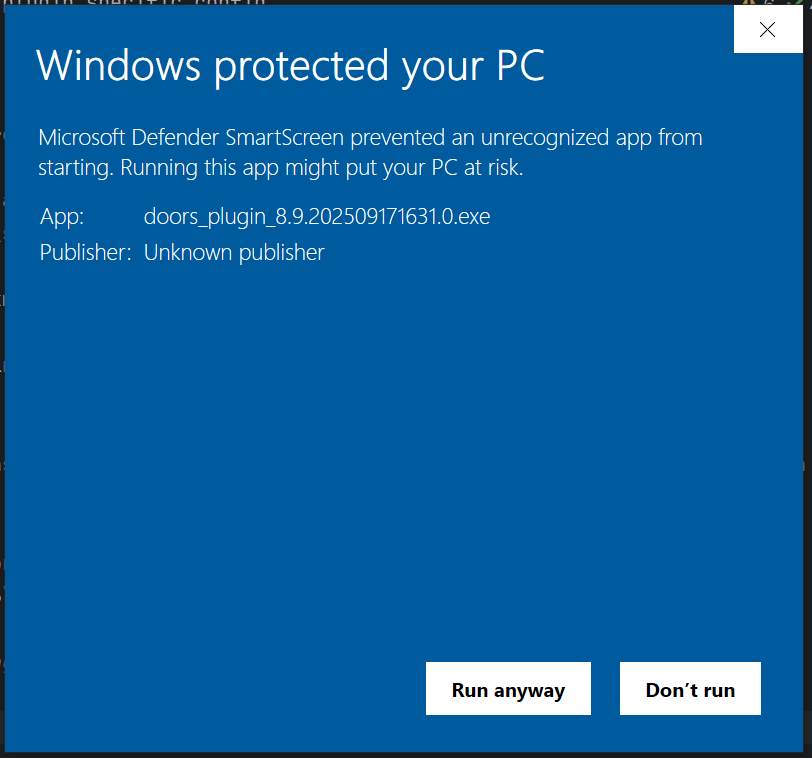
Welcome Page
The installer will display a welcome screen. Click Next to proceed.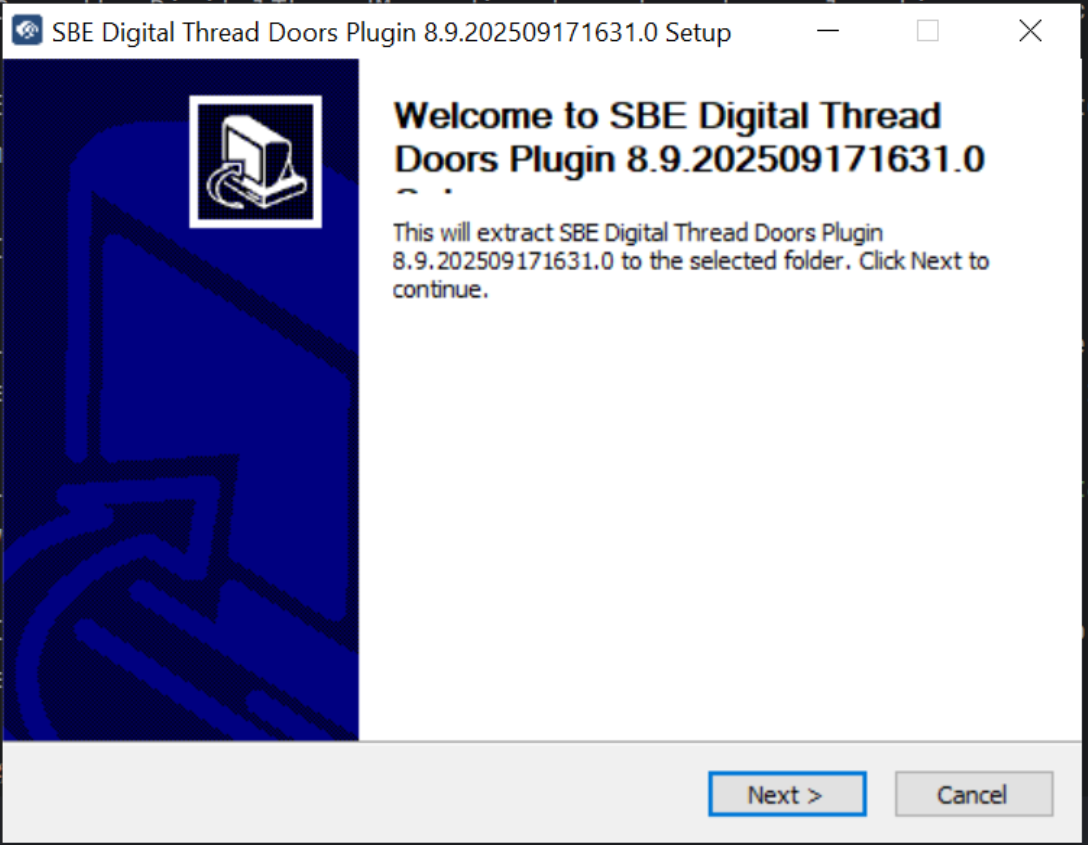
Choose Installation Location
On the next page, either browse and select the plugin installation directory or keep the default location. Click Next.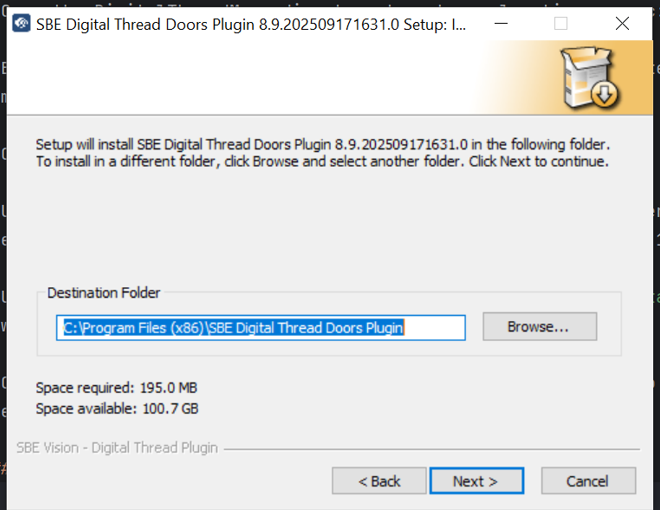
Specify DOORS Installation Path
Select the path where the IBM Rational DOORS client is installed.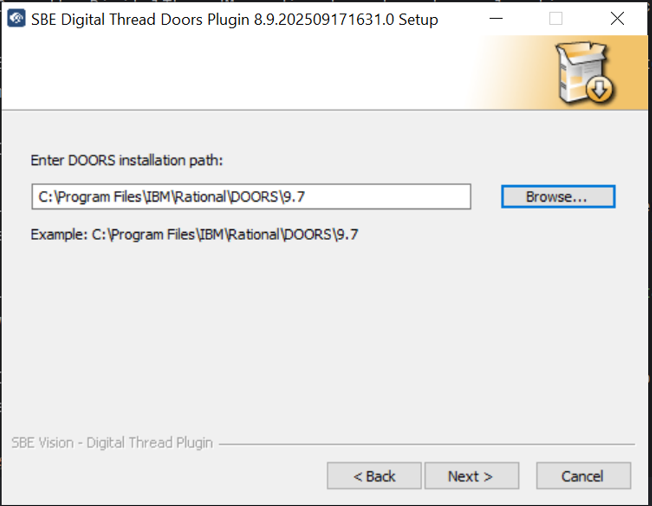
Default location:
C:\\Program Files\\IBM\\Rational\\DOORS\\9.7Configure SBE Server Endpoint
Enter your SBE server endpoint (e.g.,https://sbe.acme.com).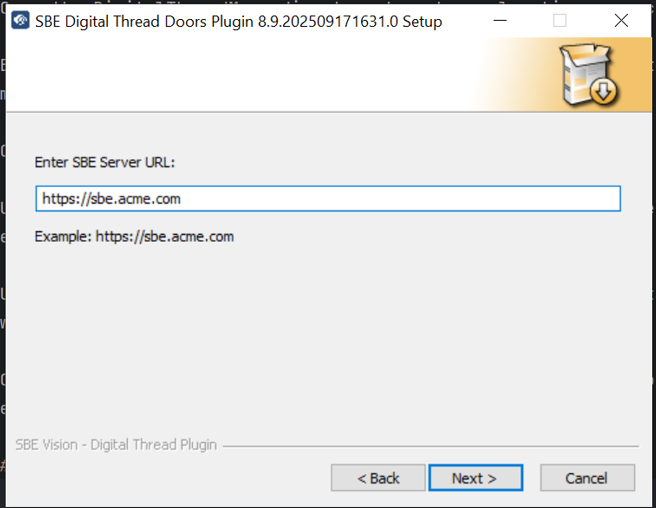
If required, also provide the certificate location in next page.
Select Java Home Path
Browse and select your Java home directory, then click Install.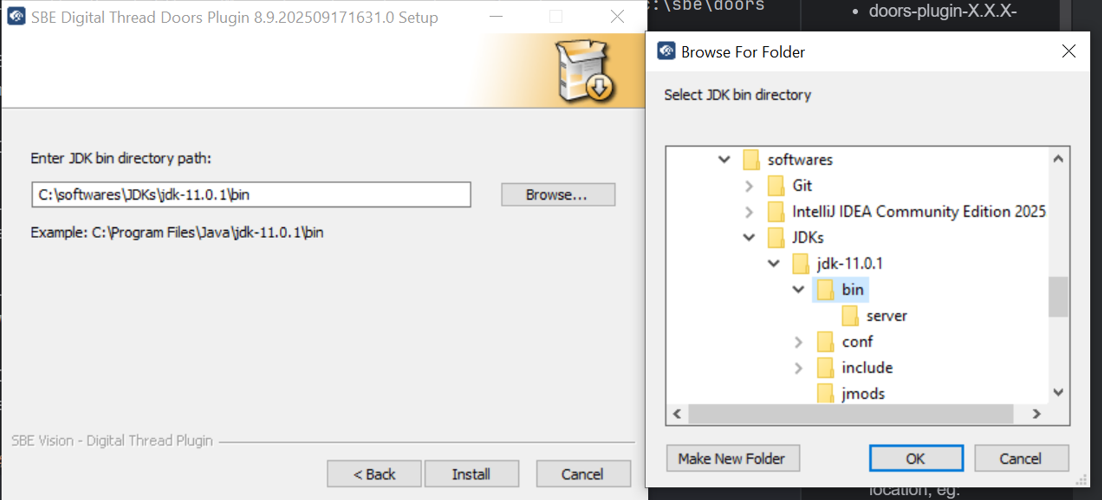
Installation Complete
Once the process is finished, you will see a confirmation screen.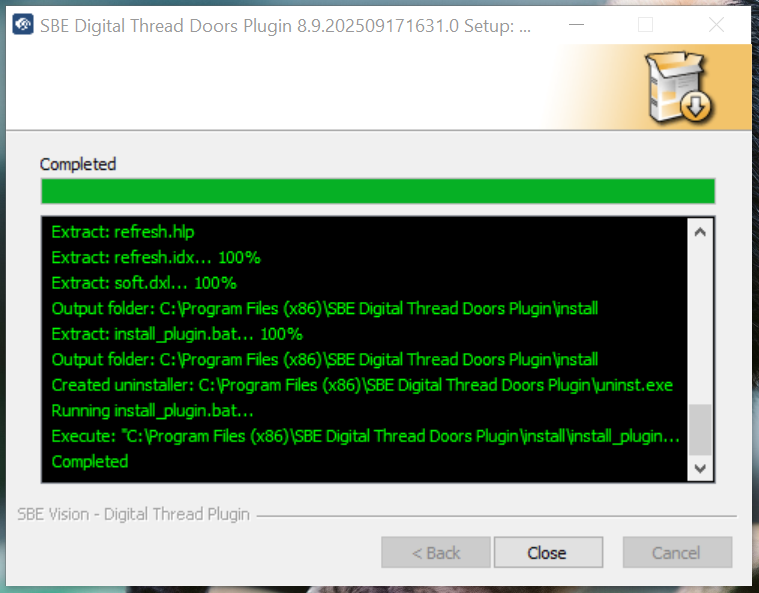
The Digital Thread DOORS Plugin is now successfully installed and ready to use.
6.1.3 Installing Menu
When we copy the DigitalThread directory to the addins directory, that will add the SBE menu at
the Module level, but we cannot see the SBE menu at the Root/Database Window level. We need to use one of the following ways shown below to add the menu at the Root Window level.
There are 2 ways to add the Digital Thread menu to Doors main Database window.
6.1.3.1 Updating the shortcut
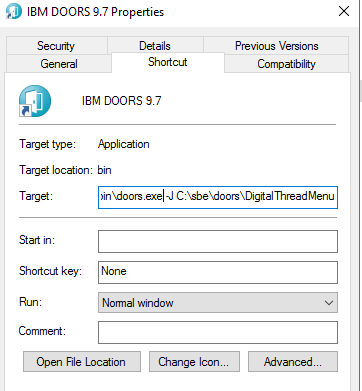
Create/Update the shortcut to doors by adding
the "C:\Program Files\IBM\Rational\DOORS\9.7\bin\doors.exe" -J c:\sbe\doors\DigitalThreadMenu in the end, as shown below
In case of automatic installation "C:\Program Files\IBM\Rational\DOORS\9.7\bin\doors.exe" -J C:\Users\<admin>\DigitalThread\doors\DigitalThreadMenu
6.1.3.2 Updating the registry
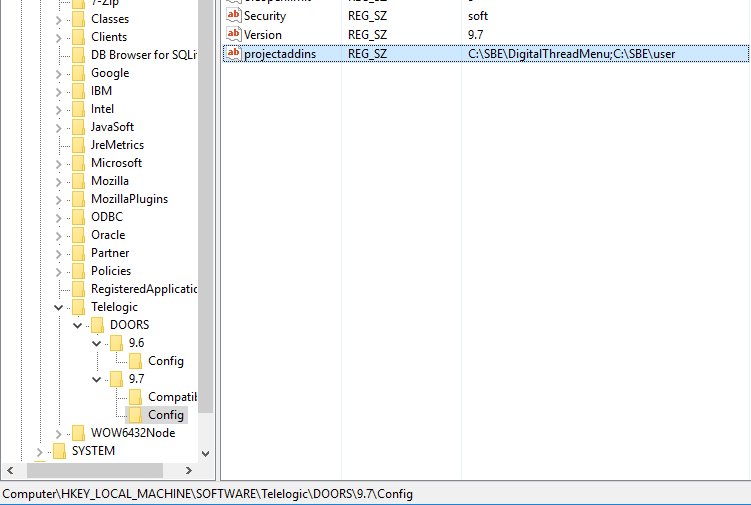
Launch the Registry Editor and go to HKLM\Software\Telelogic\DOORS\<version>\config and add a string value called projectaddins with the value of your plugin directory (example: c:\sbe\doors\DigitalThreadMenu).
If there are multiple paths for project addins, one can delineate these paths with semicolon as
shown :-
6.1.3.3 Verifying the Installation
Once the plugin is installed and configured, a Digital Thread menu will appear on the menu bar.
6.1.3.4 Upgrade the plugin
Delete the directory created during Installation, eg: c:\sbe\doors
Re-install using the steps in Installation section.
6.1.3.5 Logging
The logging config file log4j2.xmlis provided as part of the install package, this file contains the config to set the location of the log file, by default the log file doors_plugin.logis created in the %TEMP%directory.
6.2 Configuration
The config.json which was copied to $USER_HOME/SBE/doors/config.json contains the system config for the plugin
Update the fields as shown below
Property | Description |
|---|---|
restEndPoint | Authorization Endpoint. eg: https://sbe.acme.com |
certFilePath | if self signed certificates are used on SBE, this is the full path to root certificate, eg: c:\\sbe\\root-http.pem |
doorsFullPath | Full path to doors.exe, used in batch-mode. eg: c:\\Doors\\bin\\doors.exe |

Note: The certificate must be in a human-readable format, like pem
6.3 DataSource Type Definition
Property | Description |
|---|---|
displayNameProperty | property used as |
attributeFilter | When we want to filter the date in the Datasource this property can be used. We add filter’s on properties of a Requirement, valid example : |
doorsServerIpPort | ip and host of Doors server, needed when running Doors in Batch mode. eg: 123@sample-doors.com |
runInBatch | set to |
serverTimezone | Represents the time zone of the Doors Server. valid examples (This property is applicable starting from version 8.x.) |
7. Channels and Mappings
7.1 Channel Definition
Name | Mandatory | Description |
|---|---|---|
projectId | Y | The name of the project |
projectName | Y | Internal ID of the project |
version | N | Indicates the baseline version of the Project or Module, based on the channel type. |
moduleIds | N | Comma separated of the ModuleId's |
folderNames | N | Comma separated of the Folder names |
description | N | Basic description about the channel |
There are 3 types of channels that can be created in Doors
Module Baseline centric
Project Baseline centric
Working version centric
7.1.1 Module Baseline Centric
The channel where we want to use a Module baseline as the scope of the Channel, in this case properties projectId,projectName, moduleId, version are used.
Module Baseline
7.1.2 Project Baseline Centric
The channel where we want to use a Baseline in the project as the scope of the Channel, in this case properties projectId,projectName, version are used.
Project Baseline
7.1.3 Working version Centric
The channel where we want to use the one or more Modules in a Projects as the scope of the Channel, in this case properties projectId,projectName, moduleIds are used.
Working version
7.2 Approaches to Mapping
There are 3 shapes that are Handled by the adapter
Object - represents requirements/objects in Doors
FormalModule - represents a Formal Module
Folder - as the name suggests represents a Folder
The detailed information about the properties id given in the Schema Section
8. Security and Access
8.1 Authentication Methods
Then using the batchMode the adapter will ask for the user credentials used to connect to Doors to run the operation in the background.
8.2 Authorization and Roles
The adapter assumes user has necessary read permissions on the project and Requirements under the Module for Publishing a Channel
Similarly adapter assumes user has necessary write permissions on the project and Requirements under the Module to run any type of Refresh Operation
8.3 Secure Communication
The adapter communicated with SBE server using https and grpc, the necessary ports must be opened on the firewall for the adapter.
The port 443 is needed for https communication
9. Release Notes
9.1 Version History
8.9 (Sept 26, 25)
SDK 8.18
Fix Double login Issue in embedded browser
8.8 (Aug 14, 25)
SDK 8.17
Add new buttons Force Publish, Force Refresh and Clear Drafts
Item V7
8.7 (July 4, 25)
SDK 8.15
8.6 (July 4, 25)
SDK 8.14
Handle HTML fields better
Performance improvements on Refresh
Adapter now updates the final status of the operation
Rename
Resetbutton.Fix Bug with Baseline publish
Fix Bug setting custom properties
8.5 (April 16, 25)
SDK 8.11
Replaced properties in locator
Verifyimprovements
Special Note
Since the locators have been changed, it is advised to do a
Refreshbefore doing aPublish
8.4 (March 3, 25)
SDK 8.10
8.3 (Feb 19, 25)
Support ASOT linking within Doors
SDK 8.9
JX 7.42.0
8.2 (Jan 8, 25)
changed Data Source Property from timeZone to serverTimeZone
SDK 8.8
Added
OwnedByModulerelation forObjectShow
descriptionproperty in Attach UI
8.1 (Aug 14, 25)
SDK 8.3
Performance improvement on Attach
Implement Verify
8.0 (June 3, 25)
Support SBE 8.0
Delta Publish
7. 18 (Nov 17, 25)
New Attach Option - Module Baseline
New Doors Installer
Inject Custom Certs into http clients
Show new metrics in Tracking dashboard during Refresh
Fixes for Verify
7.17 (August 7, 25)
Fix issues with updating Multi-valued properties in Doors
7.16 (July 21, 25)
SDK 7.50
Add new button
Clear Drafts
7.15 (July 9, 25)
SDK 7.49
Handle HTML fields better
Performance improvements on Refresh
Adapter now updates the final status of the operation
Rename
Resetbutton.Fix Bug with Baseline publish
Fix Bug setting custom properties
7.14 (April 22, 25)
Replaced properties in locator
SDK 7.48
JX 7.42.0
Verifyimprovements
Special Note
Since the locators have been changed, it is advised to do a
Refreshbefore doing aPublish
7.13 (Dec 05, 24)
Added
OwnedByModulerelation forObjectShow
descriptionproperty in Attach UI
7.12 (Oct 28, 24)
Added new
ChannelpropertydescriptionRenamed
ChannelpropertymoduleNamestomoduleIdsChannel Picker for Migrate
Show Progress for Verify
SDK 7.44
9.2 Breaking Changes
The locator properties were changed in release
7.14, If upgrading from a version older than7.15it is highly advised to do aRefreshbefore doing aPublish
10. Technical Reference
10.1 Adapter API Endpoints
Adapter API endpoints are not applicable for this tool.
10.2 Identity
The following are the Locator properties for respective types
10.2.1 Formal Module
Name | Description |
|---|---|
|
|
| url of the Formal Module |
| static value - |
10.2.2 Folder
Name | Description |
|---|---|
|
|
| url of the Folder |
| static value - |
10.2.3 Object/Requirement
Name | Description |
|---|---|
|
|
|
|
| static value - |
10.3 Configuration File Format Reference
All accepted parameters
Required vs optional
Examples and defaults
10.4 Schema Support
10.4.1 Type: FormalModule
The formal modules are specification which holds the objects/requirements.
Name | Datatype | Req’d | R/O | Description |
|---|---|---|---|---|
uniqueId | String | no | yes | Identifier of the Module |
name | String | yes | no | Module Name |
key | String | no | yes |
|
moduleName | String | no | no |
|
createdBy | String | no | yes | name of the Creator |
description | String | no | no | Description of the Module |
prefix | String | no | yes | Prefix of the Module |
createdOn | Date | no | yes | creation date. |
lastModifiedOn | Date | no | yes | Last Modified on. |
baseline | String | no | yes | Baseline version. |
Links:
Name | Types | Multiplicity | Description |
|---|---|---|---|
Owner | Folder | 0..1 | Points to the Parent entity if one exists, typically a Folder. Empty if it is present at root level of the project |
10.4.2 Type: Folder
The folders can hold formal modules and folders.
Name | Datatype | Req’d | R/O | Description |
|---|---|---|---|---|
name | String | yes | no | Module Name |
key | String | no | yes |
|
description | String | no | no | Description of the Module |
uniqueID | String | no | yes | Unique Identifier of Folder |
ownerName | String | no | yes | Owner name |
Links:
Name | Types | Multiplicity | Description |
|---|---|---|---|
Owner | Folder | 0..1 | Points to the Parent entity if one exists, typically a Folder. Empty if it is present at root level of the project |
10.4.3 Type: Object
Object or Requirement in Doors Classic
Name | Datatype | Req’d | R/O | Description |
|---|---|---|---|---|
name | String | no | yes | Object Name (calculated field based on the |
key | String | no | yes |
|
objectText | Html | no | no | Text of the Object |
objectText_PlainText | String | no | no | Plain text version of the ObjectText |
objectShortText | Html | no | no | Short Text |
objectName | Html | yes | no | Name of the Object |
number | String | no | yes | Object number |
createdBy | String | no | yes | name of the Creator |
ownerName | String | no | yes | Owning Item/Module name |
moduleName | String | no | yes | Owning Module name |
createdOn | Date | no | yes | creation date. |
lastModifiedOn | Date | no | yes | Last Modified on. |
lastModifiedBy | String | no | yes | Last modified by. |
absoluteNumber | Integer | no | no | Absolute number of an Object |
objectLevel | String | no | no | Level at which an object is located within a module |
baseline | String | no | yes | Baseline version. |
Links :
Name | Types | Multiplicity | Description |
|---|---|---|---|
Owner | Object/FormalModule | 1..1 | Points to the Parent entity, a Object/FormalModule |
OwnedByModule | FormalModule | 1..1 | Points to the Parent Formal Module of an Object |
All outlinks will be published as links with the name of the link module as relation name.
The Items from Doors are published with only one shape of type METACLASS
11 Upgrade
11.1 Migrate from SBE 6.x to SBE 7.x
This section covers the guide to upgrade from your SBE 6.x to SBE 7.x
11.1.1 Prerequisites
11.1.1.1 Changes in Mappings
The typeobject has been renamed to Object, the mappings needs to be modified before
running Migrate
Old ShapeID | New ShapeID |
|---|---|
"object" | "Object" |
Properties objectText, objectName, objectShortText will be of type Html. The Ontology needs
to be modified accordingly
11.1.2.1 Breaking Changes
Changes in Channel Properties
The change in Channel properties is moving from moduleNames to moduleIds
The Names need to be replaced to Id's before running Migrate on the channel
To do that SBE provides a Migrate Rest API.
Run through the following steps to Migrate the channel properties
Getting the
moduleIdsfrommoduleNames
The following is a sample channel in SBE 6.x
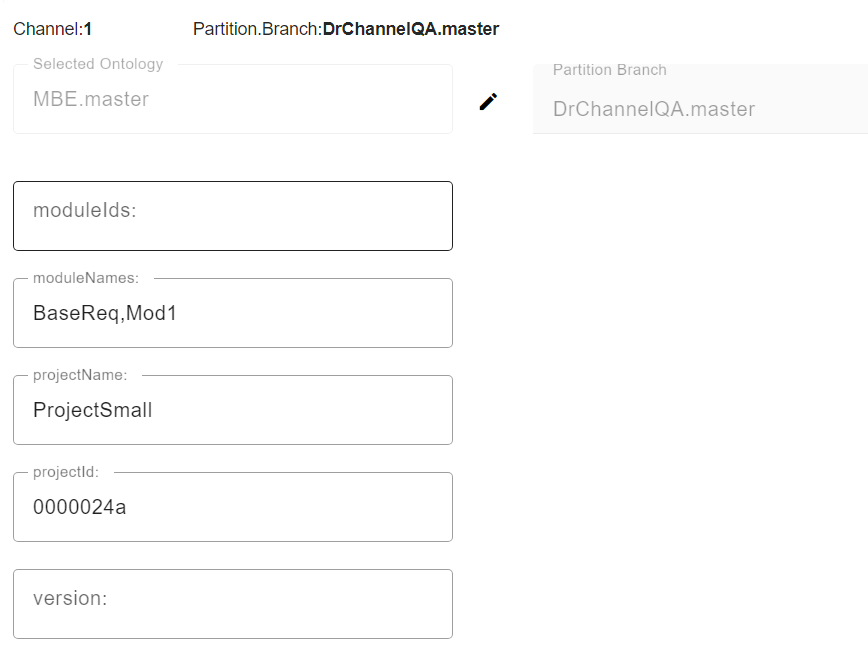
As we can see the channel property moduleNames contains the names of the selected modules
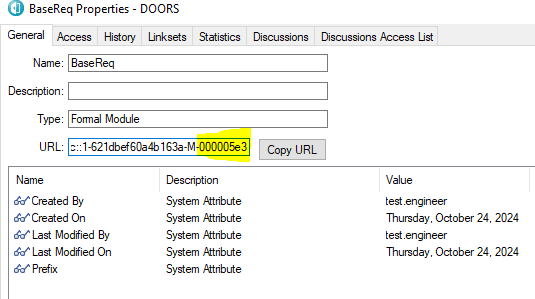
To get the Module Id's, Launch Doors Application and open the properties of the Module as shown
below
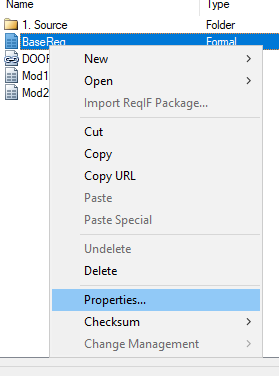
From the properties, scroll right on the Url property and select the id in the end, please note
the id will the section after the last -
In this example the id is 000005e3
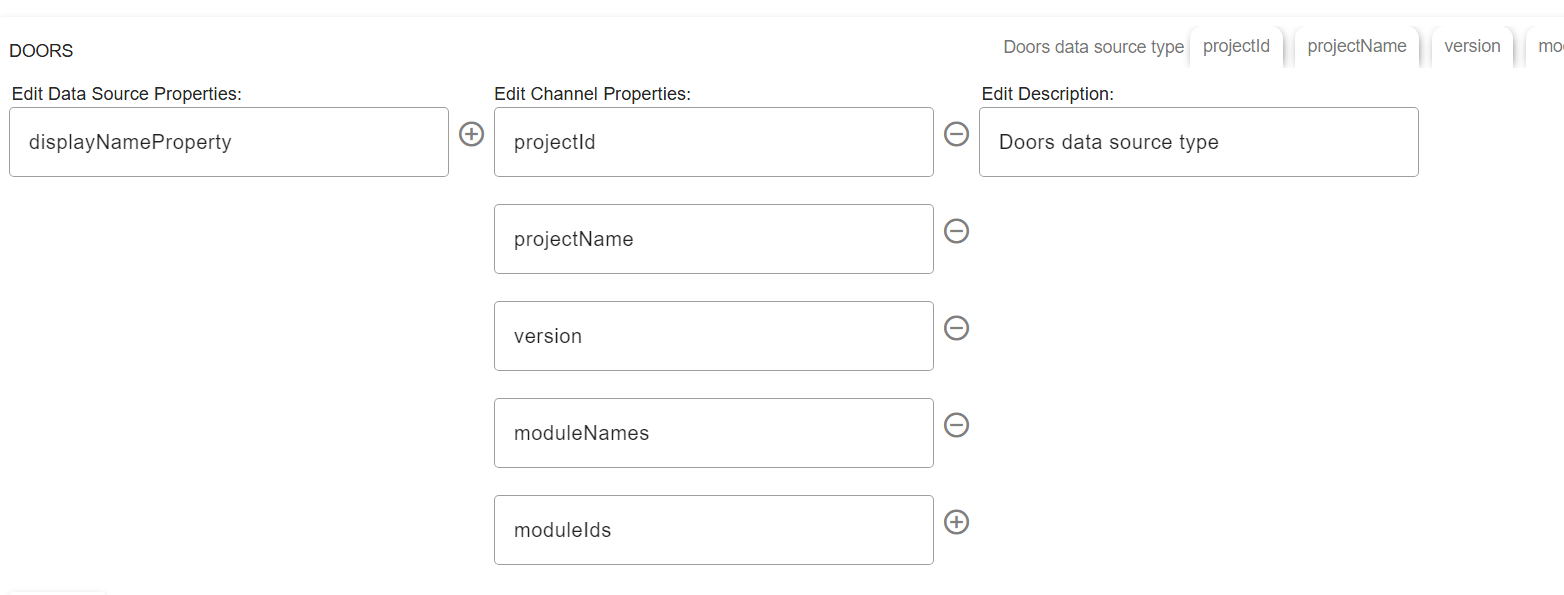
Modify DataSource
Add new channel property moduleIds to DataSourceType
We will not remove the moduleNames till all the channels are migrated
Using the API to migrate channel properties
Now that we have all the moduleIds from moduleNames, run the following from the postman or
equivalent tool
Replace the following variables in the Url
Name | Description |
|---|---|
| Hostname of the SBE instance. eg: https://sbe.acme.com |
| DOORS Data Source Name. eg: DOORS_SOURCE_1 |
| Channel Name. eg: 7 |
URL: <https://SBE_HOMENAME/api/v1/datasources/DOORS_SOURCE_NAME/channels/CHANNEL_NAME/migrate>
eg: <https://sbe.acme.com/api/v1/datasources/DOORS_QA/channels/7/migrate>
The document assumes that we have the necessary Token headers
where my DataSource is DOORS_QA and channel name is 7
A Sample body for the request is
{
  "_content": "RESOURCE",
  "_type": "CHA",
  "_clientType": "THIN",
  "_datasource": "DOORS_QA",
  "_datasourcetype": "DOORS",
  "_description": "Doors Models",
  "_name": "7",
  "_properties": [
    {
      "_name": "projectName",
      "_value": [
        "ProjectSmall"
      ]
    },
    {
      "_name": "projectId",
      "_value": [
        "0000024a"
      ]
    },
    {
      "_name": "moduleIds",
      "_value": [
        "000005e3,000005e0"
      ]
    },
    {
      "_name": "version",
      "_value": [
        ""
      ]
    }
  ]
}
The modified Channel properties should look like
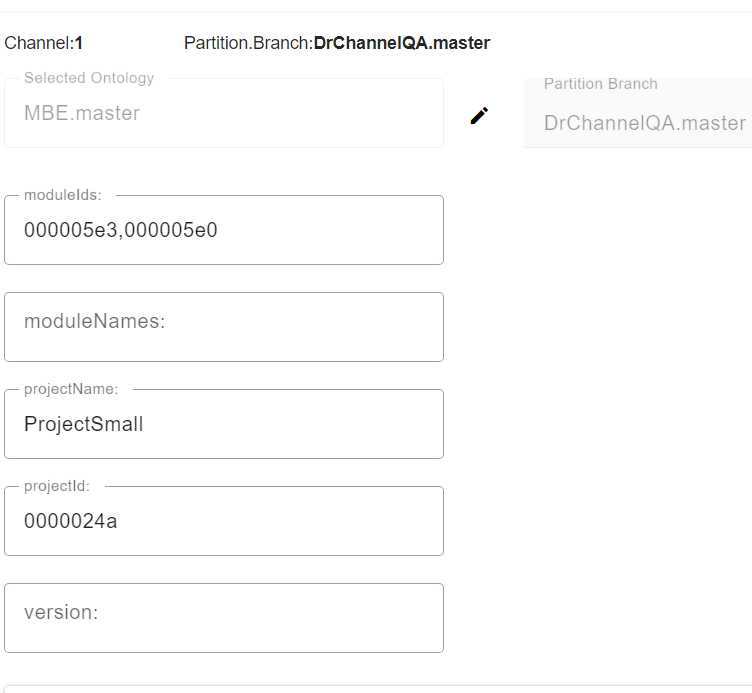
The Channel is not ready for Upgrade
11.1.2 Upgrade
Use the latest SBE 7.x Doors Plugin (preferably 7.14 or later) and install it based on the instructions in installation section
Launch Doors Application, Select the Project which has channels and click on menuDigital Thread -> Advanced -> Migrate
11.1.3 Post Upgrade
Once we have migrated all the channels we will now remove channel property moduleNames fromDataSourceType definition.
11.2 Migrate from SBE 7.x to SBE 8.x
This section will cover the guide to upgrade from your SBE 7.x to SBE 8.x