
Aras Innovator Adapter
1. Getting Started: Using the Adapter
1.1 Introduction
Publish a item from supported item types
Bring in Items from
Digital Threadinto ARAS
1.2 Accessing the Adapter
ARAS is a Server adapter, the
Digital Threadoperations are run from the SBE’s Embedded web applications
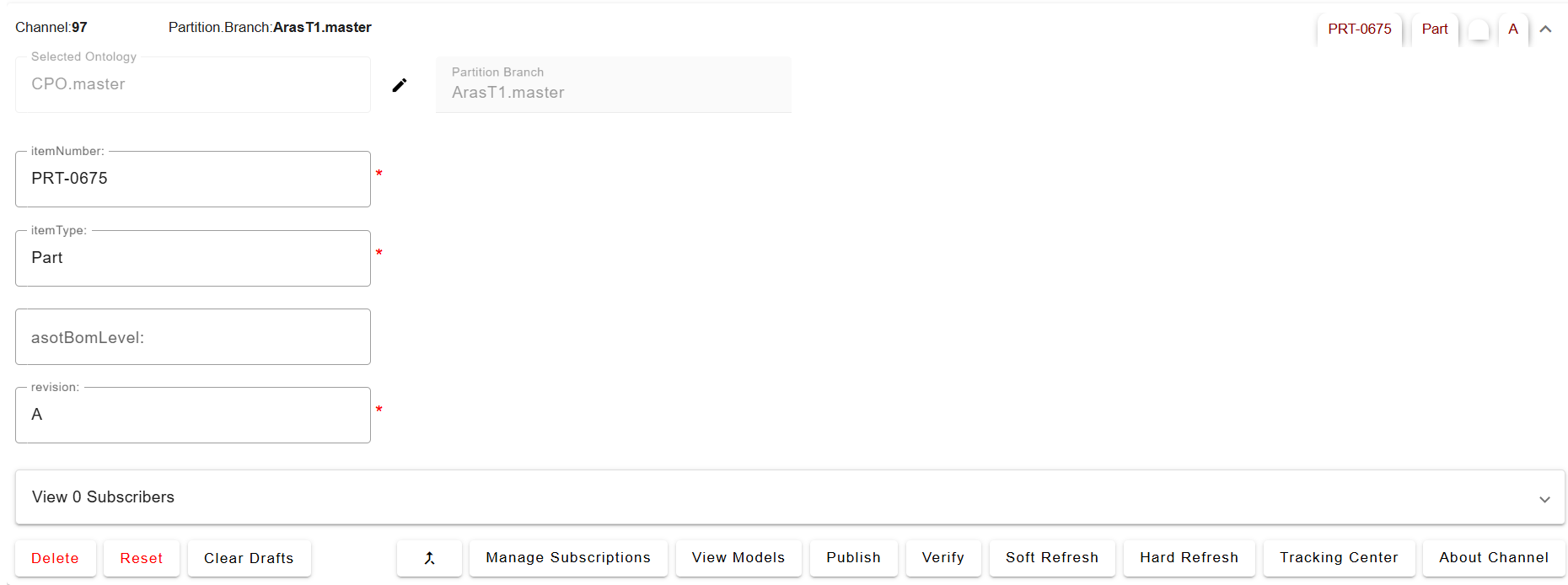
For performing Refresh operation the user needs to have write permissions on the items in the
Channel
1.3 Attaching & Connecting
Name | Mandatory | Description |
|---|---|---|
| Y | Number of the Item |
| Y | Type of the Item |
| Y | Revision of the Item |
| N | level of BOM structure we need to extract (applicable to Part ) |
| N | Optional property used to set |
Detailed Channel Configuration can be found in Section 7.1
1.4 Publishing Items
Items with links in the
Channelitem number are publishedLinks to Items outside the scope of the
Channelare also publishedPlease note that on all the types we want to subscribe into ARAS, we need to add a property
SBE Correlation Info, please look at this section for more details
1.5 Refreshing Items (Including Subscribed Items)
How it Works After Subscriptions
Once subscriptions are configured, performing a Refresh will:
Create new items in the target system for the subscribed content.
Update existing items if changes are detected in the SBE source.
Behavior of Refreshed Items
The created or updated items:
Include subscribed properties and relations from SBE.
Contain a special property:
SBE Correlation Info, which helps to distinguish between:Items created natively in the target system (real items)
Items created via subscription from another source (subscribed items)
This approach ensures:
Clarity between source and synced content
Traceability of item origin
Consistent synchronization across systems
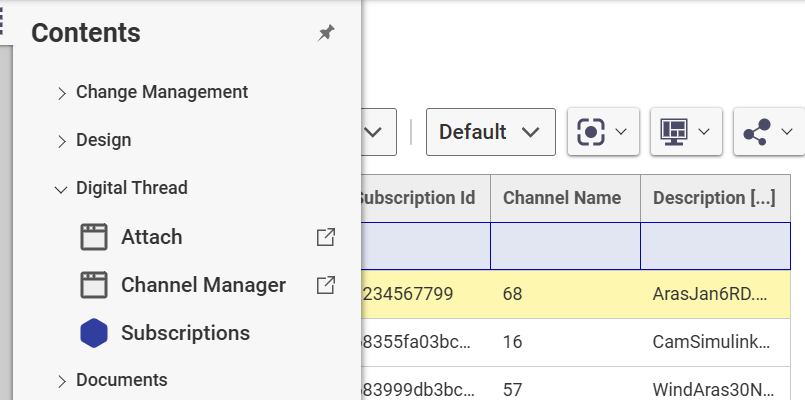
The Subscribed items are created under the Digital thread Subscriptions folder. Under Channel number of channel all subscribed items will be created.
1.6 Verify
Performs a validation check to ensure that the items published from SBE exist in the target system (e.g., ARAS) and are consistent.
What does Verify check?
The
Verifyoperation compares each item present in both SBE and the target/source system.It ensures that:
All properties (e.g., Summary, Status, Priority)
All relations (e.g., Linked issues, Child Of)
All metadata (e.g., Subscription Info)
are accurately synchronized and consistent between the systems.
This helps ensure that no item is missing, degraded, or out-of-sync after publishing.
Note : Verify is supported from version 7.06 for Woburn and 8.01 for Melrose and above.
1.7 Soft Refresh
Performs a soft refresh, similar to Refresh, but preserves local changes in the target system. Local changes take priority over updates coming from SBE during a soft refresh operation.
1.8 Advanced Operations
1.8.1 Reset
Deletes any degraded or invalid items from the specified channel in SBE.
Note : Reset is supported from version 7.12 for Woburn and 8.04 for Melrose and above.
1.8.2 Clear Drafts
The Clear Drafts action in the SBE platform is an advanced operation available in the Digital Thread adapter menu. This action is designed to remove or clear any "draft" data or unpublished changes that are stored locally for a given channel or project. Drafts typically accumulate when you make changes but haven't yet published them to the SBE server.
1.8.3 Force Publish
Force Publish triggers a full publish of data, regardless of whether only a subset of data has changed since the last operation. It bypasses the usual "delta" mechanism, which would otherwise only send changes since the last publish. This is useful when you want to ensure that all data is sent to the target system, even if some data hasn't changed or if previous publishes may have missed something.
Note : Force publish is available starting from version 8.x.
1.8.4 Force Refresh
Force Refresh triggers a full refresh of data from the source, again bypassing the delta mechanism. It ensures that the local or client system is completely updated with the latest data from the source, not just the changes since the last refresh. This is helpful for resolving sync issues or when you want to guarantee that the client has the most up-to-date and complete data.
Note : Forces refresh is available starting from version 8.x.
1.9 Troubleshooting for End Users
Failed to Publish
This may occur due to the following reasons:
Incorrect Mappings
Ensure all required mappings are correctly configured. Refer to the Mappings Configuration section for guidance.Invalid Authentication
The authentication may be outdated or incorrect. Please reconfigure it as explained in the Authentication Setup section.Publishing with Stale Data
To resolve this, reset the channel, this operation will clear up the stale.
2. Document Overview
2.1 Document Overview
This document provides essential information for using, configuring, and supporting the SBE Vision adapters for ARAS Innovator.
2.2 Document Orientation
This document is designed to inform users with various roles:
End Users should begin with Section 1 to understand how to access and operate the adapter, and Section 5 for issues pertaining to the setup, configuration, and use of the digital tool itself.
Digital Thread Specialists should focus on Section 1, and also consult Sections 3, 4, and 5 for deployment and semantic mapping. Section 11 contains details related to mapping items from this tool into a semantic ontology.
Administrators should refer to Section 6 and beyond for setup, security, support, and version management.
3. Adapter Use Cases
3.1 Adapter Overview
The purpose of this adapter is to allow the data contained within instances of ARAS to connect with the SBE Digital Thread platform. This adapter was built using the SBE Java Pro-SDK product.
4. Supported Versions
4.1 Supported Adapter Products
This document covers all the version of adapter that support SBE 7.x (Woburn) and 8.x (Melrose), Look at the releases section for more details
4.2 External Tool Versions Supported
ARAS 31
ARAS 29
5. Digital Tool Best Practices
5.1 Tool Configuration Considerations
Tool settings that affect adapter behaviour
Required modules or optional configurations include: Requirement Engineering Module, System Architecture Module
5.2 Usage Tips & Gotchas
Common user mistakes
Refreshing without mappings for required properties
Solution: Ensure all mandatory properties are mapped before performing a Refresh operation.
6. Installation
6.1 Installation Instructions
OS, Java, network requirements
Java: JDK 11 for ARAS 31
6.1.1 Installing SBE Aras Package
This section will have details of the Data Model, custom config and list the steps to deploy the SBE ARAS package
An archive file (sbe_aras_deployment_package_x.x.zip) is provided with the files needed to deploy the SBE package.
Custom Types
The following new types are added as part of the package.
Subscription
The custom relationship added are
HasItems
Deployment
Package Import
Extract the deployment package and import the package using ARAS import utility
DB and code tree backup
Before Installing/Importing package, Please take your Database and Code Tree backup into a separate folder
Packages to import
com.sbevision.aras- Base package with SBE customizationscom.sbevision.aras.sys- Contains support for System Architecture module
Go to the
PackageImportExportUtilities → ImportfolderOpen package import utility (Import.exe)

Once the application opens you must provide the following parameters.
Server URL: http://<serverName>/<WebAlias>Database: Database NameUserName: Login user username (use admin user)Password: Login user password
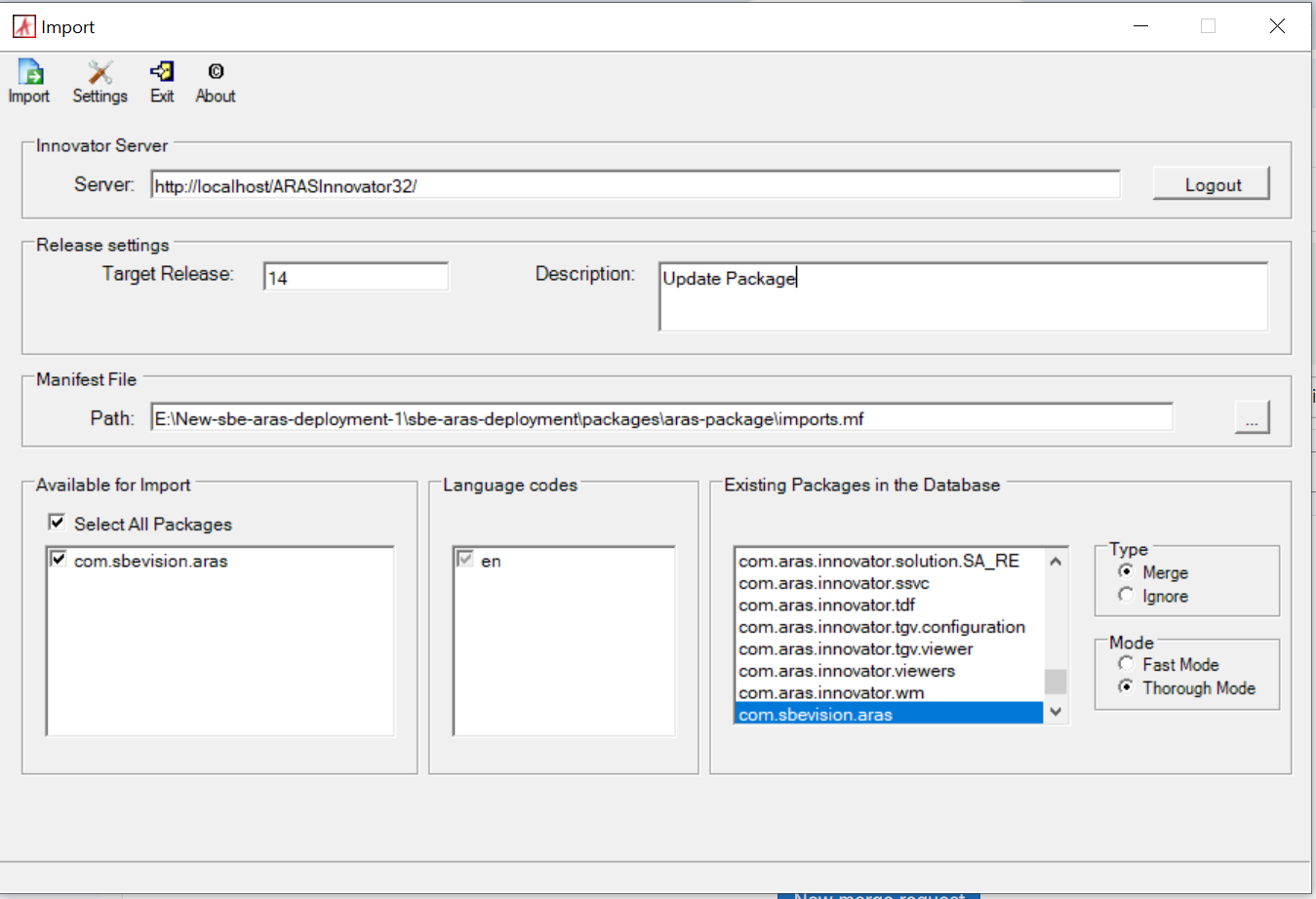
Click on the login button
Select the package which needed to import select file imports.mf
Add Target Release and some Description (Optional step)
Choose type ‘Merge’ & Mode as ‘Thorough Mode’
Click on the import button
Code Tree Changes
a. No Changes in the code tree
Deploy SBE Library
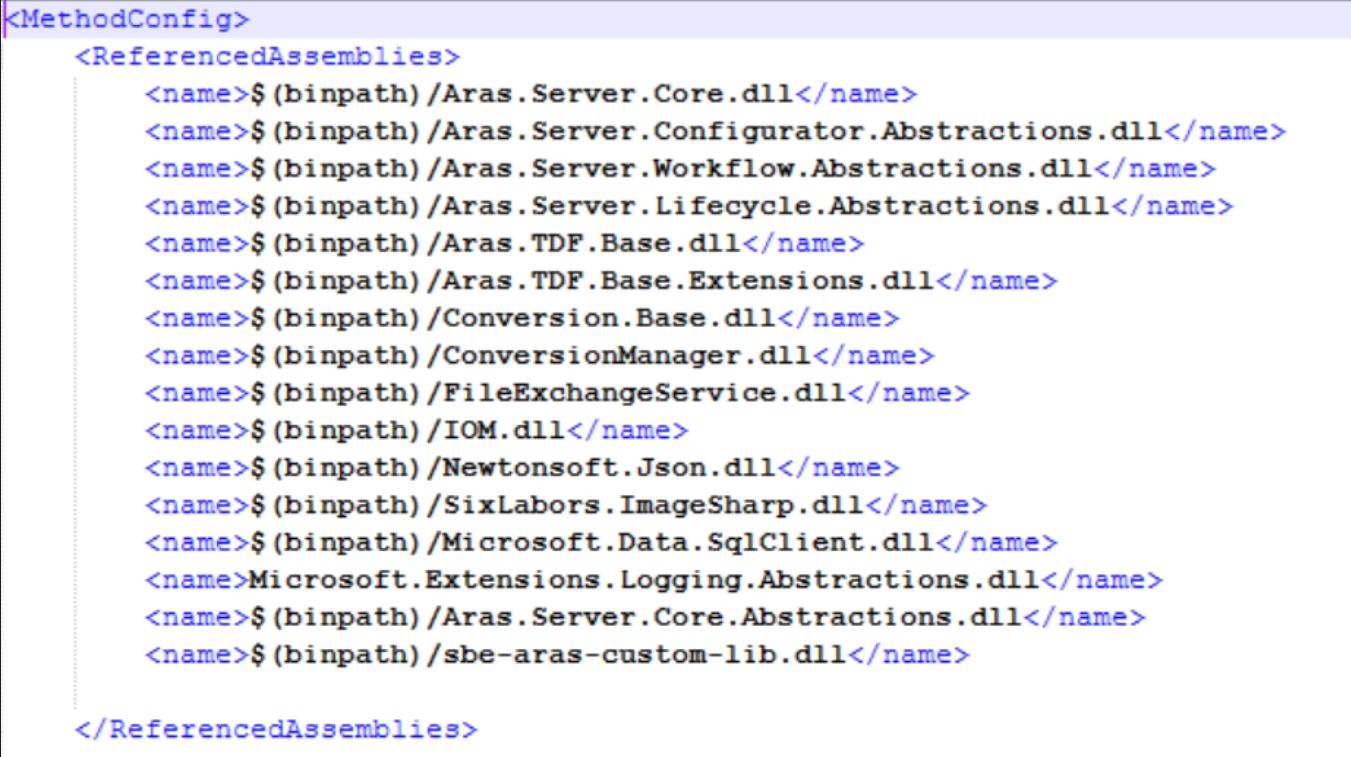
Copy the DLL from the package to the
$InnovatorServer/bindirectory of your Aras Innovator installation e.g.(C:\Aras29\Innovator\Innovator\Server\bin)Then register the DLL in
method-config.xmlfile by adding it underReferencedAssembliesxml nodeRestart the application from IIS Manager
Post-Import Actions
Add items to Ploy items
To support subscriptions for a certain Item Types, we need to add those types to Poly List as given below
Add a reference of requirement item type in sbe poly items
Go to TOC → Administrator - > Item Types
Search for sbe_Repo_Poly item type and open it
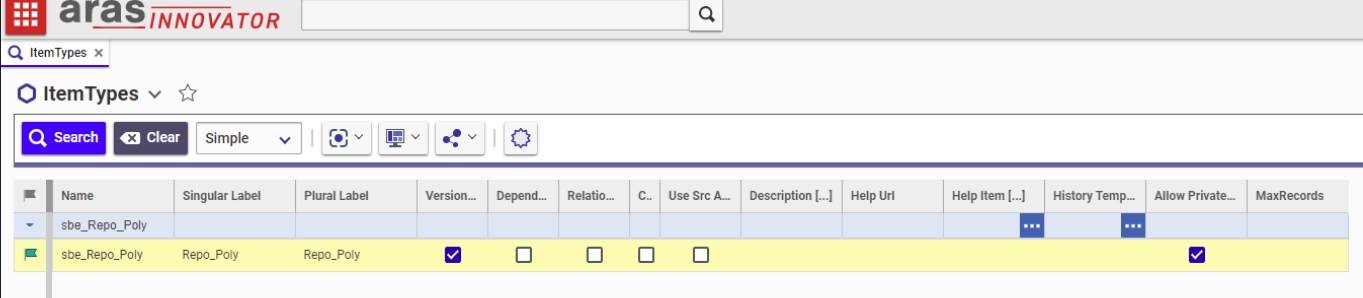
c. Click on the Edit button
d. Click on the Poly Sources tab in the relationship
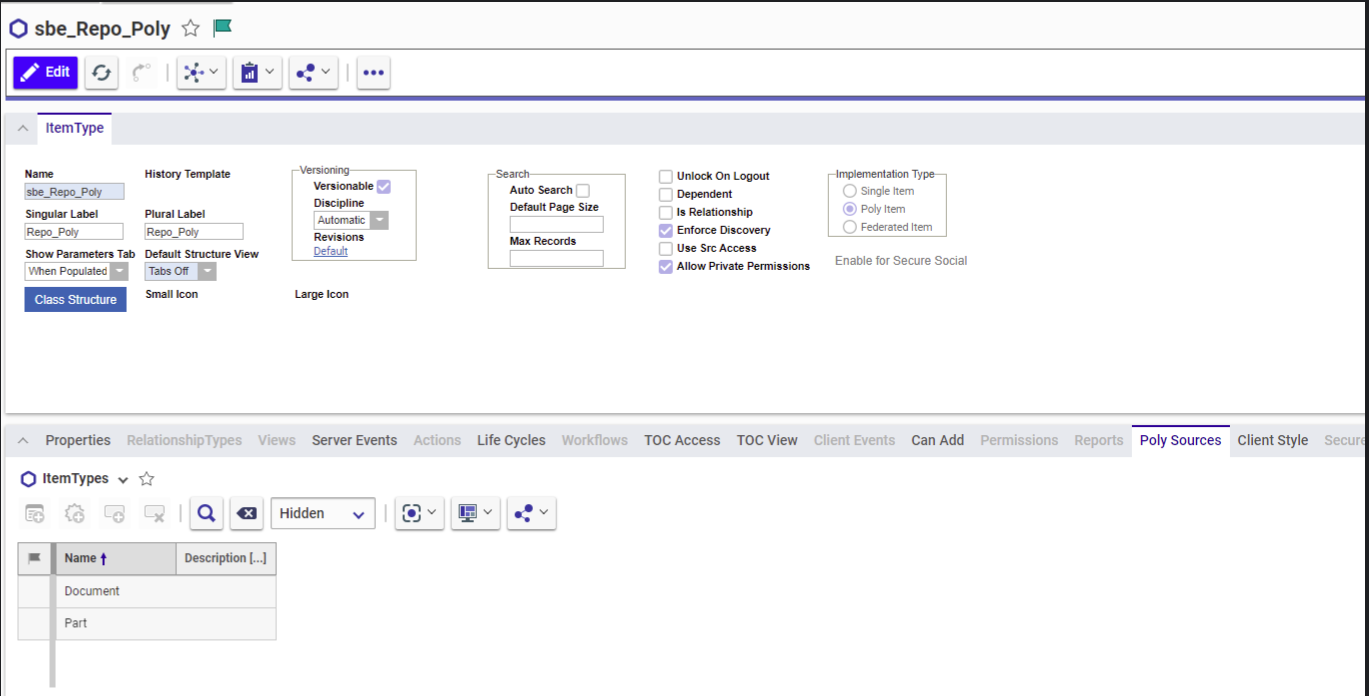
e. Click on the add Item Types which we want to Subscribe into Aras

f. eg: search for re_Requirement / sys_SystemElement item type select it and add it into the poly source
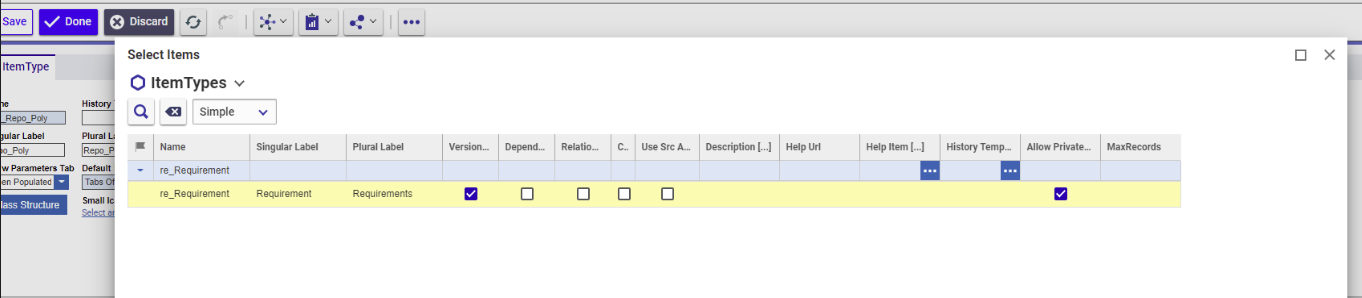
g. Once successfully added then click on the Done button
TOC
Navigate to
Administration -> Configuration -> Client Presentationin the TOCClick the search button to run the
Client PresentationsearchClick the Global item property in the single search result
In the
Command Barsection grid, open thecom.aras.innovator.cui_default.tocitemIn the
Command Bar Itemgrid, Add theDigital ThreadCategory and Menu items as shown below set the priority and other fields
com.aras.innovator.cui_default.toc_D7556A86E98648A1B5FA6F1AAA827FD4
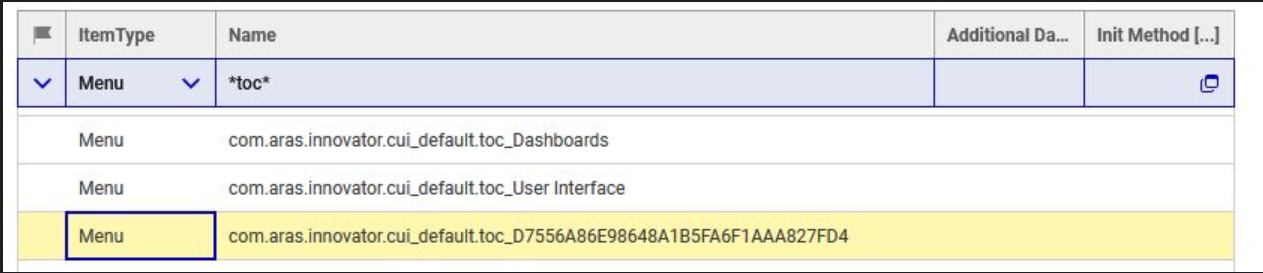
Menu Item
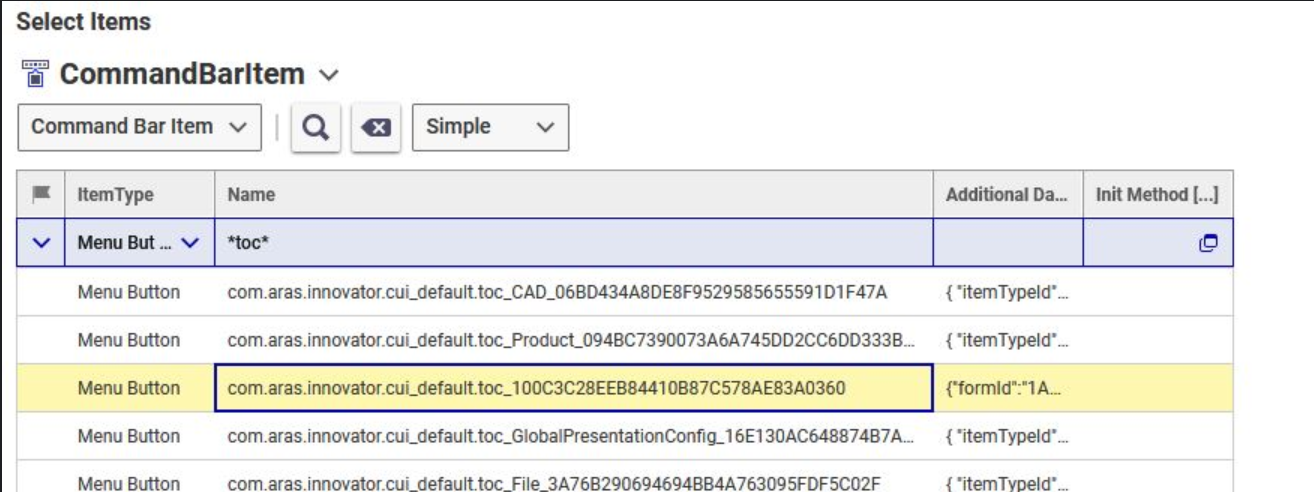
- com.aras.innovator.cui_default.toc_28B6BAA12B534245B98B87FAC2756517
- com.aras.innovator.cui_default.toc_100C3C28EEB84410B87C578AE83A0360
Add Custom type to ‘Has Items’ TGV
Only Part and Document types are added to the Has Items TGV on Subscription item, if we are subscribing other item types, we need to add those item types to TGV so that it shows the full list of Subscribed items.
Please note that we assume that the custom types were added to Repo_Poly type as show in previous section of the document.
Follow the steps given below to add a Item type to TGV
In our example we will be adding sys_SystemElement item type
a. Go to TOC → Administrator -> Configuration -> Tree Grid View
b. Search for sbe_Sub_TGV Tree Grid view and open it
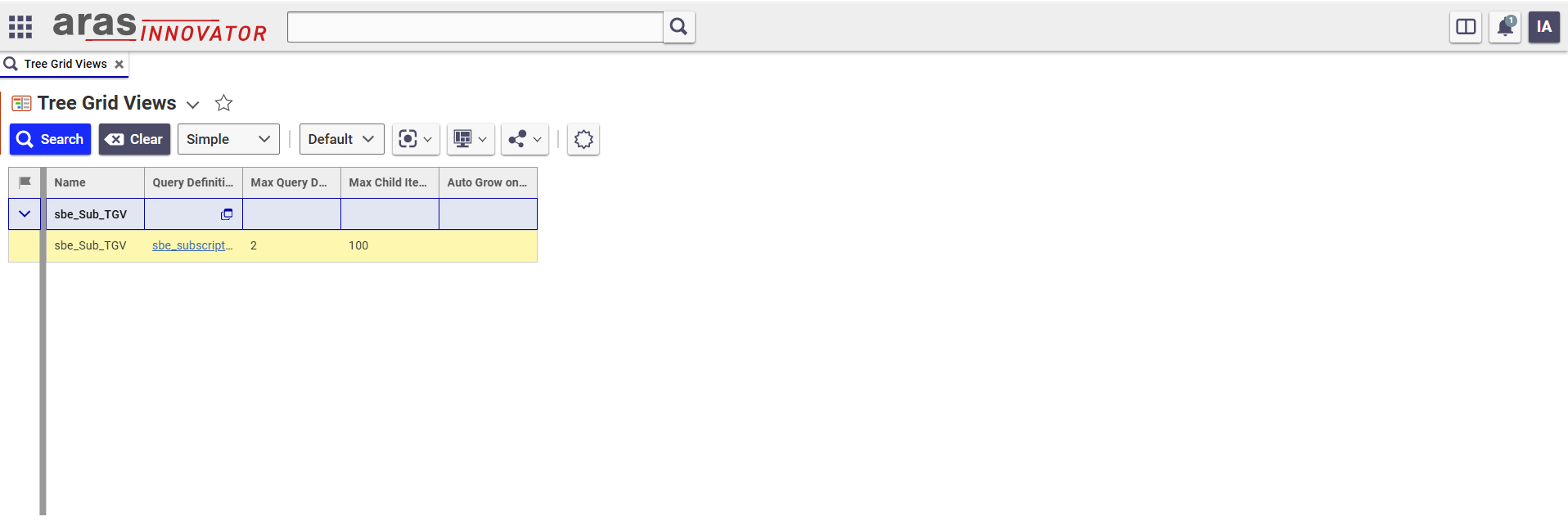
c. Click on the Query Definition item to open and then edit the definition.
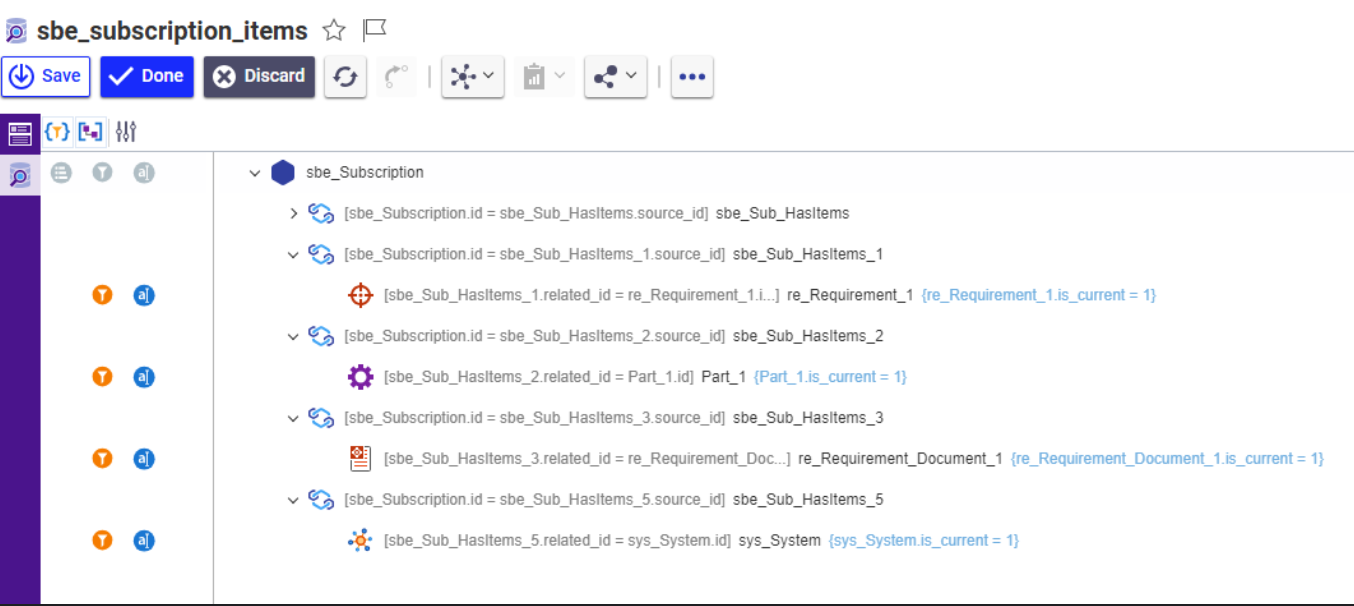
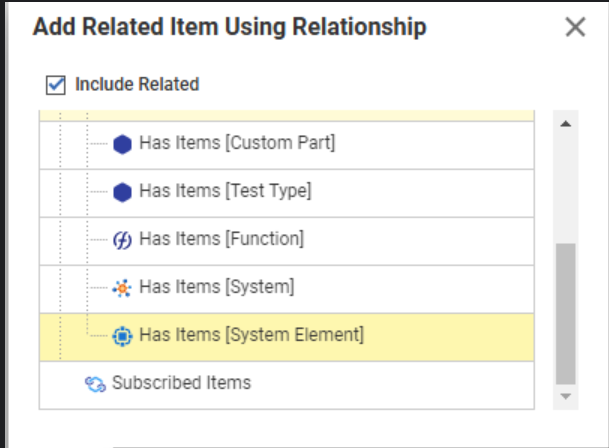
d. Go to Query editor and Add Related item with Using Relationship
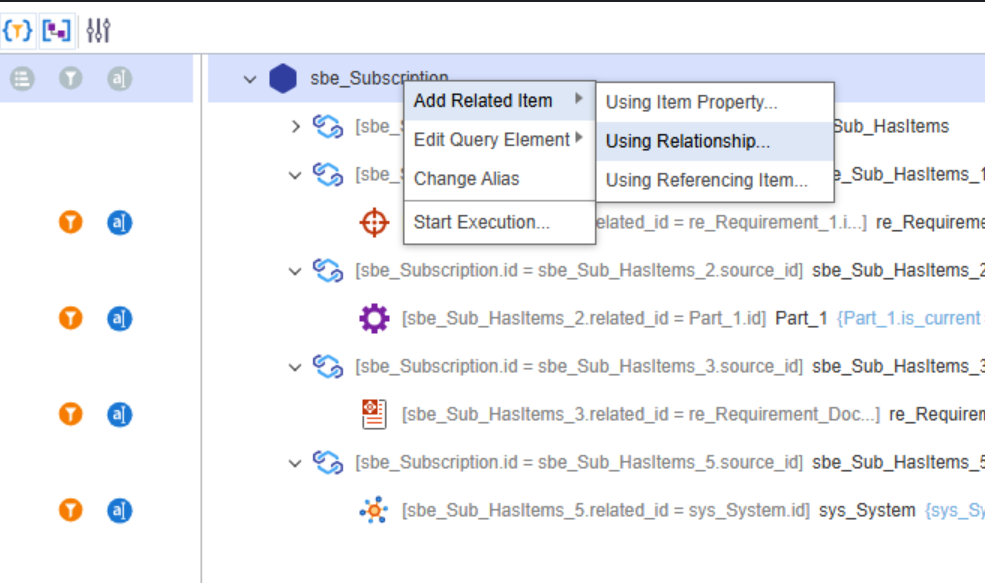
e. Select Has Items [System Element]
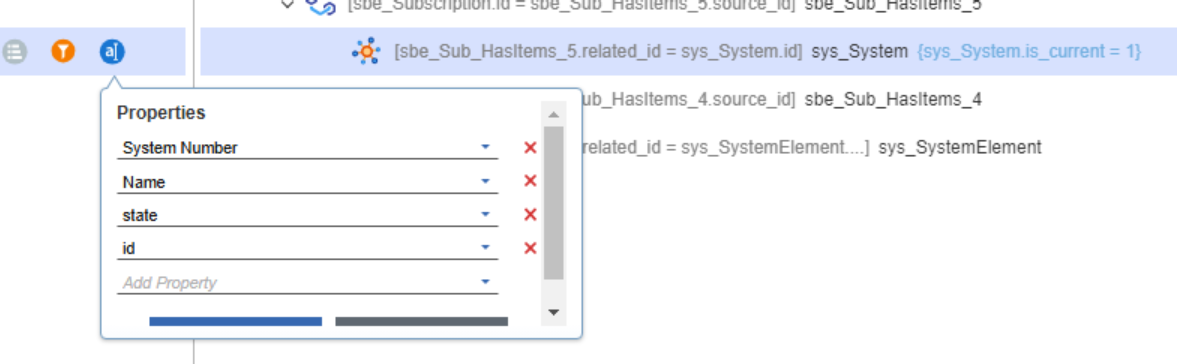
f. Add the necessary properties, please note that id is required property
g. Save when done
h. Go back to the TGV definition and click on the Edit button and select editor window on right side panel.
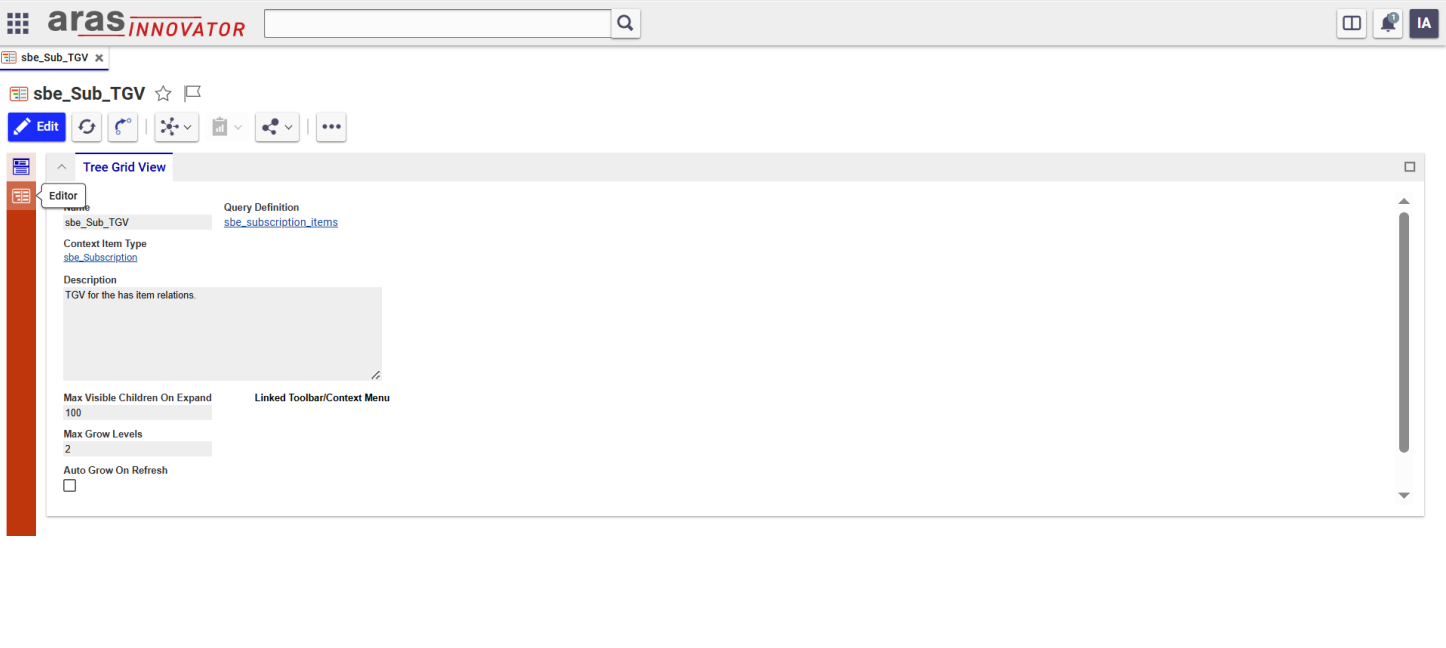
i. Click on the Relation which we want to map from the Relation List in TGV.
j. Right click on Relation and select map elements.
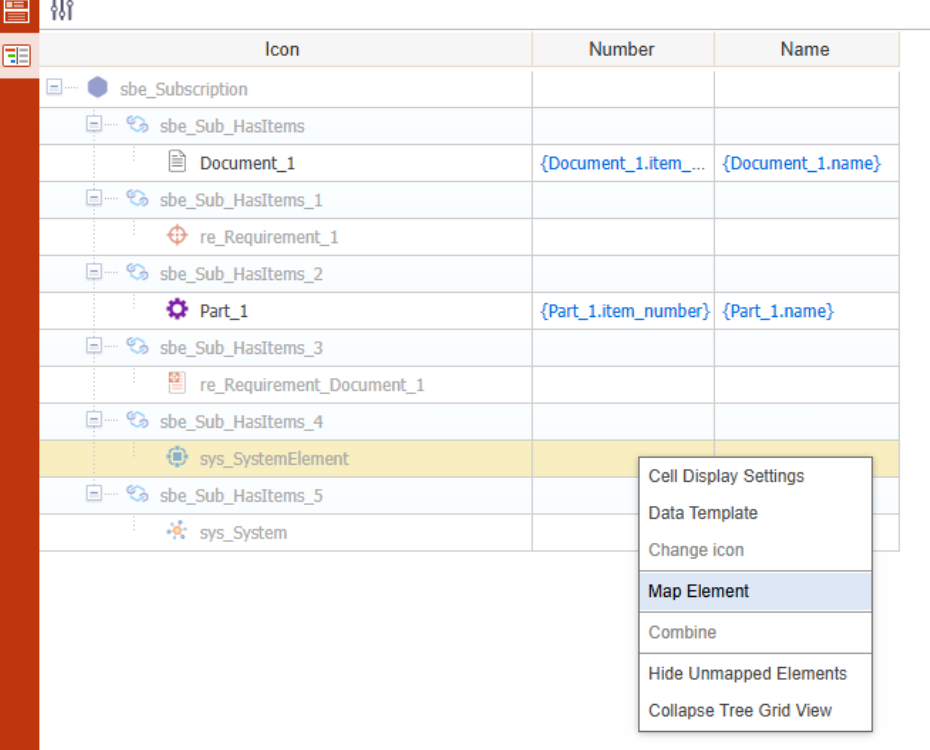
k. Select the appropriate property from property list for Name and Number column.
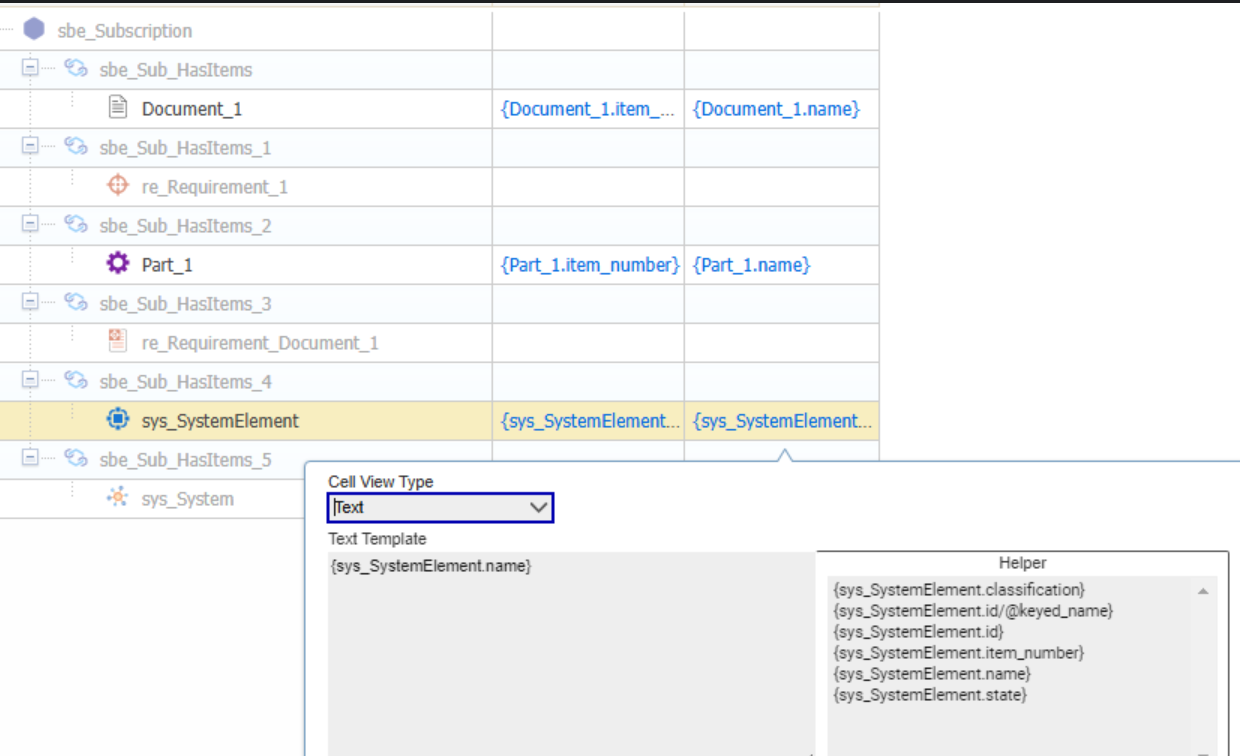
l. eg: Map the sys_SystemElement relation. For name column select {sys_SystemElement.name} and for Number column select {sys_SystemElement.item_number}.
m. Click Done to save TGV.
[Aras guide to add/modify a TGV](https://aras.com/en/blog/an-introduction-to-query-builder-and-tree-grid-view)
Permissions and Identity
SBE Item Types (sbe_Repo, sbe_Subscription) items are configured to use the permission
sbe_Digital_Thread_Permission and identity sbe_Digital_Thread
We need to add the users performing the Subscriptions to respective locations before running the
operations.
Digital Thread Action
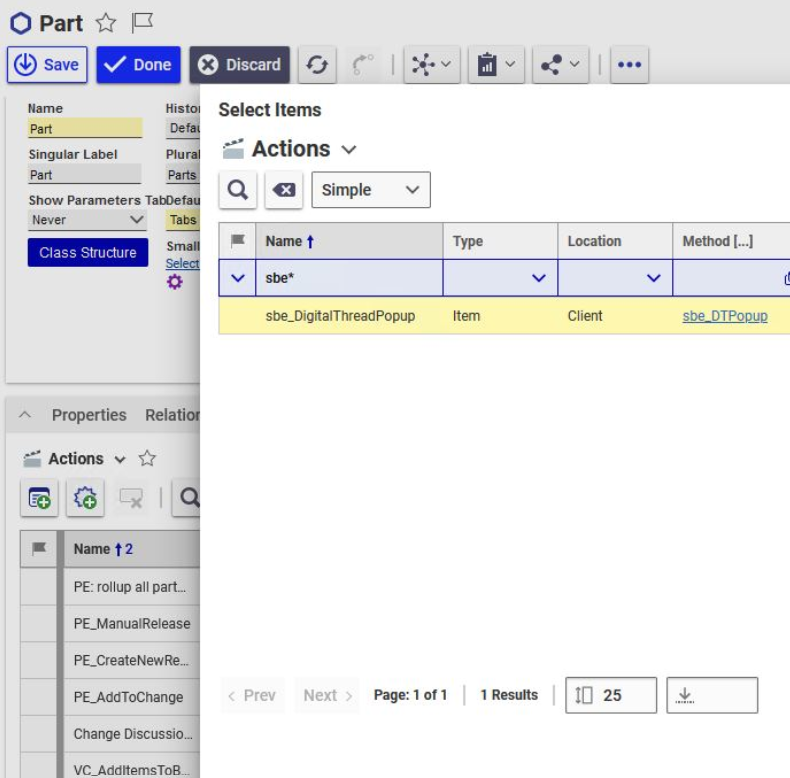
To Add the Digital Thread Menu item on Items that,
Navigate to
Administration > ItemTypesin the TOC.Search and Open the Item Type for which we want to add the Menu Item
Edit the Type and go to Actions and search for
sbe_DigitalThreadPopupand add it
In the following Example we add the Action to ItemType Part
Properties to support Subscription
In order to Support Subscriptions on an Item Type we need to add the following property.
Navigate to
Administration > ItemTypesin the TOC.Search and Open the Item Type for which we want to support Subscriptions
Edit the Type and add the property
sbe_correlation_infoPlease note this Property also needs to be added to
Part BOM

Post-Installation Changes
Update the Variables
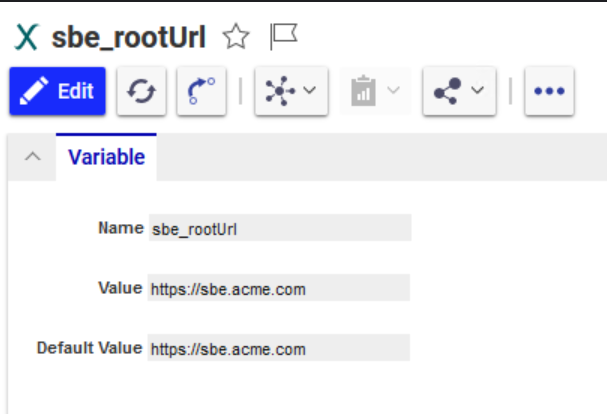
Update the SBE digital thread URL in the preference
Search for a variable in TOC > Administration > Variables
Search for the sbe_rootUrl variable in the search grid.
Open that variable and update the value with the root url of your SBE instance
1.1 Data Source
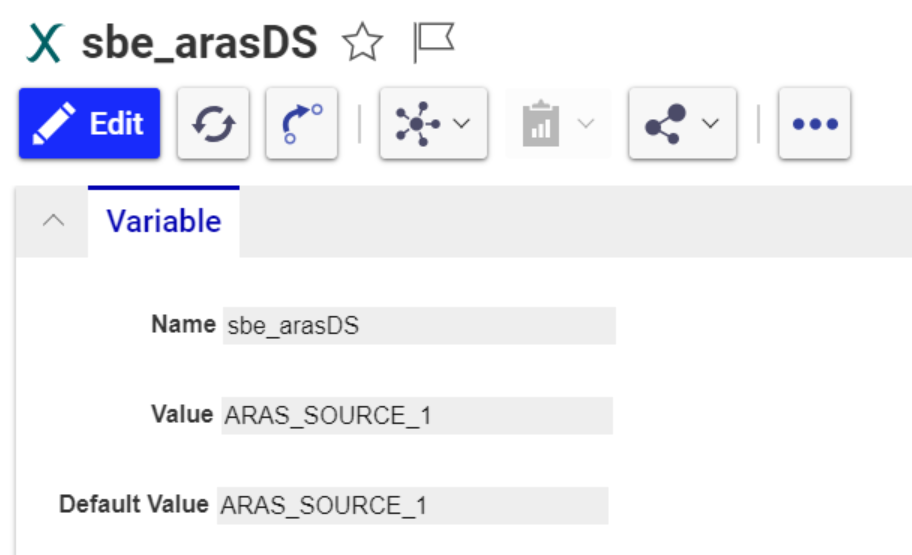
Update Aras Data Source value in variables
Go to TOC > Administration > Variables
Search for sbe_arasDS variable in the search grid.
Open that variable and update the value with the aras DS
1.2 Logging
To enable logging for the custom library, follow the steps given below
Edit the
appsettings.jsonfrom the directory of your Aras Innovator installation e.g.(C:\\Aras29\\Innovator\\Innovator\\Server\\appsettings.json)'Update the LoggerConfiguration section from the
appsettings.jsonwith below code.
```
"LoggerConfiguration": {
  "MinimumLevel": {
    "Default": "Debug"
  },
  "WriteTo": [
   {
     "Name": "File",
     "Args": {
       "path": "Logs\\sbeLog.txt",
       "rollingInterval": "Day"
      }
   }]
}
```
Save the file
Restart the IIS.
6.2 Configuration
The Adapter depends on a jsonconfig file to run various operations against a ARAS Server.
This jsonconfig file contains a list of all the Item Types along with properties and relations that the Adapter need to support.
The file is named types-definition.json and is currently part of a config-map attached to the adapter.
This section explains how to create this file based on the Types used on the ARAS server.
Introduction
Following the way ARAS treats Item types, the adapter also supports the following top level Item Types
Part,re_Requirement,re_Requirement_Document,sys_SystemElement,sys_System,sys_Function, Custom Part
The Adapter supports all the properties that can be retrieved from the ARAS Rest API.
As mentioned earlier The types-definition.jsoncontains all the Item types that need to be supported by the adapter.
In this section we will explore the format of the json and how to add a new Type called Part
We will add the
Properties - State, Priority, Cost, Material (Alias)
Relations - BOM, described By
The jsonfile we are going to create will contains definitions for one ore more types.
We will start looking at different parts of the config in the following sections.
Item Definition
This part of the config is where we will add information about the Item Type name and base type
Property Name | Description |
|---|---|
| Internal Name of Item in ARAS |
| Base type for any custom types |
| Item number properties is different based on type, this property is used to tell Adapter what the Item Number property is for current type. In this example it is |
| Similarly the name property for current type, In our example, |
So our definition for Item Type Requirement looks like this:
{
   "_itemType": "re_Requirement",
   "_baseType": "re_Requirement",
   "_itemNumberProp": "item_number",
   "_nameProp": "req_title",
}
Properties
This section explains how to add the list of properties that the adapter need to support for a given Type.
The field _properties contains the definition for the list of properties.
Each definition in turn contains the following fields
Name | Description |
|---|---|
| Internal property name in ARAS |
| The date type of the property |
| Default value for a property if no value is given to the adapter during creation |
| Some properties are required for creating items in ARAS, such fields need to be marked Mandatory, In case a default value need to be specified use the |
|
|
Let’s add properties req_complexity (String)
req_complexity will be Mandatory property on ‘Requirement’
{
  "_propName": "req_complexity",
  "_propType": "STRING",
  "_isMandatory": true,
  "_defaultValue": "Low",
  "_modifiable": true
}
Relations
We can add more than one relation similar to properties for a single Item type.
Name | Description |
|---|---|
| Internal Relation name |
| If the relation is a Reverse relation. This will be the internal Reverse relation name |
|
|
|
|
|
|
Let's add 2 relations for our Requirement
re_Requirement_Out_Link is relation on Requirement, whereas re_Requirement_Related_Parts is
a Reverse relation which is stored on the other side.
{
  "_relationType": "re_Requirement_Out_Link"
},
{
"_relationType": "re_Requirement_Related_Parts",
"_revRelationType": "re_Part_Requirement",
"_reverseRelation": true
}
Our final ‘Requirement’ item definition looks like this
{
  "_itemType": "re_Requirement",
  "_baseType": "Requirement",
  "_itemNumberProp": "item_number",
  "_nameProp": "req_title",
  "_relations": [
    {
      "_relationType": "re_Requirement_In_Link",
      "_revRelationType": "re_Requirement_Out_Link",
      "_reverseRelation": true
    },
    {
      "_relationType": "re_Requirement_Out_Link"
    },
    {
      "_relationType": "re_Requirement_Related_Parts",
      "_revRelationType": "re_Part_Requirement",
      "_reverseRelation": true
    }
  ],
  "_properties": [
    {
      "_propName": "classification",
      "_propType": "STRING",
      "_isMandatory": true,
      "_defaultValue": "Requirement"
    },
    {
      "_propName": "req_title",
      "_propType": "STRING",
      "_isMandatory": true
    },
    {
      "_propName": "managed_by_id",
      "_propType": "STRING",
      "_isMandatory": true,
      "_defaultValue": "BEF7E562141840F4B0AB407D7D7B3EF6"
    },
    {
      "_propName": "content",
      "_propType": "HTML",
      "_isMandatory": true,
      "_defaultValue": "<Requirement aras:id=\"597f23bb954440f7b5672f93371327ea\" reqId=\"965DE569BDD44E66B5C4C59FE768F87C\" xmlns:aras=\"http://aras.com/ArasTechDoc\" xmlns=\"http://www.aras.com/REStandard\"><Requirement-Info aras:id=\"18ef540869914fbab02a41d6f580a6fb\"><Requirement-Chapter aras:id=\"056829811e014d87afb20ed108b23f5d\"><aras:emph></aras:emph></Requirement-Chapter><Requirement-Title aras:id=\"eb1138d0a8054def917961b8d792547d\"><aras:emph>All Rels Test</aras:emph></Requirement-Title><Requirement-Number aras:id=\"216582e960b44c93bbd76f2f75206461\"><aras:emph>REQ-000000062</aras:emph></Requirement-Number></Requirement-Info></Requirement>"
    },
    {
      "_propName": "req_complexity",
      "_propType": "STRING",
      "_isMandatory": true,
      "_defaultValue": "Low"
    },
    {
      "_propName": "req_priority",
      "_propType": "STRING",
      "_isMandatory": true,
      "_defaultValue": "Low"
    },
    {
      "_propName": "req_risk",
      "_propType": "STRING",
      "_isMandatory": true,
      "_defaultValue": "Low"
    },
    {
      "_propName": "sbe_target_max",
      "_propType": "FLOAT"
    }
  ]
}
BOM definition
The shape id published out of ARAS is ‘Part BOM’, matching the definition in ‘types-definition.json’
The standard properties on a BOM are
Property Name | Data Type | Mandatory | Description |
|---|---|---|---|
Quantity | Integer | no | quantity of the item, eg: 1 |
Reference designator | String | no | |
Sort order | Integer | no | sequence order, eg: 2 |
Description | String | no | description of the item |
{
    "_itemType": "Part BOM",
    "_baseType": "BOM",
    "_properties": [
      {
        "_propName": "quantity",
        "_propType": "INT",
        "_isMandatory": false
      },
      {
        "_propName": "reference_designator",
        "_propType": "STRING",
        "_isMandatory": false
      },
      {
        "_propName": "sort_order",
        "_propType": "INT",
        "_isMandatory": false
      },
      {
        "_propName": "description",
        "_propType": "STRING",
        "_isMandatory": false
      }
    ]
  }
Any custom properties that need to be supported must be added to ‘Part BOM’ definition
6.3 DataSource Type Definition
Name | Description |
|---|---|
host | Host name of the Aras instance |
port | Port at which Aras Instance runs, eg: 443 |
dbName | Database name of Aras Instance |
uriScheme | http or https |
clientId | Client ID in oAuth server of Aras, default: IOMApp |
appContext | The Application context of Innovator application, eg: /InnovatorSP12 Note that the / needs to be part of the variable |
srcContext | The Item Context, helps build a direct url to an item in Aras. eg: StartItem (default value) |
proxyHost | Host name of proxy server |
proxyPort | port number of proxy server. |
arasServerTimeZone | TimeZone Id of Aras Server Eg: |
7. Channels and Mappings
7.1 Channel Definition
The following are the Channel properties
Name | Mandatory | Description |
|---|---|---|
| Y | Number of the Item |
| Y | Type of the Item |
| Y | Revision of the Item |
| N | level of BOM structure we need to extract (applicable to Part ) |
| N | Optional property used to set |
Note: For asotBomLevel, If the value is 0, only the parent will get published, In case of -1 or empty value, full bom structure is published
7.1.1 Channel properties in ARAS
To get the channel properties of any item in ARAS
Open an Item(Part/Requirement…)
Item number - We should be able to see
item numberas shown belowRevision - We should be able to see
revisionas shown below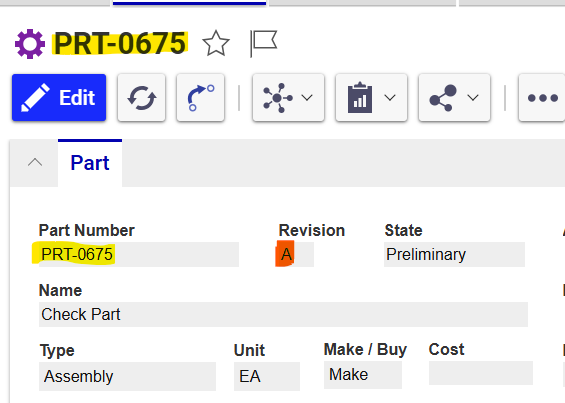
Item type - We need to copy item type in same format as mentioned in types-definition e.g.
Part,re_Requirement,re_Requirement_Document,sys_SystemElementetc.
7.2 Approaches to Mapping
The types defined in the Configuration section will be used by the Adapter and the same Type and properties, relations are published out.
The Shape Id’s will be the
_itemTypeand the property and relations names will also remain the same.
8. Security and Access
8.1 Authentication Methods
The Adapter supports Basic authentication which is the only authentication method supported by ARAS Rest API
8.2 Authorization and Roles
Rest API access is by default enabled for all Users on ARAS
The Adapter assumes the User running
DigitalThreadoperations has necessary Read/Write Permissions on ARAS.
8.3 Secure Communication
The uriSchemaDataSource property defines the protocol http or https used by the adapter.
It is highly recommended the server communication is secured using https
The adapter assumes if customer certificates are used on the server they are wired into SBE deployment
9. Release Notes
9.1 Version History
8.8 (Sept 29, 2025)
SDK 8.18
Merge features from release
7.17
8.7 (Aug 13, 2025)
Merge features from release
7.16SDK 8.16
8.6 (July 4, 2025)
SDK 8.15
8.5 (July 3, 2025)
SDK 8.14
Merge features from release
7.14
8.4 (April 16, 2025)
SDK 8.11
Merge features from release
7.12
8.3 (Feb 15, 2025)
Merge features from release
7.11SDK 8.9
8.2 (Jan 8, 2025)
SDK 8.8
Merge features from release
7.10
8.1 (Aug 14, 2024)
SDK 8.3
Merge features from release
7.6
8.0 (June 5, 2024)
SBE 8.x support
7.17 (Aug 24, 2025)
Fix issue with updates on Requirement content
7.16 (Aug 5, 2025)
Add new channel property
subscribedItemOwnedByused to control permissions on subscribed items.
7.15 (July 30, 2025)
Support List Property in Aras
7.14 (July 18, 2025)
Performance improvements for Refresh
SDK 7.50
Enable SDK Cache
7.13 (June 2, 2025)
Better Handling of relation failures
7.12 (May 8, 2025)
Bug fix on duplicate part bom occurrence
Bug fix on adding new relation during rebase
New flag on property definition to indicate if property can be modified
Support Reset
SDK 7.49
7.11 (Jan 16, 2025)
Support ASOT updates on BOM
Minor fix on Relation’s on System Architecture module
7.10 (Dec 6, 2024)
Publish Requirements under the Requirement Document
Support Refresh for
chapterpropertyAdded
asotBomLevelchannel propertySupport BOM subscriptions with Correlation Info
Support BOM delete
SDK 7.45
7.9 (Oct 28, 2024)
SDK 7.44
7.8 (Oct 23, 2024)
Sys Structure relation as a Model
Handle use-case where
nameproperty can be different fromreq_titleon a RequirementSDK 7.43
7.7 (Sept 13, 2024)
Improve documentation
Deprecate
_sbeRelationTypefrom types definitionSDK 7.39
7.6 (July 26, 2024)
All Items on a Baseline channel are authoritative
Support
sys_Systemmultilevel relationsBug fix on custom type during publish
Bug fix on boolean prop
Implement verify
Support ASOT deletes - Item and BOM relation
SDK 7.36
7.5 (June 11, 2024)
Validate User Credentials
Use single property to store Correlation Id and Subscription Id
SDK 7.33
7.4 (April 17, 2024)
Support
contentproperty on RequirementSDK 7.27
Support relation delete
7.3 (Feb 21, 2024)
Store and use
Correlation Infoduring RefreshUpgrade (Woburn) one channel at a time
7.2 (Jan 15, 2024)
Validate channel properties on Readiness
7.1 (Dec 5, 2023)
Support Rebase
7.0 (Nov 3, 2023)
Deprecated Resource DTO
Add Adapter Readiness
Support Upgrade to SBE 7.x
Parallel request processing
Use Intents
SDK storage
Deprecated Subscription store
New Project versioning
9.2 Breaking Changes
Starting version 7.12 only ARAS 31 is supported
10. Technical Reference
10.1 Adapter API Endpoints
The following are the Rest endpoint methods added as part of the SBE Rest Services
method.sbe_getChannel_SubRepoItems- Get all Subscribed items for a given channelmethod.sbe_UpdateSubscription_Name- Update Subscription name by old namemethod.sbe_updateReqContent- Update content property present in Requirementmethod.sbe_getSysStructure- Get multi level items of System structuremethod.sbe_DeleteSubscriptions- Delete subscriptions during reset
10.2 Identity
The following are the item locator properties for the supported types.
Name | Description |
|---|---|
itemNumber | Number of the item |
itemType | Internal type of the item |
revision | Revision of the item |
BOM Locator
Name | Description |
|---|---|
itemType | Internal type of the item |
parentItemNumber | Number of the parent item |
parentItemRev | Revision of the parent item |
childItemNumber | Number of the child item |
childItemRev | Revision of the child item |
index | Number will auto-increment for duplicate part bom relation |
10.3 Configuration File Format Reference
this section explains the configuration file format reference.
10.4 Schema Support
The Adapter uses the types-definition.json config file to operate. This config contains all the Item types with properties and relations that the adapter needs to handle in ARAS, this section explains the format of the json file in detail.
The properties and relations defined in the types-definition.json config file are published by the adapter.
Part Relations
Name | Related item type |
|---|---|
| Part |
| Requirement document |
| Requirement |
BOM
The standard properties on a BOM are
Property Name | Data Type | Mandatory | Description |
|---|---|---|---|
Quantity | Integer | no | quantity of the item, eg: 1 |
Reference designator | String | no | |
Sort order | Integer | no | sequence order, eg: 2 |
Description | String | no | description of the item |
If the BOM item definition is added to the types-definition.jsonthe properties defined will be used by the adapter.
Links:
Name | Types | Description |
|---|---|---|
target | Part | Target part of the BOM Occurrence |
System Element Relation
Name | Related item type |
|---|---|
| Part |
| System Element |
System Element Structure Relation
Publishing sys_SystemElement Structure Relation As Model
Links:
Name | Types | Multiplicity | Description |
|---|---|---|---|
target | System Element Structure | 1 | Link to the Target of the relation |
11 Upgrade
11.1 Migrate from SBE 7.x to SBE 8.x
This section will cover the guide to upgrade from your SBE 7.x to SBE 8.x