
Gitlab Adapter
The Gitlab adapter will allow the transfer of various data types from Gitlab project to the SBE platform and vis-versa.
GitLab is a web-based DevOps platform that provides a complete set of tools for the software development lifecycle, including source code management (SCM), continuous integration/continuous deployment (CI/CD), issue tracking, and more. It allows teams to collaborate on code, track changes using Git version control, and automate workflows for building, testing, and deploying applications.
At its core, GitLab functions as a Git repository manager with features similar to GitHub or Bitbucket, but with the added benefit of integrated CI/CD pipelines, project management tools, and robust access controls — all within a single interface.
Interaction between the Gitlab Adapter and GitLab happens through the GitLab REST API. The adapter uses standard HTTP protocols (GET, POST, PUT, DELETE) to create, edit and remove Epics, Issues, Pipelines, Jobs and files.
SBE Adapter/Plugin Documentation Template

Adapter & Extension Package Documentation go together
Plugins are Separate
1. Getting Started: Using the Adapter
1.1 Operations Overview
The Gitlab Adapter is a server-based SBE adapter. This allows users to interact with data from Gitlab within the Digital Thread via Standard HTTP protocols.
Attach
Attaching is the process of connecting your Gitlab source project to the digital thread. This process is performed behind the scenes by SBE when initiating one of the operations described below (publish, refresh, etc). Necessary details of your gitlab project, specifically the address/url of your Gitlab instance (as schema, host, port and URI path) and project name/id, are provided as server and channel properties, respectively, as described in Section 1.3.
Publish
The Publish operation moves data from a connected system into the SBE platform.
The Gitlab Adapter publishes Epics, Issues (including Tasks), Pipelines and Jobs as SBE models on the digital thread (DT) with the various Gitlab object properties mapped to corresponding model properties.
Files, both JSON and non-JSON can be published, but must be individually specified in the server properties, as described in Section 1.3.
Non-JSON files are mapped to SBE models with the file contents stored as a single property value, as mapped to the “fileContent” externalName.
JSON files (denoted by the .json extension) are disassembled, with each level of the JSON represented by a separate SBE model, each containing the properties on that level of the JSON, and “Containment” links to those models representing the sub-layers of the JSON structure, each containing their own properties. Further detail regarding publishing JSON files can be found in Section 7.2.
A Publish of Gitlab data can be initiated from the SBE web-UI by following the steps outlined in Section 1.4.
Refresh
The Refresh operation moves data from the SBE platform to a connected system.
The Gitlab adapter refreshes both authoritative (those originating in the connected Gitlab project) and Subscription Epics and Issues (including Tasks). Upon refresh, new Epics and Issues will be created in the attached Gitlab project for any models subscribed to the channel.
Authoritative files (JSON and non-JSON), those originating from the attached project and specified in the server properties, can be updated via refresh from the DT. However, the Gitlab Adapter cannot currently create new files.
JSON files are reconstructed from the associated SBE models during refresh. Any property edits with this set of models will be reflected in the updated file.
Rebase
Like Refresh, the Rebase operation, also known as a “soft-refresh”, moves data from the digital thread to the connected system. However, in this operation, Gitlab records will be updated with the latest version of the corresponding SBE model unless the item has been edited in Gitlab since the most recent publish to the digital thread.
This is the equivalent of merging the data with all merge conflicts being resolved in favor of the data within the connected Gitlab project.
Verify
The Verify operation examines the data in the digital thread and the connected Gitlab project to “verify” that the data is in sync. Results, viewable in the “Detailed” (Level 3) Tracking Logs, show an item-by-item comparison of each corresponding Gitlab item/SBE model pair, indicating any discrepancies between the two in properties, relations or metadata.
Reset
The Reset operation checks the digital thread for stale (deleted) subscriptions and removes the corresponding, previously refreshed, items from the connected Gitlab project.
1.2 Accessing the Adapter
As a thin client service, the connection between Gitlab and the digital thread is managed by SBE and all operations are performed via the SBE web interface. Once the connection is established, as described in Section 1.3, all data operations described above can be initiated and monitored within the SBE platform.
1.3 Attaching & Connecting
Establishing a connection between your Gitlab project and the digital thread can be completed using the Configuration Manager on the SBE Digital Thread Hub. Once in the Data Source Manager, follow the steps below to create a Data Source Type, Data Source and Channel.
Data Source Type
The Data Source Type (DST) is a generic designator that tells SBE the identity of the external system that a Data Source, Channel or Connection are targeting. The Gitlab adapter handles all operations on Channels tied to Gitlab, as indicated by an associated DST with name “GITLAB”.
The GITLAB DST can be associated with multiple Data Sources, thus allowing connection to multiple Gitlab hosts and projects on different channels. To accommodate this, the DST specifies two sets of properties, Data Source Properties and Channel Properties.
From the home Page of the Configuration Manger, click the gear icon in the upper right corner. Click the “Create Source Type” button.
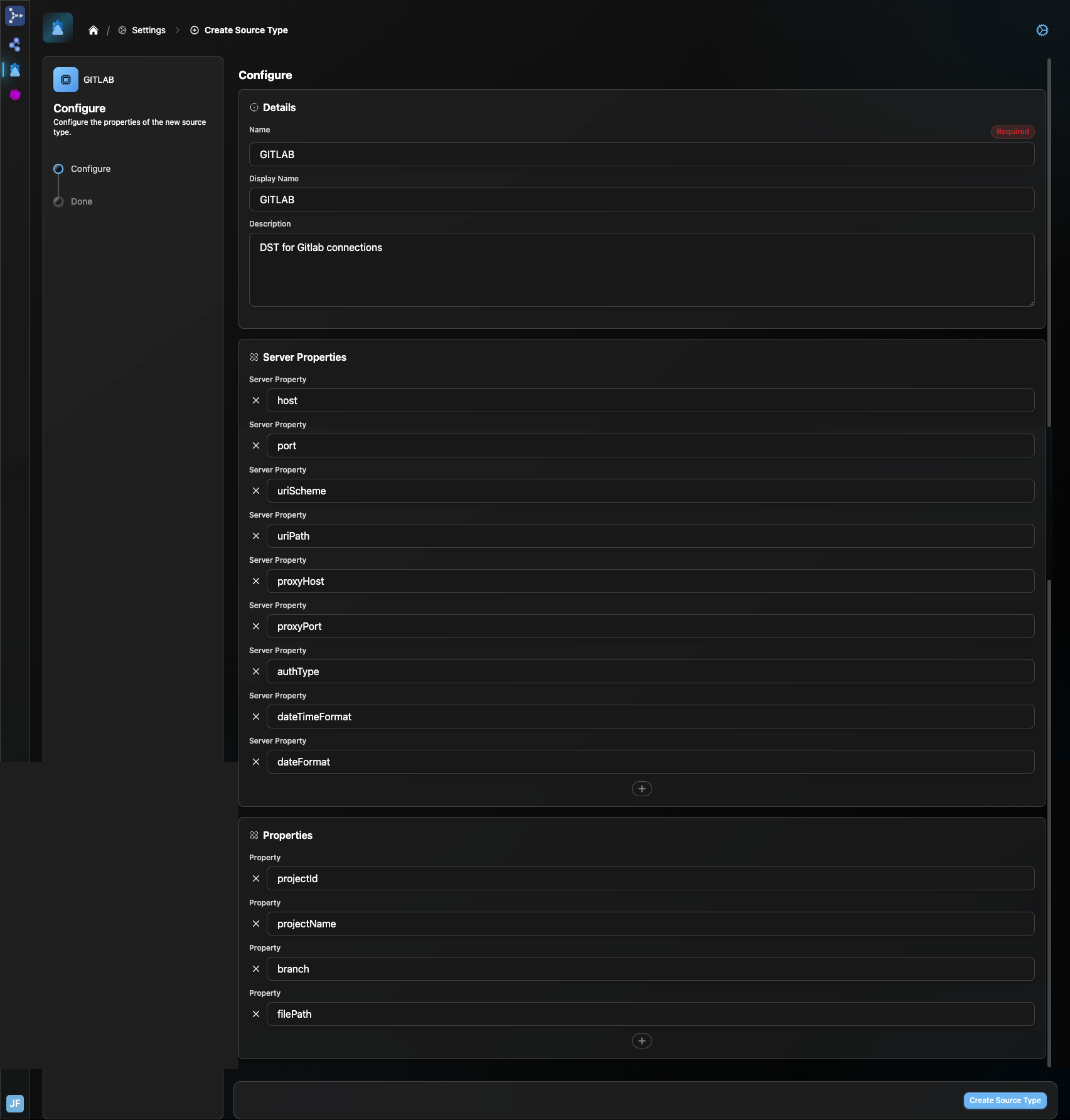
Create a Data Source Type, “GITLAB”, entering the Data Source and Channel properties shown below and clicking “Create Source Type”.
Data Source
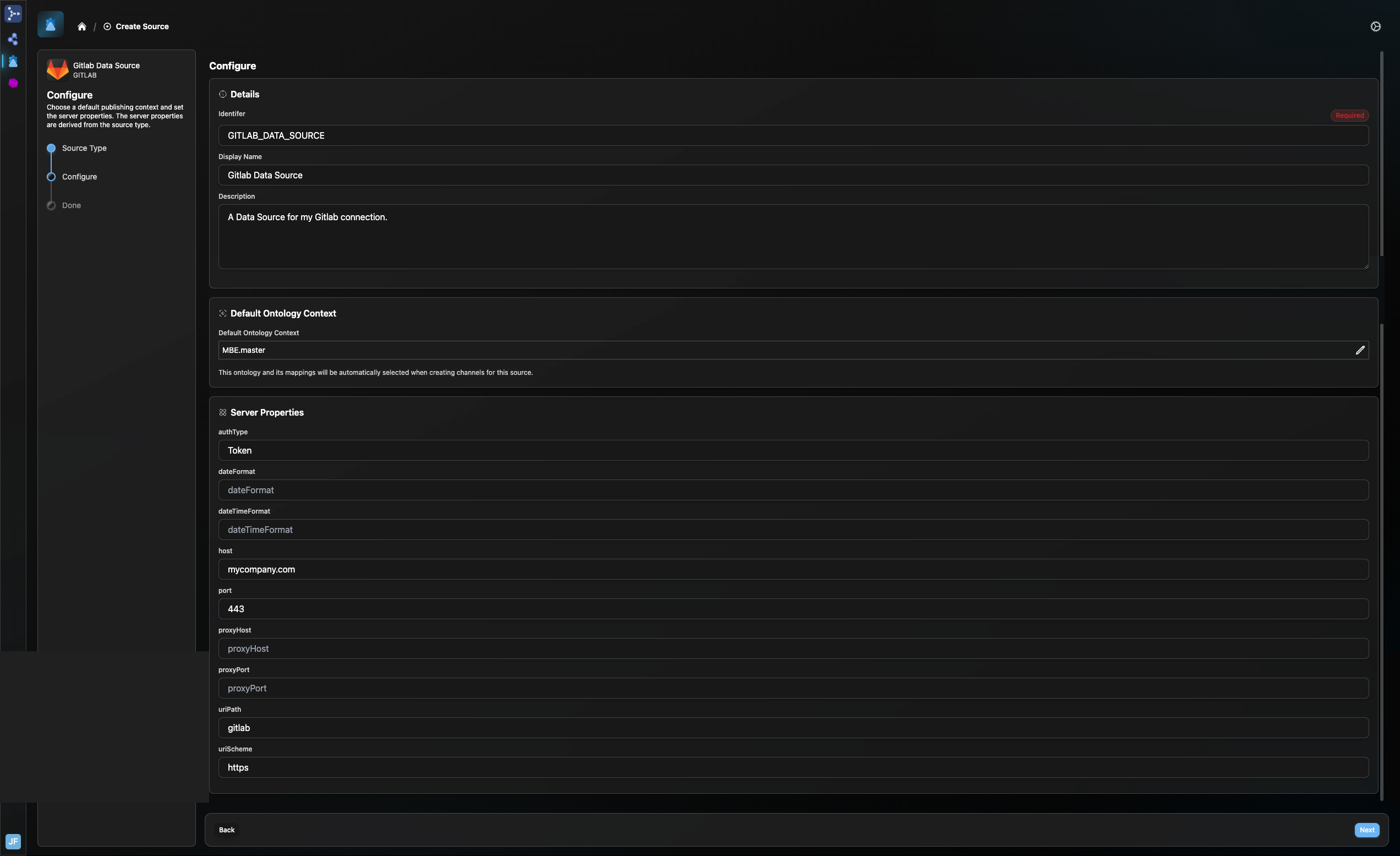
The Data Source (DS) specifies the Gitlab Server to which the digital thread will connect. This server location (url) is specified by the “host”, “port”, “uriScheme” and “uriPath” Data Source Properties, set up on the DST above. The full set of Data Source Properties include:
host: Host name of the Gitlab instance
port: Port at which Gitlab Instance runs (eg: 443)
uriScheme: http or https
uriPath: any path prefix
proxyHost: if applicable
proxyPort: if applicable
authType: Token or Basic (default value is Token)
dateTimeFormat: Format of datetime in your gitlab project (default value is ‘yyyy-MM-dd’T’HH:mm:ss.SSSXXX')
dateFormat: Format of date in your gitlab project (default value is 'yyyy-MM-dd')
After creating your GITLAB DST, click the House icon to return to the Connection Manager home screen. From there, click “Create Source”. Select the newly created GITLAB DST from list of Source Types. Name the Data Source and add a default ontology and description if desired. Enter at least the required Data Source properties (uriScheme, host & port).
Channel
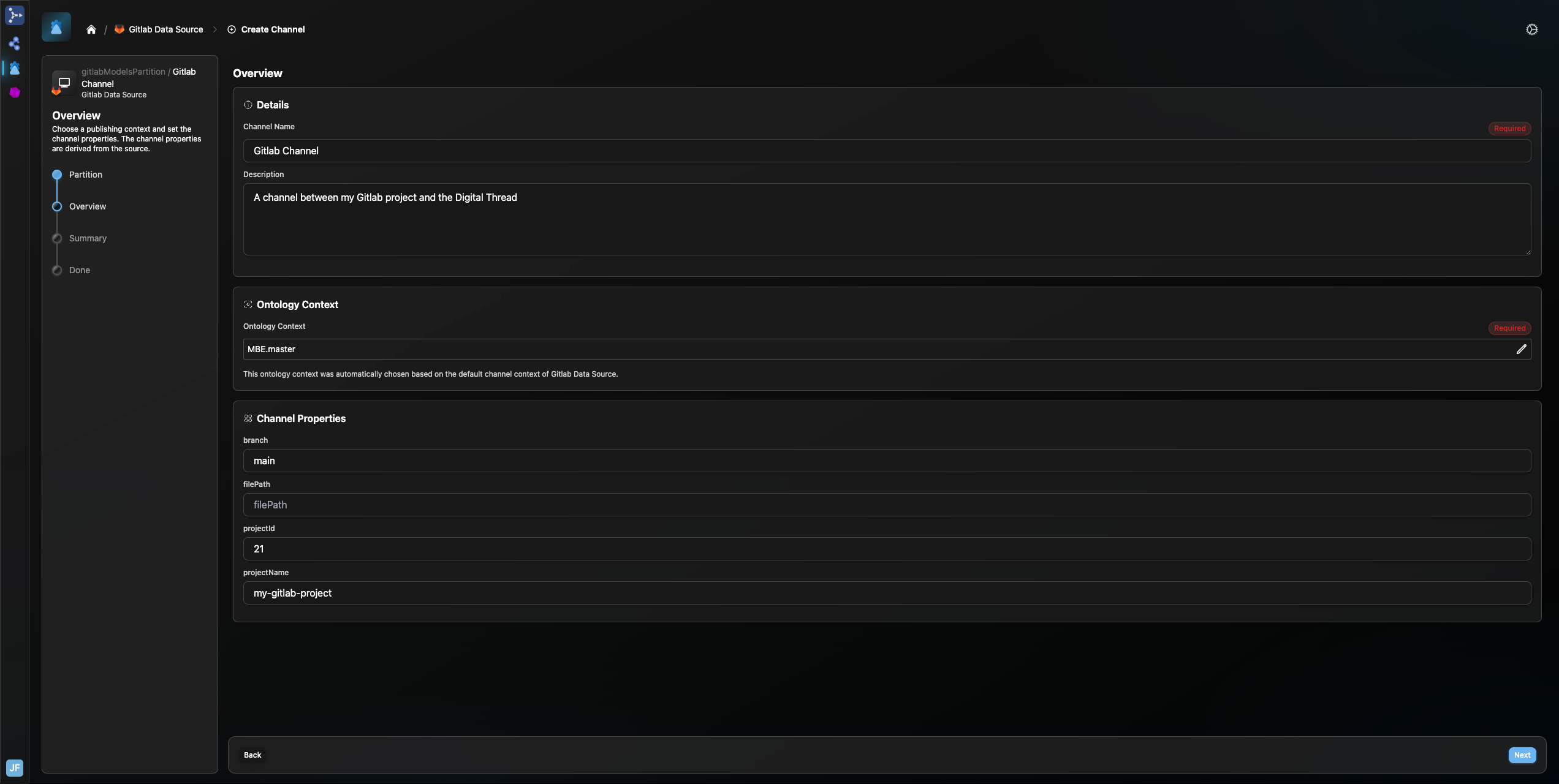
The Channel details the two endpoints of data operations between your Gitlab instance and the digital thread. Channel Properties specify a specific endpoint with a Data Source. The Data Source properties above point to a Gitlab deployment. The Channel Properties specify exactly what on that instance should be connected to the digital thread. Channel Properties for the Gitlab adapter, as set on the DST above, include:
projectId: Internal ID of the project
projectName: Name of the project
branch: Name of the branch, used when publishing files
filePath: path to file(s) being published; separated by ‘|' (e.g. “sample.txt|jsonSample.json”)
After creating your Data Source, return to the Connection Manager home screen. Select your new Gitlab data source from the “Sources” list. This will open the Overview tab, where you can view and edit the Data Source properties set above. Click the “Create channel” button:
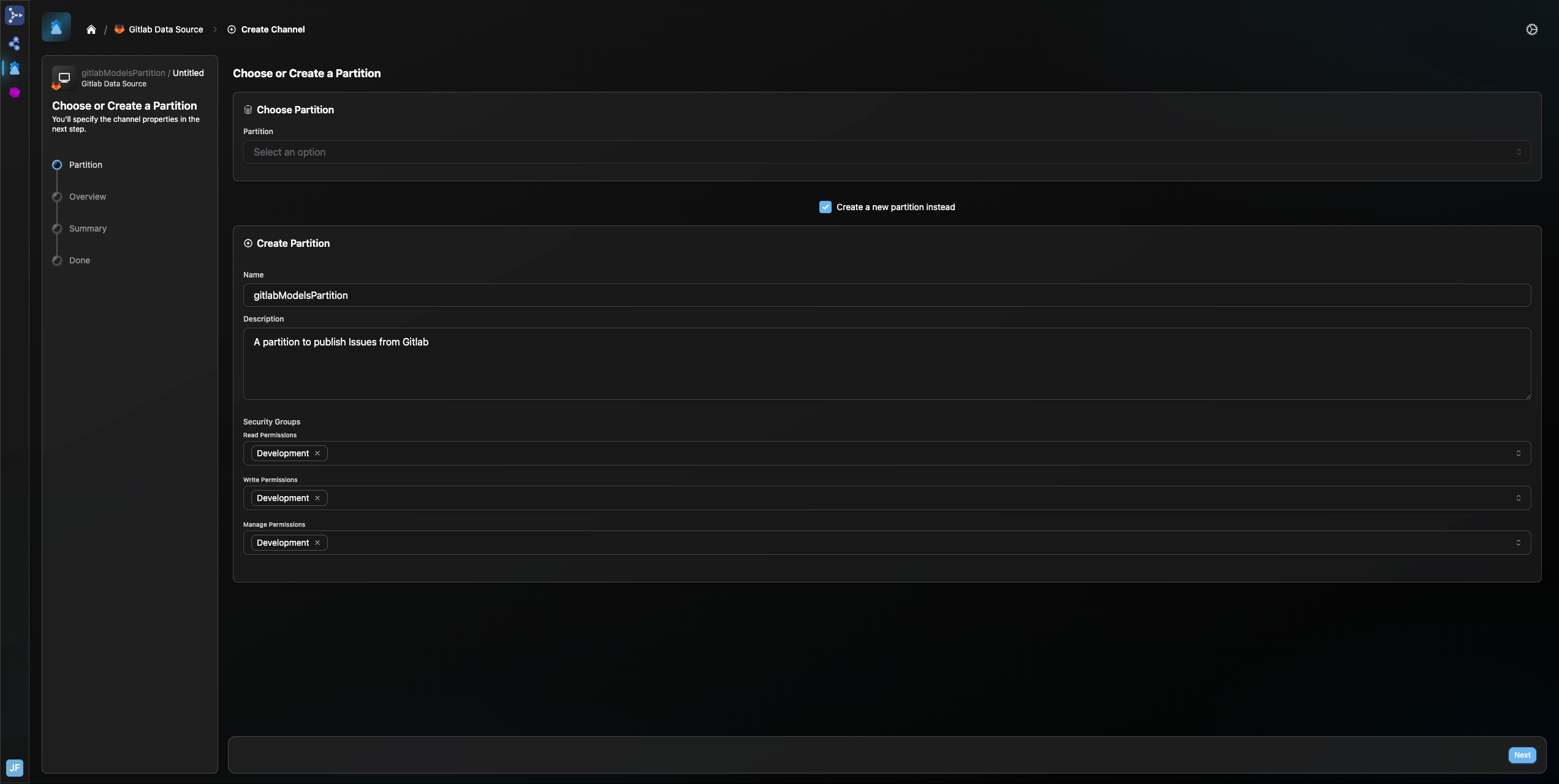
Under “Choose Partition”, select the partition on the Digital Thread to which you would like to connect. Alternatively, you can select the “Create a new partition instead” box to create a new partition. This partition is the location on the digital thread where all data will be published to and/or refreshed from. Click “Next”.
On the next page, name your channel and fill in the Channel Properties to specify the Gitlab project/branch to which you would like. to attach. Optionally, you can specify a list of files to include in any data operations with the Digital Thread.
Click “Next”, review your entries and click “Create Channel”.
1.4 Publishing Items
Create a Data Source Type, Data Source and Channel as described in Section 1.3 above.
Ensure that the URL details of the Gitlab instance are included in the Data Source Properties, the specific project and any files to be published are included in the Channel Properties, and that your Gitlab mappings are loaded.
In the Connection Manager, click the “1 Channel” link beside your Gitlab Data Source. In the subsequent page, click on the channel under the “Name” column. This will take you to the Overview tab of the Channel page.
Click on the Run button in the upper right corner of the Overview tab. In the pop-up, select Publish and click “Next”. Enter your Gitlab credentials in the next pop-up and start the publish.
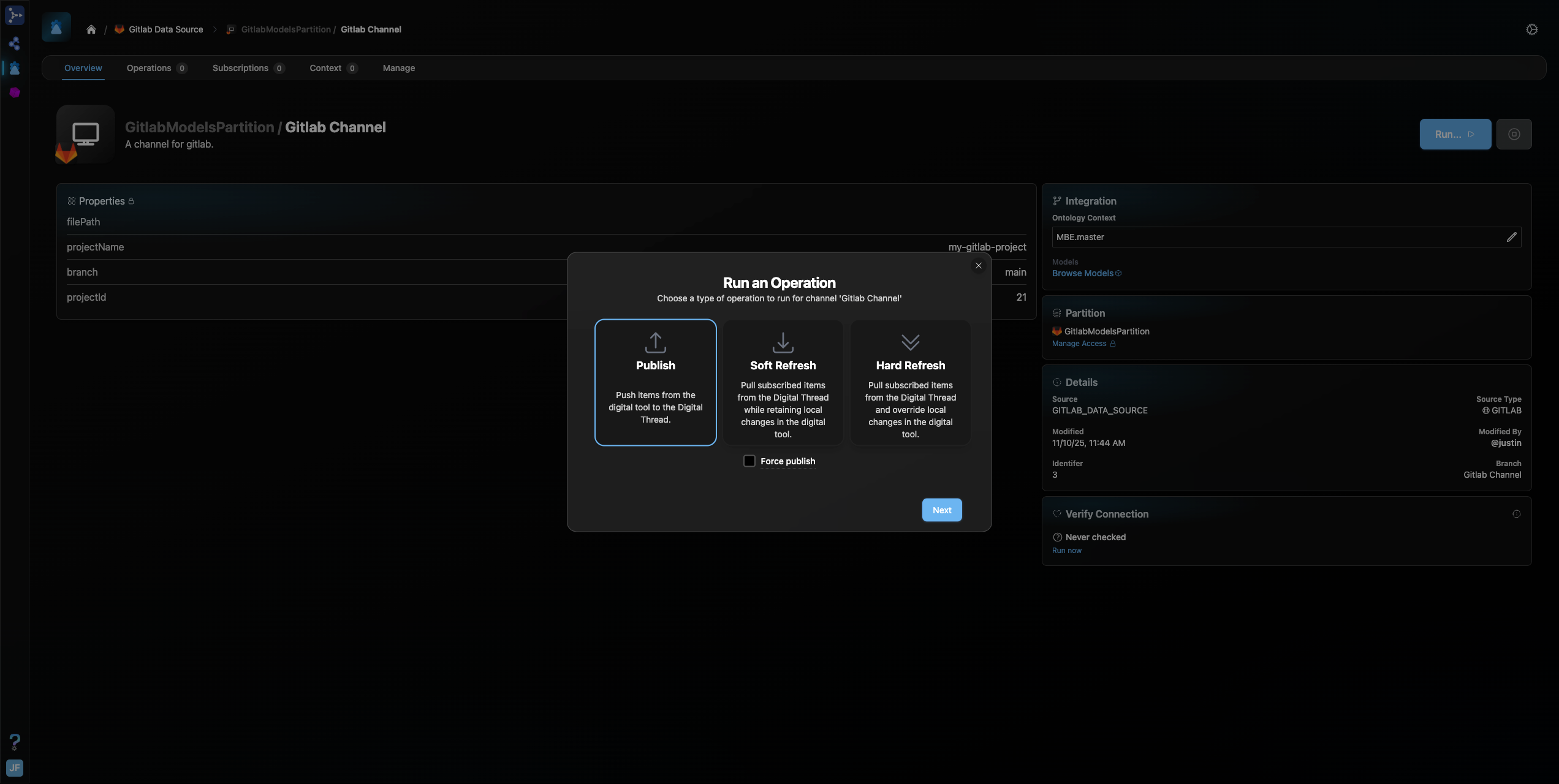
You will be taken to the Operations tab, where you can track the progress of the publish.
1.5 Refreshing Items (Including Subscribed Items)
Assuming that a Data Source Type, Data Source and Channel have been set up, initiating a Refresh operation, as with Publish, can be performed from the “Overview” tab of the Channel page.
Select “Hard Refresh” from the Run An Operation menu to refresh data from the digital thread to the connected Gitlab project.
ASOT models, those originating from the Gitlab project via a previous Publish operation on the channel, will be updated, including any changes to properties or relations, in the same indices from which they originated. Existing issues/epics/tasks and files will be overwritten with updated versions from the digital thread.
Subscribed models, those originating from projects or systems outside of the channel will be written to the project. Subscription refresh is currently only available or Epics and Issues/Tasks.
1.6 Verify
Assuming that Data Source Type, Data Source and Channel have been set up, and an initial Publish and/or Refresh have been completed, a Verify operation can be utilized to ensure that items in your Gitlab project are in sync with their counterparts in the Digital Thread.
On the Overview tab of Channel page, Find the “Verify Connection” pane and select “Run Now”.
Click the link to open the Tracking Center. Click the hyperlinked Tracking ID beside the Verify Operation to go to the tracking page of the Verify operation.
Upon completion of the final stage of the Verify operation, click the small arrow to the right of the page header and select “Download Logs (Detailed)”.
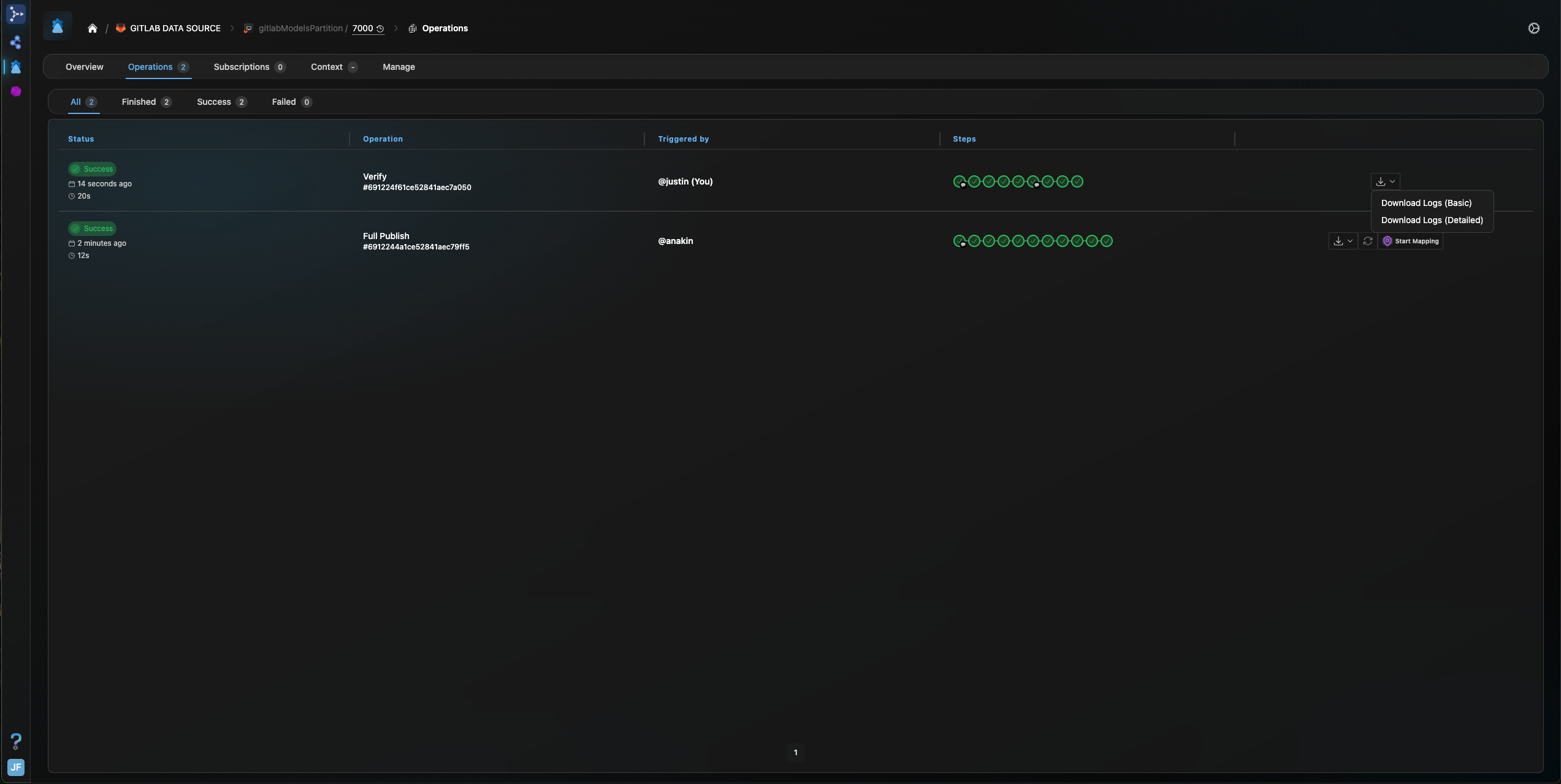
View the detailed logs to see an item-by-item comparison of each corresponding Gitlab item/SBE model pair, indicating any discrepancies between the two in properties, relations or metadata.
1.7 Advanced Operations
Soft-Refresh
The Rebase/Soft-Refresh operation is a variation of the Hard Refresh, as described in Section 1.1. A Soft-Refresh is initiated by selecting the “Soft Refresh” option on the “Run an Operation” menu from the Channel page.
Reset
Reset can be initiated by a direct HTTP request to that platform. However, the option is not currently supported in the SBE web-UI.
2. Document Overview
2.1 Document Overview
This document provides essential information for using, configuring, and supporting the SBE Vision adapter for Gitlab. There is a different version of this document for each major release of the SBE Platform.
2.2 Document Orientation
This document is designed to inform users with various roles:
End Users should begin with Section 1 to understand how to access and operate the adapter, and Section 5 for issues pertaining to the setup, configuration, and use of the digital tool itself.
Digital Thread Specialists should focus on Section 1, and also consult Sections 3, 4, and 5 for deployment and semantic mapping. Section 11 contains details related to mapping items from this tool into a semantic ontology.
Administrators should refer to Section 6 and beyond for setup, security, support, and version management.
3. Adapter Use Cases
3.1 Adapter Overview
The purpose of this adapter is to allow the data contained within instances of Gitlab to connect with the SBE Digital Thread platform. Given that Gitlab is a server-based tool, the usage of this adapter is primarily through the SBE UI or http requests to the SBE instance. This adapter was built using the SBE Java Pro-SDK product.
3.2 Typical Use Cases
Lead By: Solutions
Why this adapter exists
What problem it solves in the system development lifecycle
reqs ↔ architecture with diff/merge in between
Example: “Sync requirements from Tool A to Tool B”
Step-by-step walkthroughs or diagrams
4. Supported Versions
Led By: Engineering
Source: Existing Docs & CCTV
4.1 Supported Adapter Products
7.x
7.0, 7.1, 7.2, 7.3, 7.4, 7.5, 7.6, 7.7, 7.9, 7.10
8.x
8.0, 8.1, 8.2, 8.3, 8.5, 8.7
4.2 External Tool Versions Supported
All versions of the Gitlab Adapter utilize the Gitlab REST API. The Gitlab adapter will work with any Gitlab server/instance and publish/refresh the set of objects described in this document that are supported by that specific version/configuration of Gitlab. If, for example, your Gitlab configuration does not support Epics, the adapter will simply process issues, pipelines, jobs and files in all data operations.
4.3 Differences Across Tool Versions
Versions 7.0-7.5 and 8.0 supported only the Publish operation to bring ASOT data into the digital thread. Only JSON files were supported.
Support for the Verify operation was added in v7.6/8.1.
Version 7.8/8.1 added support for hard and soft Refresh of ASOT data. Support for both refresh and publish of subscription data was also added. Support for non-JSON files was also added.
Version 7.9/8.3 added support for the Reset operation.
5. Digital Tool Best Practices
Source: Existing Info & Knowledge
5.1 Tool Configuration Considerations
The Gitlab adapter requires minimal configuration. All configuration is done via the Data Source and Channel properties.
The target Gitlab instance must be set in the ‘uriScheme’, ‘host’, ‘port’ and ‘uriPath’ (optional, as necessary) Data Source Properties. The ‘authType’ property defaults to Token, and must be set to 'Basic” if specified by the Gitlab instance.
The specific project and branch on your Gitlab instance to be attached to the digital thread is specified by the ‘projectId’, ‘projectName’ and ‘branch’ Channel properties.
Any files to be included on your channel must be specified in the filePath Channel property, as a list separated by '|'.
5.2 Usage Tips & Gotchas
N/A
5.3 Tool Limitations and Workarounds
N/A
6. Installation
Led By: Engineering
Source: Atlassian Page, DevOps Team & Knowledge
6.1 Installation Instructions
The Gitlab Adapter is a server-based tool that runs entirely on an existing SBE deployment.
6.2 Configuration
6.3 Data Source Type Definition
Data Source Type
The Data Source Type (DST) is a generic designator that tells SBE the identity of the external system that a Data Source, Channel or Connection are targeting. The Gitlab adapter handles all operations on Channels tied to Gitlab, as indicated by an associated DST with name “GITLAB”.
The GITLAB DST can be associated with multiple Data Sources, thus allowing connection to multiple Gitlab servers, projects and branches on different channels. To accommodate this, the DST specifies two sets of properties, Data Source Properties and Channel Properties.
The Gitlab Adapter requires a Data Source Type named “GITLAB”, as shown below. Client Type should be THIN and the DST should be created with the Data Source and Channel properties shown below:
Data Source
The Data Source (DS) specifies the Gitlab Server to which the digital thread will connect. This server location (url) is specified by the ‘host’, ‘port’, ‘uriScheme’ and ‘uriPath’ Data Source Properties, set up on the DST above. The full set of Data Source Properties include:
host: Host name of the Gitlab instance
port: Port at which Gitlab Instance runs (eg: 443)
uriScheme: http or https
uriPath: any path prefix
proxyHost: if applicable
proxyPort: if applicable
authType: Token or Basic (default value is Token)
dateTimeFormat: Format of datetime in your gitlab project (default value is ‘yyyy-MM-dd’T’HH:mm:ss.SSSXXX')
dateFormat: Format of date in your gitlab project (default value is 'yyyy-MM-dd')
7. Channels and Mappings
7.1 Channel Definition
The Channel details the two endpoints of data operations between your Gitlab instance and the digital thread.
Click the “Attach to Digital Thread” tab:
Select your newly created Data Source (above) from the “Data Source” dropdown. Click “Next”.
Under “Configure channel properties”, select the ontological context for your dataset if it wasn’t set previously and set the Channel Properties to point to a specific project on your gitlab instance that you. Channel properties include:
projectId: Internal ID of the project
projectName: Name of the project
branch: Name of the branch, used when publishing files
filePath: path to file(s) being published; separated by ‘|' (e.g. “sample.txt|jsonSample.json”)
Select an existing or create a new Partition and Branch in the digital thread to connect to your Gitlab project. This Branch is the location on the digital thread where all data will be published to and/or refreshed from. Click “Create Channel” to create the new channel.
7.2 Approaches to Mapping
Example mappings of gitlab items to SBE’s MBE ontology can be provided upon request.
All properties of interest must be mapped in order to be published into or refreshed out of the digital thread. Identifying “_externalName” values for all properties match those output by the Gitlab REST API.
Similar to properties, relations must be mapped in order to be included in the digital thread. For example, the Pipeline object must contain a Relation mapping to ‘Jobs’ in order to preserve this link through DT data operations. Similarly, the ‘Relates’ and ‘Blocks’ relations between native Gitlab Issues/Tasks must be mapped to be included in the DT.
As discussed in Section 1, JSON files are broken down layer by layer into separate SBE models. For example, the following JSON will be broken into two models in the DT. The first model will contain the “firstKey” and “secondKey” properties. The second model will contain the “subKey1” and “anotherSubKey” properties. The external property names (the keys in each key:value pair) must be included as externalName values in the mapped properties to be published to the DT.
CODE{ "firstKey" : "1234", "secondKey" : "This is a JSON", "nestedJson" : { "subKey1" : "A nested JSON", "anotherSubKey" : 5.85 } }
"_mappedProperties": [
    {
        "_propertyMappings": [
            {
                "_dataSource": null,
                "_dataSourceType": "GITLAB",
                "_externalName": "fileName",
                "_shapeId": "JsonItem"
            }
        ],
        "_name": "name",
        "_format": "STRING",
        "_type": "STRING"
    },
    {
        "_propertyMappings": [
            {
                "_dataSource": null,
                "_dataSourceType": "GITLAB",
                "_externalName": "firstKey",
                "_shapeId": "JsonItem"
            }
        ],
        "_name": "clazzProperty1",
        "_format": "STRING",
        "_type": "STRING"
    },
    {
        "_propertyMappings": [
            {
                "_dataSource": null,
                "_dataSourceType": "GITLAB",
                "_externalName": "secondKey",
                "_shapeId": "JsonItem"
            }
        ],
        "_name": "clazzProperty2",
        "_format": "STRING",
        "_type": "STRING"
    },
    {
        "_propertyMappings": [
            {
                "_dataSource": null,
                "_dataSourceType": "GITLAB",
                "_externalName": "subKey1",
                "_shapeId": "JsonItem"
            }
        ],
        "_name": "clazzProperty3",
        "_format": "STRING",
        "_type": "STRING"
    },
    {
        "_propertyMappings": [
            {
                "_dataSource": null,
                "_dataSourceType": "GITLAB",
                "_externalName": "anotherSubKey",
                "_shapeId": "JsonItem"
            }
        ],
        "_name": "clazzProperty4",
        "_format": "FLOAT",
        "_type": "FLOAT"
    }
],
In order for the parent JSON models to link to their children, a relationMapping with “_externalName” “Contains" must be included on the ShapeId the JSON files are mapped to. To show the inverse relationship, include a relationMapping with “_externalName” “ContainedBy". For example:
"_mappedRelations": [
    {
        "_relationMappings": [
            {
                "_matchingPredicate": "",
                "_dataSource": null,
                "_dataSourceType": "GITLAB",
                "_externalName": "Contains",
                "_shapeId": "JsonItem",
                "_rules": []
            }
        ],
        "_name": "Containment"
    },
        {
        "_relationMappings": [
            {
                "_matchingPredicate": "",
                "_dataSource": null,
                "_dataSourceType": "GITLAB",
                "_externalName": "ContainedBy",
                "_shapeId": "JsonItem",
                "_rules": []
            }
        ],
        "_name": "Source"
    }
]
8. Security and Access
Lead By: Engineering
8.1 Authentication Methods
See RFC 006 - Authentication & Authorization for the standard on how to authenticate to use SBE and adapter services.
A user must be logged into the SBE platform as a user with appropriate permissions (Read, Write, and/or Manage) for the operation being performed.
Gitlab credentials (token or username/password) will be requested upon initiation of any data operation in the platform.
8.2 Authorization and Roles
Role-based access models
User-to-role mapping
8.3 Secure Communication
TLS configuration
Firewall or VPN guidelines
8.4 Identity Integration
LDAP, SSO, or identity federation
9. Troubleshooting
Lead By: Solutions
Source: Existing Docs & Knowledge
9.1 Known Issues
Compatibility limitations
Common operational issues
Maximum item-size limitations
Performance Issues
9.2 Logs and Diagnostics
Where logs are located
Enabling debug output
9.3 Common Misconfigurations
Setup pitfalls
Misuse scenarios
9.4 Escalation and Support
How and when to contact SBE support
Required logs or artifacts
10. Release Notes
Lead By: Engineering
Source: Existing Docs, GitLab
10.1 Version History
7.x
7.9
Improve support for subscription refresh/publish
Implement Reset
Add labels to schema for issues/epics/tasks for publish/refresh
Fix bug in Verify of relations/links in pipelines
7.8
Implement Refresh
Implement Rebase
Fix bugs in Verify
Implement Publish of both json and non-json files
Add support for subscription Refresh/Publish
7.7
Update to java SDK version 7.45
7.6
Implement Verify
Update to java SDK version 7.36
7.5
Add support for Rebase functionality
Update to lastest SDK version (7.33)
7.4
Update to java SDK version 7.27
7.3
Upgrade (Woburn) one channel at a time
7.2
Validate Channel properties on Readiness
Update to java SDK version 7.15
7.1
Added support for Html description
7.0
Initial Woburn Tag (SBE 7.0)
Parallel Request processing
Deprecated Resource DTO
Support Upgrade
SDK storage
Bug fixes
Added more Integration tests
New Project versioning
Add Adapter Readiness
8.x
8.7
Allows delta publish/refresh to be turned off via request Ticket
Fixes bugs in Delta Publish
Upgrade to Java-sdk 8.17
8.5
Reports granular finish states to tracking center
Adds support for Reset operation
Upgrade to Java-sdk 8.14
8.3
Adds support for Reset operation
Fixes Bug in Verify of links
Fixes bug preventing refresh of labels on Issues
Upgrade to Java-sdk 8.11
8.2
Upgrade to Java-sdk 8.9
8.1
Adds support for Hard/Soft Refresh
Adds support for Subscriptions
Adds support for Verify operation
Adds support for non-JSON (as well as JSON) file Publish/Refresh
Upgrade to Java-sdk 8.8
8.0
Support SBE 8.0 Melrose
Includes all features up to gitlab-adapter v7.4
10.2 Breaking Changes
N/A
11. Technical Reference
Lead By: Engineering
Source: ARS & RFCs
11.1 Adapter API Endpoints
The Gitlab Adapter operates entirely via the SBE platform. There are no external API endpoints to the adapter. The adapter itself communicates with the Gitlab server via the Gitlab REST API. Users can also access and manage their Gitlab projects via the Gitlab UI or via independent http requests to the Gitlab REST API.
11.2 Identity
All items within a Gitlab project, and the project itself, can be uniquely identified by a combination of the item type (e.g. Issue or Pipeline) and a Gitlab generated and assigned ID. These two variables are utilized as the unique external identifier for all ASOT and subscription items within a connected Gitlab project.
11.3 Configuration File Format Reference
N/A
11.4 Schema Support
The Gitlab adapter supports data operations (limitations described herein) on Epic/Issue/Task, Pipeline, Job and File objects. The schemas for these metaclasses are defined by Gitlab and the Gitlab REST API. Included properties and links are listed below for each metaclass. JSON items
Metaclass: Issue
Issues, Epics and Tasks are subsets of the Issue metaclass.
Property Name | Data Type | Required | Description |
id | Integer | no | Id of the issue, eg: 1230 |
iid | Integer | no | Internal Id of the issue. |
projectId | Integer | yes | ProjectId of the issue. |
title | String | yes | Title of the issue. |
description | String | no | Description of the issue |
state | String | no | State of the issue |
createdAt | Date | no | Created date of the issue. Expected |
updatedAt | Date | no | Updated date of the issue . Expected |
closedAt | Date | no | Closed date of the issue. Expected |
closedByName | String | no | Name of the user who closed the issue. |
closedById | Integer | no | Id of the user who closed the issue. |
closedByUsername | String | no | Name of the user who closed the issue. |
authorName | String | no | Name of the author who created the issue. |
authorId | Integer | no | Id of the author who created the issue. |
authorState | String | no | State of the author who created the issue. |
authorUsername | String | no | User name of the author who created the issue. |
authorAvatarURL | String | no | Avatar url of the author who created the issue. |
authorWebURL | String | no | Web url of the author who created the issue. |
mileStoneID | Integer | no | Id of milestone(version). |
mileStoneIID | Integer | no | Internal id of milestone(version). |
mileStoneProjectId | Integer | no | Project id of milestone(version). |
mileStoneTitle | String | no | Title of milestone(version). |
mileStoneDescription | String | no | Description of milestone(version). |
mileStoneState | String | no | State of milestone(version). |
mileStoneCreateAt | Date | no | Created date of milestone(version). Expected |
mileStoneUpdateAt | Date | no | Updated date of milestone(version). Expected |
mileStoneDueDate | Date | no | Due date of milestone(version). Expected |
mileStoneStartDate | Date | no | Start date of milestone(version). Expected |
mileStoneExpired | Boolean | no | Flag to indicate if milestone(version) expired or not. |
mileStoneWebUrl | String | no | Web url of milestone(version). |
type | String | no | Type of the issue. |
assigneeId | Integer | no | Id of assignee for the issue. |
assigneeState | String | no | State of assignee for the issue. |
assigneeUsername | String | no | User name of assignee for the issue. |
assigneeName | String | no | Name of assignee for the issue. |
assigneeAvatarURL | String | no | Avatar url of assignee for the issue. |
assigneeWebURL | String | no | Web url of assignee for the issue. |
issueType | String | no | Type of the issue. |
webURL | String | no | Web url of the issue. |
weight | String | no | Weight of the issue. |
selfLink | String | no | Link for the issue. |
notesLink | String | no | Link for notes of the issue. |
awardEmojiLink | String | no | Link for award emoji of the issue. |
projectLink | String | no | Link for project of the issue. |
referencesShort | String | no |
|
referencesRelative | String | no |
|
referencesFull | String | no |
|
epicIID | Integer | no | Internal Id of the epic under which issue is present. |
epicID | Integer | no | Id of the epic under which issue is present. |
epicTitle | String | no | Title of the epic under which issue is present. |
epicUrl | String | no | Url of the epic under which issue is present. |
epicGroupId | Integer | no | Group id of the epic under which issue is present. |
assigneeNames | List of Strings | no | List of assignee names for the issue. |
labels | List of Strings | no | List of labels for the issue. |
Links:
Name | Types | Description |
|---|---|---|
Relates | Issue | Holds those issues which are related to the issue. |
Blocks | Issue | Holds those issues which are blocked by issue. |
BlockedBy | Issue | Holds those issues which have blocked the issue. |
Metaclass: Pipeline
Attributes:
Name | Data Type | Required | Description |
|---|---|---|---|
id | Integer | No | Id of the pipeline, eg: 1230 |
projectID | Integer | No | Project id of the pipeline. |
sha | String | No | Sha of the pipeline. |
ref | String | No | Ref of the pipeline. |
status | String | No | Status of the pipeline |
source | String | No | Source of the pipeline |
createdAt | Date | No | Created date of the pipeline. Expected |
updatedAt | Date | No | Updated date of the pipeline. Expected |
webURL | String | No | url of the pipeline. |
Links:
Name | Types | Description |
|---|---|---|
Jobs | Job | Holds jobs that comprise the pipeline. |
Metaclass: Job
Attributes:
Property Name | Data Type | Required | Description |
|---|---|---|---|
id | String | No | Id of the job, eg: 1230 |
status | String | No | IStatus of the job. |
stage | String | No | Stage of the job |
name | String | No | Name of the job. |
ref | String | No | Ref of the job. |
tag | String | No | Tag of the job. |
coverage | String | No | Coverage of the job |
allowFailure | Boolean | No | Allow failure flag of the job. |
createdAt | Date | No | Created date of the job. Expected |
Metaclass: JsonItem
This class represents a JsonFile.
Name: JsonItem
Property Name | Data Type | Required | Description |
|---|---|---|---|
nodeName | String | No | Name of the json node, in case of the root node the value will be eg: There will be 2 nodes from the given example
CODE
|
branch | String | No | name of the branch where the file resides |
path | String | No | path of the file wrt to repository |
Note: The properties on JsonItem are published based on the json name value pairs
There are 2 relations on JsonItem:
Name | Types | Mult. | Description |
|---|---|---|---|
Containment | JsonItem | 0..* | Holds children nodes |
ContainedBy | JsonItem | 0..1 | Holds Parent Node |